
The short answer: yes, AI can take a real chunk of the work out of configuring your Amazon seller backend—and it helps at three levels. Inside Seller Central, Amazon's own agentic assistant handles account questions and account-level actions. For listings, Amazon's AI tools generate titles, bullets, and A+ content. And around the backend, browser agents like Tabbit's Agent Mode handle the research, spreadsheets, and content drafting that the whole setup depends on.
Sellers are already running this mix today. On r/AmazonFBA, a 2026 thread asks exactly how sellers use AI for listing creation, PPC optimization, and automations—and one reply sums up the quiet part: AI has been "super helpful for market research as well as helping break down and understand Amazon policies." That is the day-to-day reality of configuring a seller account: it is less about one big switch and more about dozens of small configuration tasks, many of them outside Seller Central.
Below I'll walk through what configuring the Amazon seller backend actually involves, what Amazon itself now offers, where native AI stops, and how a browser agent like Tabbit's Agent Mode fills the gap—with a real prompt and screenshot you can use today.
Key takeaways
Amazon's own AI does the inside-account work: Seller Assistant answers questions and can act on listings and account health when you grant it permission.
Amazon's AI listing tools generate titles, bullets, and A+ content, including batch creation—no copywriting from scratch.
Amazon's March 2026 AI agent policy and its bot detection mean browser agents should work around Seller Central, not on it: official SP-API and Seller Assistant are the compliant channels inside.
A browser agent like Tabbit Agent Mode is best for the surrounding configuration work: policy research, competitor data, tracking sheets, and listing drafts, running in parallel while you keep working.
Start with Amazon's native tools, then add a browser agent once you're managing real volume—most sellers never need custom code.
What configuring the Amazon seller backend actually involves
"Configuring the Amazon seller backend" sounds like one setting. In practice it is a cluster of setup tasks that live in different places, some inside Seller Central and some outside it.
| Configuration area | Typical tasks | AI that helps |
|---|---|---|
| Account & permissions | Brand Registry, user permissions, tax and bank details | Seller Assistant answers account questions; official wizards |
| Listings | Titles, bullets, A+ content, batch creation | Amazon AI listing tools; AI drafts from your product data |
| Inventory & shipping | FBA inbound, shipping templates, restock planning | Seller Assistant metrics; spreadsheet agents for tracking |
| Advertising | Campaign setup, keyword research, ad copy | AI chat agents for ad copy and keyword research |
| Customer service | Seller support cases, Plans of Action, appeals | AI drafting assistants for cases and POAs |
| Research & tracking | Market research, reading policies, competitor watch | Browser agents on external sites |
The first four rows are "inside" tasks—Amazon has tools for them. The last two are "around" tasks, and that is where a browser agent earns its keep.
Amazon's own AI tools for seller setup
Amazon ships two AI capabilities you should configure before adding anything else.
Seller Assistant is an agentic assistant inside Seller Central. It answers knowledge questions ("How do I change my product category?"), gives business insights ("What was my OPS yesterday?"), and handles account operations ("What's my current inventory status?"). With edit permission it can investigate suppressed listings, resolve stranded inventory, analyze storage fees, assess Buy Box eligibility, and act on your behalf. Administrators enable it under Settings → User Permissions → Edit → Seller Assistant, and changes apply within about five minutes. The official Seller Assistant help page is the authoritative source.
AI listing tools generate listing content from a product description, an image, or an existing product website, and they support batch listing and A+ content generation—documented in Amazon's own AI listing guide. For a seller who is still typing bullets by hand, this is the fastest single win.
Industry observers noticed the improvements. My Amazon Guy, a well-known Amazon seller agency, noted that Seller Assistant now pulls Seller News directly into its answers: "Less digging. Fewer tabs. More context." Amazon has also announced Canvas, an AI experience that turns your business data, insights, and recommended actions into interactive visual workspaces, first described on the Seller Central forums.
Where native AI stops: bots, policy, and the human in the loop
This is the part most guides skip. Amazon's own AI is great inside Seller Central, but it will not browse the open web for you, and third-party browser agents cannot freely operate Amazon's own pages.
Two hard constraints:
Bot detection. Sellers building their own agents hit this immediately. On r/AmazonFBA, one seller building agentic buy box monitoring reported that "web page access seems to get shut down by Amazon's bot detection." Amazon blocks scripted browsing of its properties, and it has already litigated to stop an AI shopping agent from accessing its site.
The March 2026 AI agent policy. Amazon's seller policy now draws a clear line: automation is allowed only through official SP-API channels, every automated action must be attributable to a registered SP-API application, and high-impact actions—large bulk listing creation, price changes above thresholds, and account-level configuration changes—require a human in the loop. A good third-party summary of the rules is this AI agent policy walkthrough.
What this means in practice: the "AI agent" that touches your Amazon account should be Amazon's own tools or a registered SP-API app, and high-impact configuration still lands on a person. A general browser agent is the right tool for everything around the account—research, trackers, drafts—not for scraping Seller Central. If you want the security picture in more depth, the agentic browser security risks page covers prompt injection and unsafe automation.
A practical option: Tabbit Agent Mode
Once your account basics are set up, the remaining configuration work is mostly data work: tracking products and prices, comparing competitor listings, reading policy updates, and drafting content. That work lives in the browser, across dozens of tabs—and it is where an agentic browser earns its place.
Tabbit Agent Mode is an agentic mode built into the Tabbit Browser. You describe a multi-step task in natural language, and the agent plans and executes it in the browser—clicking, reading, filling forms, and collecting results in an independent tab group, so it runs in parallel while you keep working. The Tabbit team has documented this pattern in Best Practices of Tabbit Browser, including letting the agent log into internal dashboards and export data.
For an Amazon seller, the classic use is a configuration tracker: a Google Sheets workbook that holds SKUs, supplier prices, listing titles, and shipping notes—the working document you consult while you configure or reconfigure the backend. You can hand that task to Agent Mode instead of doing it by hand.
The screenshot below shows Agent Mode operating a Google Sheets workbook in its own tab group, with the task instruction and execution steps in the side panel.
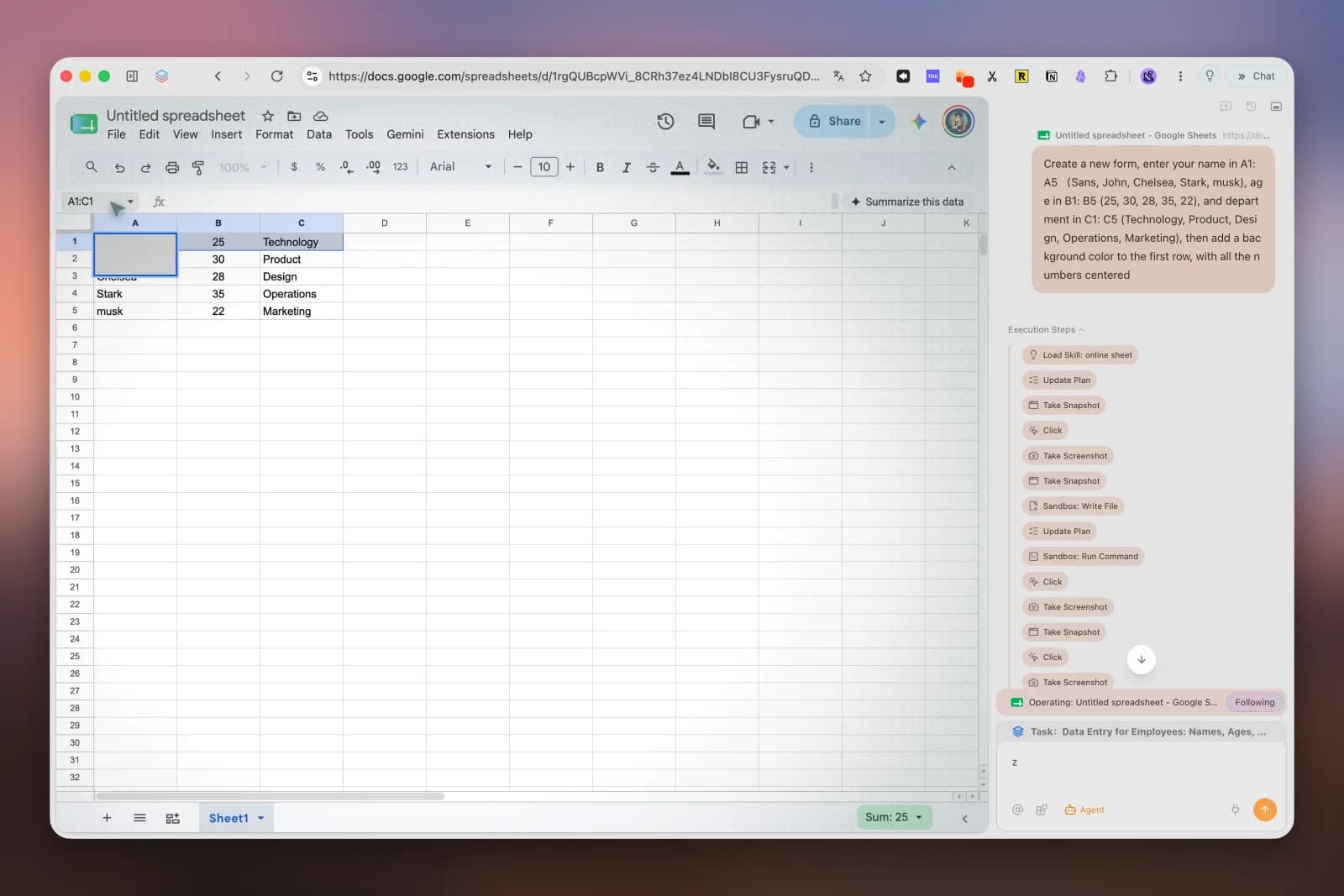
A prompt for this workflow looks like the following. Keep it step-by-step: the more concrete the instructions, the more reliably the agent executes.
## Role
You are an Amazon seller operations assistant working in a browser.

## Task
Open the Google Sheet "Seller Backend Config" and update the "Products" sheet:

1. Read column A. For each SKU, open the supplier URL in column B.
2. Copy the current supplier price and product title into columns C and D.
3. If a supplier price changed by more than 10% since column E was last filled,
   mark the row "REVIEW" in column F.
4. Do not open amazon.com/sell or Seller Central. Work only on the sheet
   and the supplier pages in column B.
5. When finished, summarize in the chat panel which SKUs changed and why.
Why this works for sellers: the agent runs in a background tab group, so it does not block your own tabs. It is useful not just for spreadsheets but for targeted research—comparing supplier pages, reading policy threads, or building the initial data for a new product research pipeline. For those tasks it behaves like a free web automation browser that you control with plain language.
There are honest limits. Agent Mode is still being tuned, and the more detailed your prompt, the more reliable the execution—the product team says so plainly. And the rule from the previous section still applies: keep Amazon-account actions on Amazon's own channels, and use Agent Mode for the external data work around them. If you want a fuller comparison of agentic browsers versus scripted automation, the agentic browser vs browser automation guide walks through when each makes sense.
A step-by-step seller backend configuration workflow with AI
Here is a workflow that combines Amazon's native AI with a browser agent, ordered so that each step builds on the last.
Register and set up your account. Create your Seller Central account at sell.amazon.com and complete tax and banking details. Use Seller Assistant to answer account questions as you go.
Enable Seller Assistant and grant edit permission. Settings → User Permissions → Edit → enable Seller Assistant for the users who will manage the account.
Generate listings with Amazon AI. For each product, use Amazon's AI listing tool from your product description, images, or existing website. Review and publish.
Build a tracking sheet. Create a Google Sheets workbook for SKUs, supplier prices, listing status, and deadlines. This becomes your configuration source of truth.
Hand the tracking sheet to a browser agent. Use Agent Mode with a prompt like the one above to keep the sheet current against supplier pages.
Do the surrounding research in parallel. While the agent updates the sheet, use Deep Research or a research agent to read policy updates, analyze competitor listings, and flag anything that changes your configuration.
Keep the human in the loop for high-impact changes. Bulk listing creation, large price moves, and account-level configuration changes go through a person—even with Amazon's own tools. For an agentic browser this is a feature: it gathers the inputs, you make the call.
The productivity browser comparison explains how this parallel workflow changes day-to-day setup time once you are past the first account.
Which AI setup fits your situation
| Your situation | Recommended setup | Why |
|---|---|---|
| New seller, no technical background | Seller Assistant + Amazon AI listing tools | Native, safe, covers account-level configuration |
| Solo seller juggling listings and support cases | Add an AI chat for drafting cases and POAs, plus a spreadsheet tracker | Cuts the repetitive drafting and tracking that eats evenings |
| Growing brand, multi-account or multi-site | Add a browser agent (Tabbit Agent Mode) for research and sheet workflows | Parallel research plus structured trackers scale with accounts |
| Developer or operations team | Registered SP-API app for official automation | The only compliant channel for fully automated account changes |
Final verdict
Configure the account with Amazon's own AI first: Seller Assistant inside Seller Central, AI listing tools for listings, and a human sign-off for anything high-impact. Then, when the surrounding data work starts to eat your week, add a browser agent like Tabbit's Agent Mode to run the research and the tracking sheets in parallel. That combination covers the full configuration surface—inside and around the backend—without stepping on Amazon's bot detection or policy.
If you are new to this, start this week: enable Seller Assistant, generate one listing with Amazon AI, and create the tracker sheet. Hand the tracker to an AI browser agent that works while you do. For sellers who already spend hours copying data between tabs, that one change is the highest-leverage step in the whole configuration process.

FAQ
What is the Amazon seller backend?
The Amazon seller backend is Seller Central, the dashboard where you manage your seller account—account settings and permissions, tax and banking, shipping templates, product listings, inventory, advertising, and customer service. "Configuring the backend" means getting these settings and workflows in place so your store runs smoothly. It is the same console Amazon's own AI assistant, Seller Assistant, operates inside.
Can AI actually change settings in my Amazon Seller Central account?
Yes, within limits. Amazon's Seller Assistant can run account-level and listing-level actions when you grant it edit permission, such as investigating suppressed listings or resolving stranded inventory. Under Amazon's 2026 AI agent policy, high-impact changes like large bulk listing creation or account-level configuration changes still require human confirmation. Keep a person in the loop for anything that could hurt your account.
What AI tools does Amazon provide for sellers?
Amazon provides Seller Assistant, an agentic assistant inside Seller Central that answers questions and can take actions with your permission. It also offers AI listing tools that generate titles, bullets, and A+ content from your product information or an existing product website, plus AI-assisted batch listing. Amazon has also announced Canvas, an AI experience that turns your business data into interactive visual workspaces.
Is it safe to use AI agents with my Amazon seller account?
It depends on the channel. Amazon's own tools and official SP-API apps are the safe paths, because Amazon requires automated actions to come from a registered SP-API application. Tools that simulate human browsing of Amazon properties can trigger bot detection and violate the March 2026 AI agent policy. Use browser agents on external sites, and keep Amazon-account actions inside official channels.
How do I enable Amazon's Seller Assistant?
An account administrator enables it in Seller Central under Settings, then User Permissions. Open the user you want, find the Seller Assistant permission, set it to Edit access, and save. The change can take up to five minutes to apply. Only grant it to people you trust, because the assistant can view account data and make account-level or ASIN-level changes.
Can an AI browser help me configure my Amazon seller backend?
Yes, for the work around the backend. A browser agent like Tabbit's Agent Mode can research policies and competitors, open and fill a Google Sheets tracker, draft listing content, and hand you structured data in parallel while you work. It cannot replace Amazon's own tools inside Seller Central, but it removes most of the manual gathering and organizing that backend configuration depends on.