To group tabs in desktop Chrome, right-click any tab → Add tab to new group → name the group and choose a color. You can drag in more tabs or select several with Ctrl/Command or Shift. Click the group label to collapse it. This works well while the tab strip is still manageable.
Once titles shrink to favicons and the strip can no longer show every tab, the job is different. One X user described sitting at “218 across 9 windows.” Sorting that session by hand is a project of its own. This guide starts with Chrome's native method, then looks at how Tabbit Browser's Smart Tab Organization handles a larger pile and separates projects into custom desktops.
If your immediate issue is that Chrome hides every title behind tiny favicons, start with the vertical tabs in Chrome guide. Vertical layout makes tabs readable; grouping decides which tabs belong together.
What matters most
Chrome's native tab groups are the fastest answer for a small number of related tabs: create, name, color, drag, collapse, and save.
Use Ctrl/Command-click for separate tabs and Shift-click for a continuous range before adding them to one group.
A useful group should represent a task, state, or scenario, not just a color. “Launch research” is more actionable than “blue.”
Manual grouping stops scaling when tabs overflow the visible strip and you must inspect each page before deciding where it belongs.
Tabbit Smart Tab Organization is the practical shortcut for a large backlog: one click can group pages by topic, while custom rules and desktops preserve the way you actually work.
Tab-group options at a glance
| Method | Best scale | Automatic classification | Persists beyond the current view | Main cost |
|---|---|---|---|---|
| Chrome manual tab groups | 5 to 30 active tabs | No | Groups can be saved and synced when configured | You inspect and place every tab |
| Chrome saved groups | Recurring small projects | No | Yes, subject to account, sync, version, and platform behavior | Saved groups still need manual upkeep |
| Separate windows or bookmark folders | Inactive reference sets | No | Yes | Context becomes scattered or stale |
| Tabbit Smart Tab Organization | Dozens or hundreds of open tabs | Yes, with default topic grouping or custom rules | Custom desktops keep work contexts separate | AI grouping needs a quick human review |
Choose the lowest-effort system you will still understand tomorrow. A useful browser productivity setup should cut search time without creating a second maintenance job.
How to create a tab group in Chrome
Google's current Chrome tips page gives the core desktop sequence:
Open the pages you want to organize.
Right-click the first tab.
Choose Add tab to new group.
Enter a short group name and choose a color.
Drag related tabs into the colored boundary, or right-click a tab and choose Add tab to group.
Click the group name or colored dot to collapse and expand it.
Chrome also lets you drag the group label to move the entire group. Google's original tab-groups announcement suggests grouping by topic, urgency, or progress. Each option uses a distinct organizing rule:
Topic: What project is this page about?
Urgency: When must I act on it?
Progress: What is the next action?
Keep names short enough to scan. Q3 launch, Read next, and Waiting are better than sentences. Reserve color for a second signal: red for urgent, green for active, gray for reference. If every project invents a new color language, the color stops helping.
How to add multiple tabs to a group at once
You do not have to right-click tabs one by one.
Select separate tabs
Hold Ctrl on Windows or Command on macOS and click each tab you want. Right-click one selected tab, choose Add tabs to group, then pick a new or existing group.
Select a continuous range
Click the first tab, hold Shift, and click the last tab in the range. Chrome selects the tabs between them. Right-click and group the selection.
Know the scaling limit
This works while you can see and identify the tabs. A Reddit user described the failure point precisely: the number of tabs can “exceed the maximum number that can be displayed at once.” At that point, Shift-click is technically available but practically awkward.
Before grouping a huge session, use tab search to find duplicates and close obviously expired pages. Then move active pages into groups. If you are considering a browser change because this happens every day, compare the broader trade-offs in our current Chrome alternatives guide and browser-to-replace-Chrome checklist.
How to collapse, move, save, and remove groups
Creating a group is easy. Keeping it useful takes a little discipline.
Collapse and expand
Click the group label or colored dot. Collapsing reclaims horizontal space without closing the tabs. This is best for a task you will resume later today, not for a project you may ignore for months.
Move a whole group
Drag the group label along the tab strip to reorder it. You can also move the group into another window from Chrome's group menu. This is useful when a meeting or research task needs a temporary full-screen context.
Save or sync a group
Google's Chrome Help says tab-group changes can be automatically saved and synced when history and tabs are synced with your Google Account. The labels in Chrome's menu have changed over time, so use the save, hide, or close-group option shown in your current version rather than following an old screenshot blindly.
For important work, verify the saved group from the bookmarks bar or another synced device before closing the only live copy. A saved tab group is a convenience, not a project archive.
Ungroup versus delete
Ungroup removes the container but keeps the tabs open. Delete group or closing every contained tab can remove the pages as well. Read the menu label before clicking, especially with a large group.
Use a grouping rule you can maintain
Tab groups become confusing when they mix categories. A “Work” group might sit beside “Urgent,” “YouTube,” and “Read later.” Those labels describe a life area, a deadline, a domain, and a status. The same page could fit every one of them.
Pick one primary rule per desktop or window:
| Rule | Example group names | Use it when | Avoid it when |
|---|---|---|---|
| Project | Website launch, Hiring, Japan trip | Tabs lead to a shared deliverable | You have many tiny one-page tasks |
| Status | Inbox, Reading, Waiting, Done | The next action matters most | Pages belong to unrelated clients or topics |
| Time | Today, This week, Later | Deadlines drive your day | “Later” becomes permanent storage |
| Domain | Docs, GitHub, YouTube, News | The website predicts the action | One project spans many sites |
| Scenario | Knowledge base, AI news, Finance | Your mental context is stable across tools | Labels become broad dumping grounds |
For most knowledge work, project first, status second is easy to maintain. Put tabs into Launch or Customer research, then use color or order for urgency. Workspace-style browsers follow a similar logic by separating contexts before styling them.
When manual grouping becomes the problem: use Tabbit
Chrome's native groups still require you to inspect and place every tab. When the pile is too large to sort comfortably, Tabbit Browser can handle that first pass.
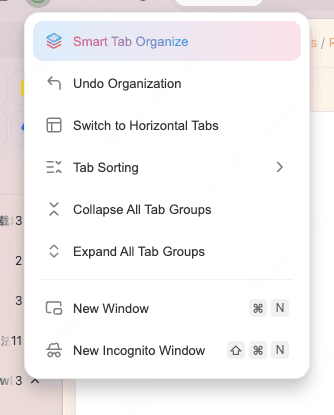
Open Tabbit's tab-management menu and choose Smart Tab Organize. The default rule examines page topics and places related tabs into named groups. You begin by reviewing a proposed structure instead of inventing every category from scratch.

The default is not the only option. Tabbit supports custom organization rules, including:
By domain: keep pages from the same site together and merge low-value leftovers into
Other.By topic: group semantically related pages and give each page one best-fit topic.
By scenario: translate your own habits into labels such as
Knowledge base,AI news, orLearningeven when the pages come from different domains.
You can also configure duplicate removal and decide whether previous grouping should influence the next pass. Once the tabs are clean, move durable contexts into custom desktops. You might keep a launch in one desktop, research in another, and personal planning elsewhere. Groups organize tabs within a context; desktops separate the contexts themselves.
Tabbit can group by page meaning rather than adding another manual control. Those groups can feed into a wider AI browser workflow. If a task later needs browser action, check the boundary between organization and browser automation. Review what an agentic browser can do before giving it sensitive work.
AI classification still needs an editor. A vague title, mixed-topic document, or unusual internal tool can land in the wrong group. Scan the result, rename unclear groups, and move the exceptions yourself. If you only have ten tabs or depend on mobile sync, Chrome's native groups may be the simpler choice.
A five-minute routine that keeps groups useful
A useful organization system keeps yesterday's context from taking over today's tab strip. More labels rarely help.
Close expired tabs first. Finished confirmation pages, duplicate searches, and abandoned comparisons do not need a category.
Organize the remainder. Use Chrome groups for a small set; use Smart Tab Organization when the first pass would take longer than a minute.
Promote active projects. Move them into a named group or custom desktop.
Save references elsewhere. A bookmark or knowledge base is better than keeping every useful page live forever.
End with a limit. Keep only today's active groups expanded. Collapse or close everything else.
If you want the wider workflow rather than just tab hygiene, our Tabbit vs Chrome comparison explains where the browsers differ, while the best browsers with AI features guide puts Tabbit in a broader market context.
Which tab-management method should you choose?
| Your situation | Best choice | Why | Next step |
|---|---|---|---|
| Fewer than about 30 active tabs, clear projects | Chrome native groups | Manual placement is fast and transparent | Create project groups and collapse inactive ones |
| Recurring set of pages you reopen often | Chrome saved group | Keeps a small routine set within Chrome | Enable sync and verify the saved group |
| Pages are useful but not currently active | Bookmark folder or knowledge base | Removes memory and visual load | Save, label, then close the tabs |
| Dozens or hundreds of mixed tabs | Tabbit Smart Tab Organization | One-click semantic classification removes the first sorting pass | Run organize, review exceptions, create custom desktops |
| You want to leave Chromium entirely | Firefox or another non-Chromium browser | Tab organization does not change the engine | Evaluate compatibility before migrating |
| You only want readable titles | Vertical tabs | Fixes visibility without changing your organization model | Try vertical layout before switching browsers |
What to use
For how to group tabs in Chrome, the direct answer is still: right-click, create a group, name it, then drag or multi-select the related tabs. Chrome's tools work well when the set is small and the categories are obvious.
With “particularly, particularly many” tabs, creating a colored container is no longer the hard part. You first have to decide what hundreds of pages are about. Tabbit's Smart Tab Organization can make that initial classification. Custom rules adapt it to your habits, while custom desktops keep ongoing projects apart.
Try it on one messy window and inspect the proposed groups. If reviewing and correcting them takes less time than building the first Chrome group by hand, the automation is doing useful work.
FAQ
How do I group tabs in Chrome?
On desktop Chrome, right-click a tab, choose Add tab to new group, then give the group a name and color. Drag related tabs into the colored group or right-click them and choose Add tab to group.
How do I add multiple tabs to a group at once?
Hold Ctrl on Windows or Command on macOS while clicking separate tabs, or use Shift to select a continuous range. Right-click one selected tab and add all selected tabs to a new or existing group.
Can Chrome automatically group tabs?
Chrome's standard tab groups are primarily manual, although available features can vary by version and experiment. If you want one-click semantic grouping, Tabbit Smart Tab Organization can classify open pages by topic and also supports custom rules.
How do I save a Chrome tab group?
Right-click the group label and use the save or close-group option shown by your current Chrome version. When signed in with sync enabled, Chrome can save and sync changes to tab groups, but you should verify important groups before closing a large session.
Do Chrome tab groups sync across devices?
Google says tab-group changes can be saved and synced when your browsing history and tabs are synced with your Google Account. Availability and behavior can differ by platform, so check the group on the second device before relying on it.
What is the easiest way to organize hundreds of tabs?
First close obvious duplicates and expired tasks, then classify the remainder by project or scenario. When manual selection is itself the bottleneck, use an automatic organizer such as Tabbit, review the proposed groups, and move each active project into a dedicated desktop.