
Tabbit is a Chromium-based AI browser built for both humans and software agents. A person can browse normally, chat with pages, compare models, organize tabs, and delegate a task from the browser. An external agent such as Codex or Claude Code can use Tabbit CLI to work through the same browser environment and its existing login sessions.
That combination is the useful definition. The chat box is only one part of Tabbit. The product joins four parts of browser work:
selected context → reasoning → action → a result you can review
This article explains what that means in practice, how the newer Task, Skills, memory, file, and CLI features fit together, and where Tabbit still needs human judgment. For the short product definition, see what Tabbit Browser is.
Tabbit at a glance
| Question | Short answer |
|---|---|
| What is it? | A desktop AI browser with built-in chat, task execution, workspace tools, and agent access |
| Who uses it? | People in the Tabbit interface and software agents through Tabbit CLI |
| What context can it use? | Pages, tabs, screenshots, highlights, bookmarks, conversations, and supported local files you select |
| What can it produce? | Answers, research, web actions, Skills, documents, spreadsheets, presentations, PDFs, and web pages |
| What is it built on? | Chromium, with import support for common browser data and extensions |
| Where does it run? | The international site lists macOS 12+ and Windows 10+; Linux is still on a wishlist |
| Does it start free? | Yes, with quotas and paid options that can change by region and time |
The official site calls Tabbit “The Agentic AI Browser.” Product Hunt uses a more specific line: “built both for you and your Agents.” The second description is closer to the current product because Tabbit now exposes two connected ways to work.
| Surface | Who starts the work | Typical input | What Tabbit handles |
|---|---|---|---|
| Tabbit Browser | A person | A question, page, file, screenshot, or desired outcome | Reading, reasoning, task execution, file creation, and browser organization |
| Tabbit CLI | A coding agent | A structured browser task sent through /tabbit | Authenticated website operation in a separate Tabbit task space |
Tabbit is still a normal browser
You can enter a URL, search the web, install compatible extensions, use bookmarks, and keep multiple tabs open. Tabbit can also import history, bookmarks, extensions, and settings from Chrome, Edge, or Safari. This matters because the AI features sit inside a browser that can become your daily workspace, not inside a separate automation console.
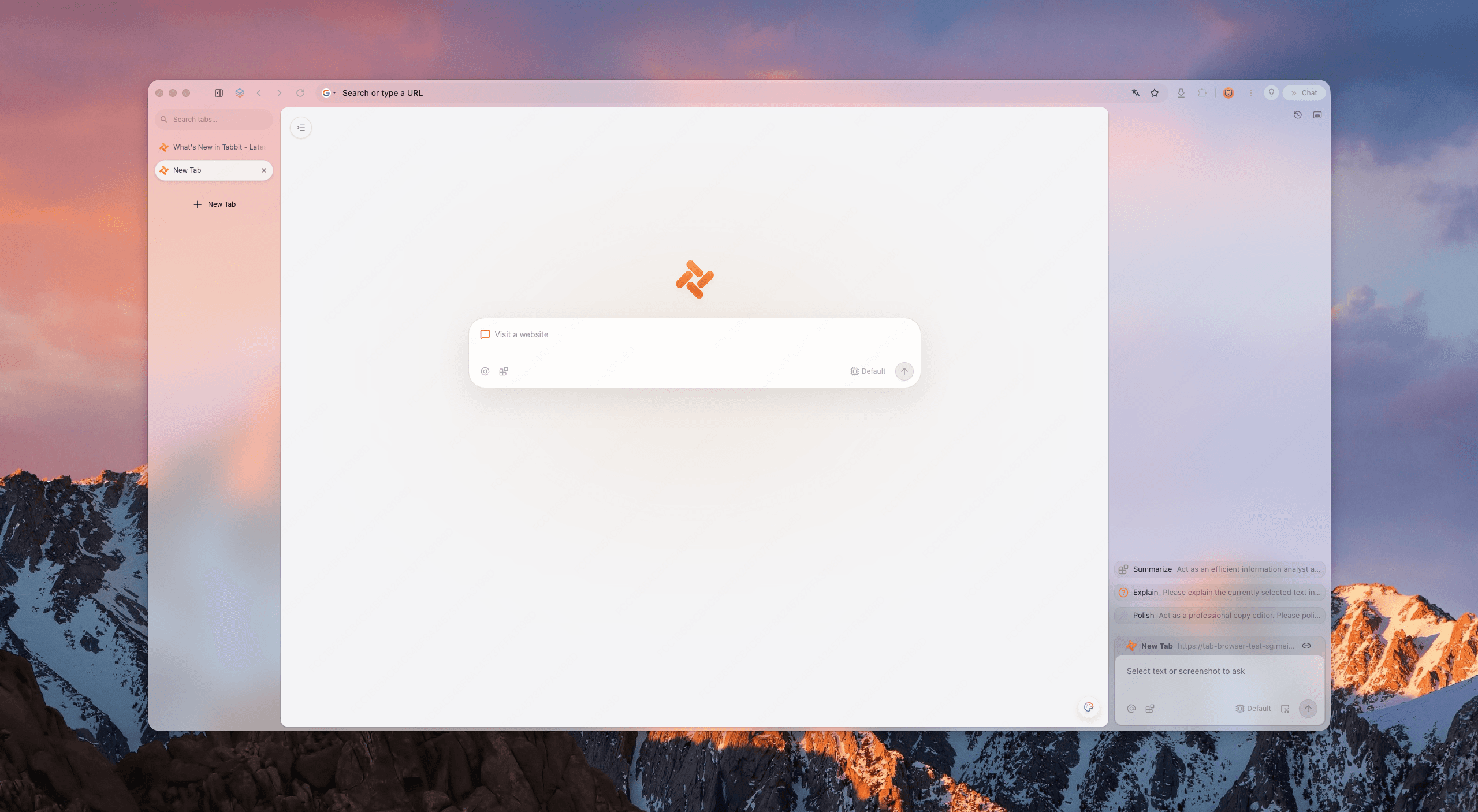
The center input accepts a URL, a search, or an instruction. The left side keeps tab groups and workspaces visible. The right side can show page chat or the execution trail for a task. You can inspect the source while the AI is answering or acting.
Q&A is for understanding; Task mode is for doing
Tabbit separated its AI work into Q&A and Task modes in version 1.0.
Q&A is the reading and thinking layer. Ask for a summary, translation, explanation, comparison, or draft based on the context you provide.
Task mode is the execution layer. Give it an outcome, and it can plan steps, use browser tools, work with files, and produce a deliverable.
The distinction prevents a common mistake. If you need an explanation of a pricing page, use Q&A. If you need the prices from ten pages checked and placed in a spreadsheet, use Task mode.
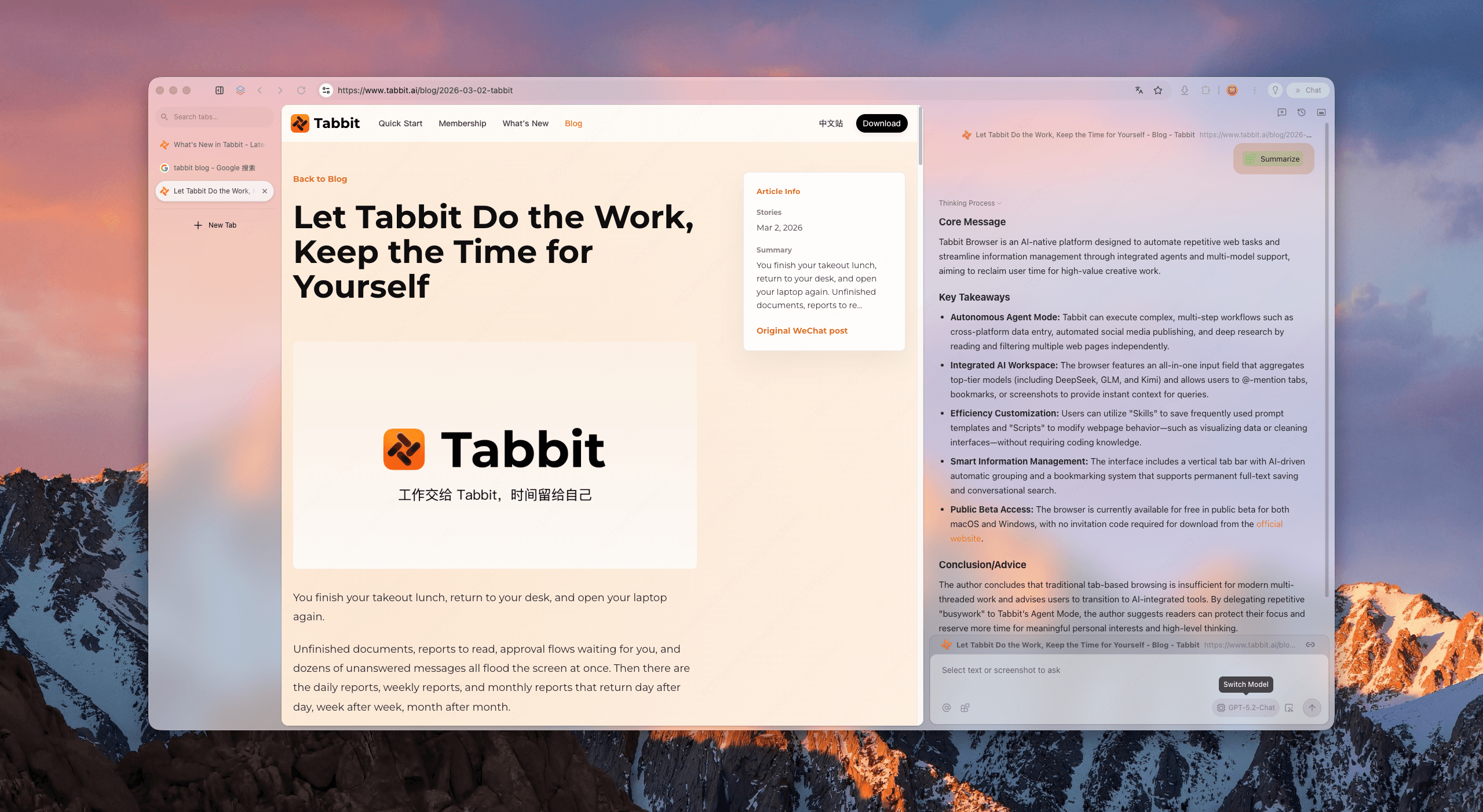
You can narrow the input to selected text or a screenshot instead of sending an entire page. That makes Tabbit useful as an AI browser assistant, but the answer is still generated. Check quotations, numbers, exceptions, and conclusions against the page.
Context comes from the work already open in your browser
Tabbit's @ menu lets you attach the current page, another tab, a tab group, a screenshot, a bookmark, or a supported local file. Recent versions also improved file previews and parsing for formats including spreadsheets and subtitles.
A useful request names the sources and the expected output:
Use @market-research and @brief.pdf.
Create a comparison table with one source URL for every factual claim.
Write "Not found" when a field is missing. Do not infer a value.
The benefit is not a larger prompt. It is less manual transfer between the browser, a chatbot, and local files. You choose what enters the task, so the safer default is to attach only what the task needs.
Tabbit can compare several AI models
Tabbit can run the same prompt through more than one model and display the answers side by side. Model availability changes, so the screenshot below is an interface example rather than a permanent model list.
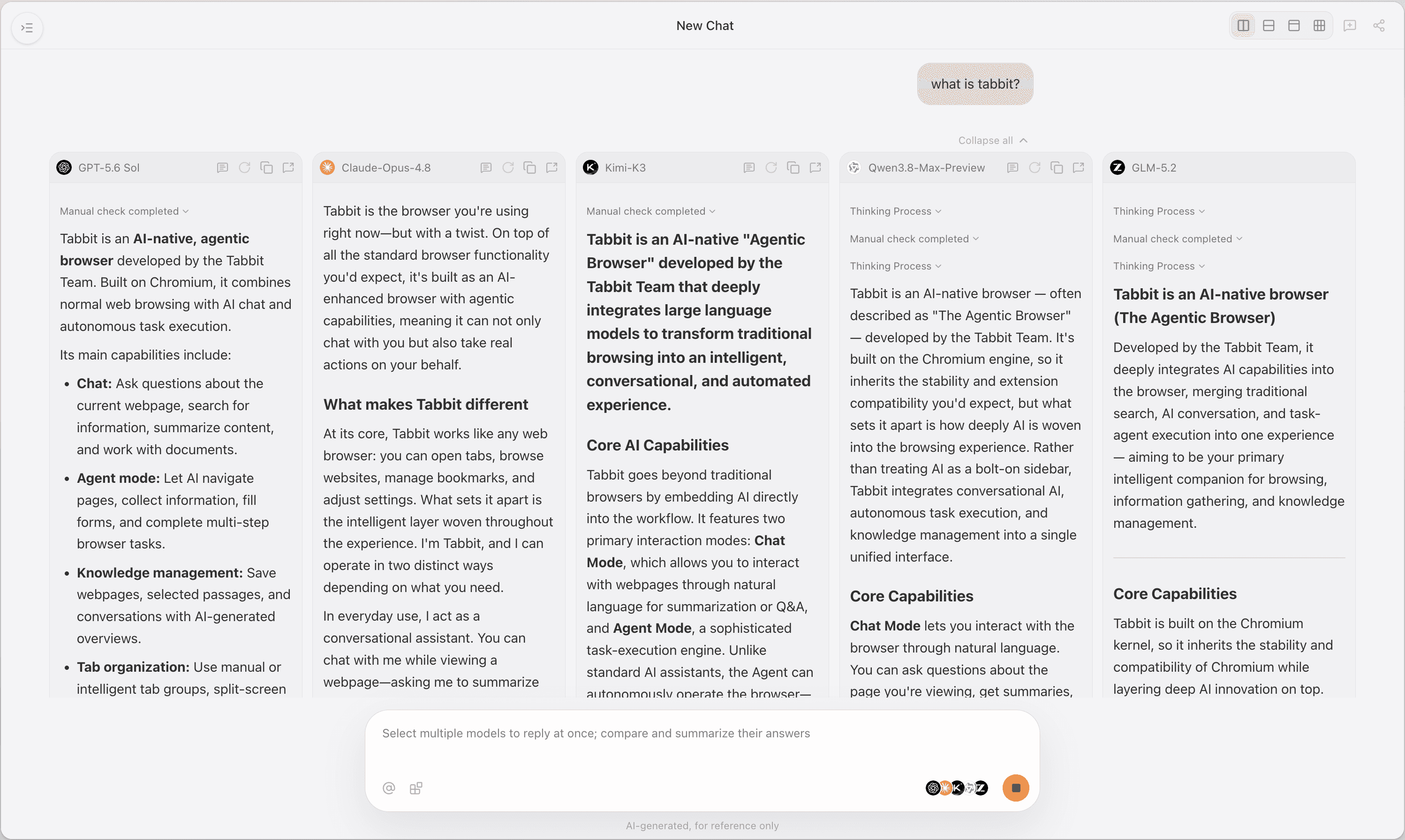
This view is useful for comparing an outline, explanation, or writing approach. It does not turn model agreement into evidence. Five similar answers can repeat the same unsupported claim.
Task mode can operate websites and create files
Task mode is Tabbit's browser agent. It can break a goal into steps, navigate pages, click controls, fill fields, collect information, run commands in its task environment, and prepare files. Multiple tasks can run in separate work areas while you keep browsing.
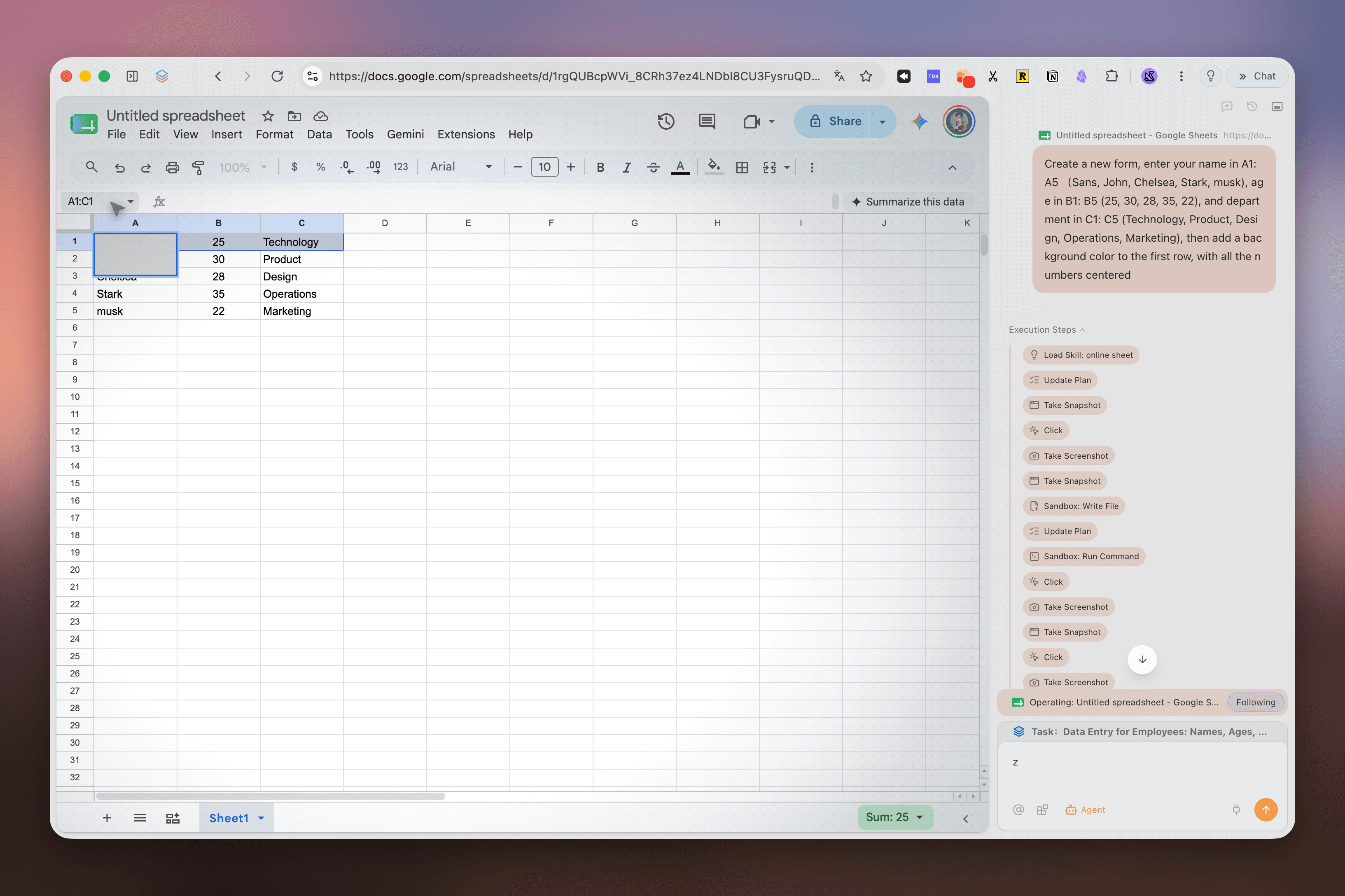
A practical workflow is:
State the result and format. A broad topic is not enough.
Add only the pages or files needed for the job.
Tell Tabbit how to handle missing or conflicting information.
Let Task mode perform the reversible steps.
Review a sample, then inspect the final file or website state.
For research, Tabbit can load a Deep Research Skill, search across sources, update its plan, and assemble a report. The task trail shows which searches and tools were used.
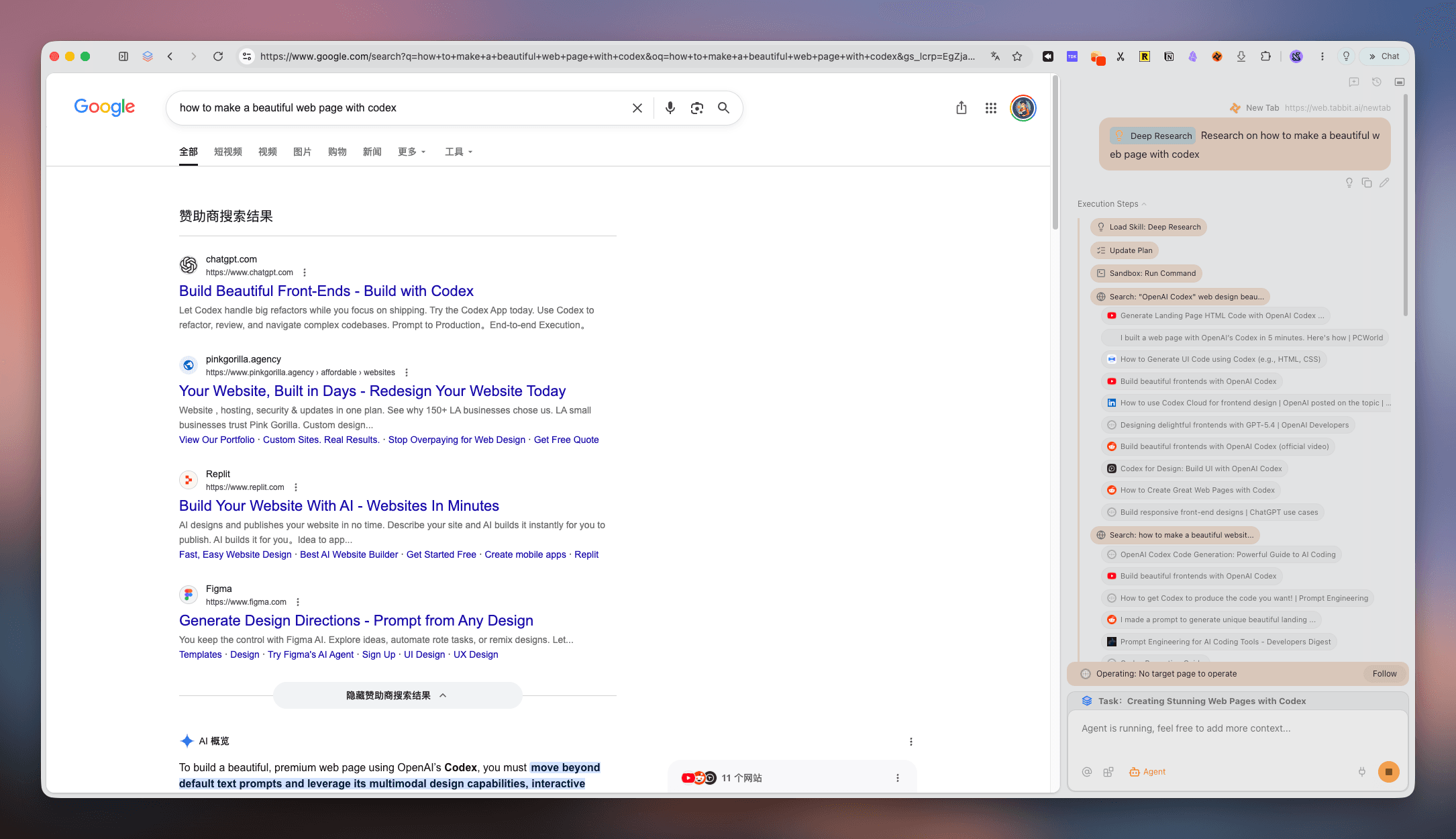
That trail helps with inspection, but it is not a guarantee of accuracy. Our guide to using an AI browser for research explains how to verify citations and distinguish a source from an AI summary of that source.
Skills turn a good workflow into a reusable one
A Skill packages instructions, tools, and output rules for a repeatable task. The September 2026 release added a redesigned Skills Market, detailed SKILL.md previews, version management, and tools for creating and publishing Skills. Automatic Skills ask for confirmation before installation or execution.
This is useful when the process matters as much as the prompt. A weekly brief, store listing update, spreadsheet cleanup, or research checklist can become a named procedure instead of a conversation you rebuild each time.
Good Skills have four properties:
a narrow job;
known inputs;
a result that can be checked;
an explicit rule for unexpected pages or missing data.
Tabbit also has memory for preferences and recurring context. Use memory for stable working preferences, not as the only record of a critical fact.
Tabbit CLI gives coding agents a browser
Tabbit CLI lets coding agents such as Codex and Claude Code send browser work to Tabbit with /tabbit. The important feature is session reuse. If you are already signed in to a site in Tabbit, the agent can work through that session instead of starting from a clean, unauthenticated browser.
The task runs in its own space, so the agent does not need to take over the foreground window. This is useful for admin tools, internal dashboards, content systems, and other sites that expose a web interface but no convenient API.
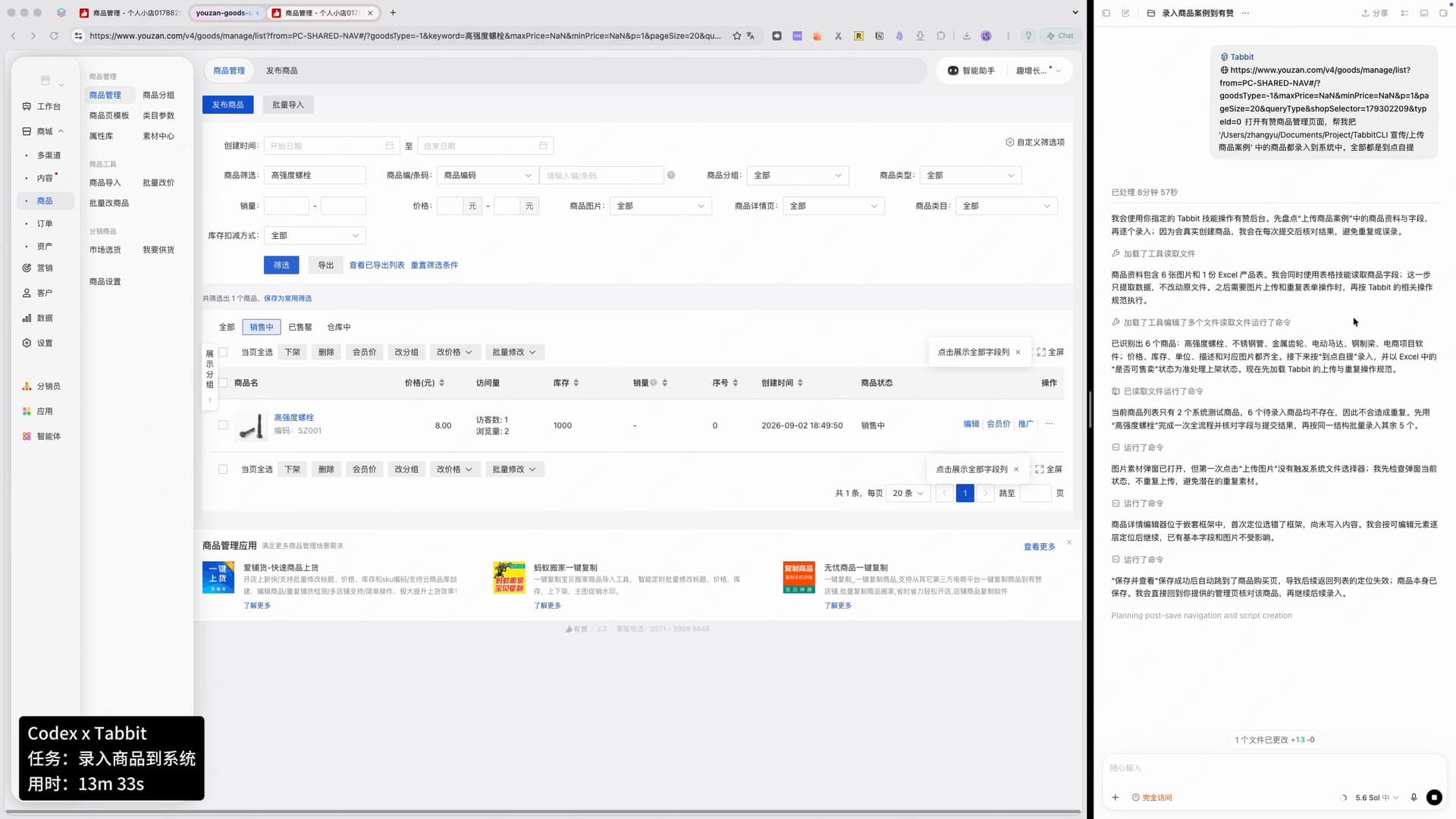
Tabbit's own CLI benchmark tested 25 website tasks three times with each tool, for 75 runs per solution. Tabbit reported 48 successful runs, compared with 47 for Codex Chrome and 45 for Agent Browser. It also reported a 121-second median wall time and fewer input tokens per correct run.
Those numbers are useful as a description of the team's test. They are not independent proof that Tabbit wins every workload. The top two results differ by one run, the task list and run records are not published on the page, and the Product Hunt discussion says 36% of Tabbit's runs still missed. Long plans, ambiguous interfaces, and recovery remain hard browser-agent problems.
Smart tabs and saved pages handle the human side of browsing
People still need to find and organize what an agent leaves behind. Tabbit uses a vertical sidebar, workspaces, AI tab grouping, saved pages, highlights, and conversational search to keep related material together.
One Reddit user trying Tabbit highlighted the same feature in plain language: “It groups tabs using AI, which is super cool.” Another user in a Dia Browser discussion described Tabbit as organizing tabs “according [to] what their content” contains. These are individual reports, not accuracy tests, but they identify a real reason people try the product.
AI grouping works best as a first pass. Rename important groups, move mistakes, and close pages that no longer belong. Automatic organization does not remove the need to decide what a project contains.
What users are saying about Tabbit
Public feedback is still limited, and some current coverage is sponsored or written around a launch. Three comments are useful because they point to specific jobs or concerns.
| Source | What the person noticed | How to read it |
|---|---|---|
| Reddit browser thread | AI tab grouping, Skills, scheduled tasks, and model choice made the browser interesting | A personal trial, not a comparative test |
| Product Hunt launch comment | A user said turning tabs and screenshots into a deck saved repeated copy and paste | A launch-page testimonial with no independent timing data |
| Reddit terms discussion | A user raised concerns about agent permissions and the terms of service | A personal interpretation; check the current terms and privacy policy directly |
The Product Hunt comment is a good description of Tabbit's intended flow: context already in the browser becomes a deliverable. The concern about permissions is equally relevant. A browser agent works inside logged-in sites, so convenience and access arrive together.
We also searched X for current Tabbit and Tabbit CLI discussions. X did not expose original posts with enough public context to verify the author, date, and surrounding conversation, so this article does not quote an X search snippet as user evidence.
Privacy, permissions, and review still matter
Tabbit's international site says browser history, bookmarks, highlights, and chats are encrypted on the device, and that selected data sent to a model or cloud service is handled by those providers. Its current site also states SOC 2 Type I compliance. These are the company's statements, not a substitute for your own security review.
Treat Task mode and Tabbit CLI as tools with real browser permissions:
Share the smallest useful set of tabs, screenshots, and files.
Keep payments, account changes, confidential uploads, and other irreversible work under direct review.
Confirm the final website state. Do not rely on the agent's completion message.
Check current policies and regional data handling before regulated or company-sensitive use.
This is the same boundary that applies to any browser automation: the more useful the access, the more important the review.
How to start using Tabbit
Install Tabbit and import the browser data you actually need.
Open a long public page and use Q&A to ask one verifiable question.
Add a second page with
@and request a sourced comparison.Give Task mode a small, reversible job such as collecting public data into a new sheet.
Check the output and execution trail.
Save the process as a Skill only after it works reliably.
Connect a coding agent through Tabbit CLI when the workflow needs an authenticated browser.
The current international desktop requirements are macOS 12+ and Windows 10+. Tabbit opened a Linux wishlist in September 2026 and said development would begin after enough demand, so Linux should not be described as generally available. Use the AI browser download guide for current installers and the Tabbit pricing overview for plan details.
Who should use Tabbit?
| Your browser work | Tabbit fit | Start with | Main caution |
|---|---|---|---|
| Reading long pages and documents | Strong | Q&A, selection, screenshots | Verify summaries and quoted details |
| Research across many tabs | Strong | Tab groups, @, Deep Research | Inspect sources and duplicated claims |
| Repeating website operations | Strong when the process is stable | Task mode and Skills | Test on reversible work first |
| Letting a coding agent use a logged-in site | Distinctive use case | Tabbit CLI | Limit permissions and review the final state |
| Comparing model outputs | Useful | Multi-model view | Agreement is not evidence |
| Basic browsing with little AI use | Limited advantage | Normal browser features | The switching cost may not pay off |
| Linux as a hard requirement | Not ready | Linux wishlist | No general Linux release yet |
Tabbit is a good fit when your browser is already a workbench: research, operations, content production, support, analysis, or any process that moves information from websites into a finished file. It is less compelling when you need only conventional browsing or cannot review an agent's work. See Tabbit vs Chrome for the narrower switching decision and AI browsers for productivity for workflow examples.
The short verdict
Tabbit is an AI browser built for humans and agents because both can use the browser as a place to finish work. Humans get page-aware Q&A, multi-model comparison, smart tabs, Tasks, Skills, files, and visible execution. Software agents get Tabbit CLI, authenticated sessions, and a separate browser task space.
Tabbit works best when those pieces form one checked workflow. Give it a clear result, limited context, and a reversible first task. Then judge the output, not the promise.

FAQ
What is Tabbit?
Tabbit is a Chromium-based AI browser built for people and software agents. People can browse, ask questions, organize tabs, and delegate work in the Tabbit interface. Coding agents can use Tabbit CLI to operate authenticated websites through an existing Tabbit session.
What can Tabbit do?
Tabbit can answer questions about pages and files, compare several AI models, organize tabs, run repeatable Skills, research across sources, operate websites in Task mode, and create outputs such as documents, spreadsheets, presentations, PDFs, or web pages. Results still need human review.
What is the difference between Q&A and Task mode in Tabbit?
Q&A explains, summarizes, translates, or compares information. Task mode can plan and execute multi-step work with tools, including website actions and file creation. Use Q&A when you need an answer and Task when you need a result produced.
What is Tabbit CLI?
Tabbit CLI lets coding agents such as Codex and Claude Code ask Tabbit to operate websites. It reuses the browser's logged-in sessions and runs work in a separate task space, so the agent does not need to take over the window you are using.
Is Tabbit free?
Tabbit offers a free starting tier. Model access, agent quotas, scheduled tasks, and regional offers can change, so check the current Tabbit membership page before choosing a plan.
Which platforms does Tabbit support?
The international Tabbit site currently lists macOS 12+ and Windows 10+. Linux is not generally available; Tabbit opened a Linux wishlist in September 2026. Platform availability can differ by region.