Turbo Browser MCP vs Tabbit CLI

Both give an agent browser control. Your choice depends on the client you run, the browser session you need, and what must happen before a form is submitted.

  • Choose Turbo for batches of form fields and compact page updates in an MCP client.
  • Choose Tabbit CLI when a local agent needs to work in your signed-in Tabbit browser.
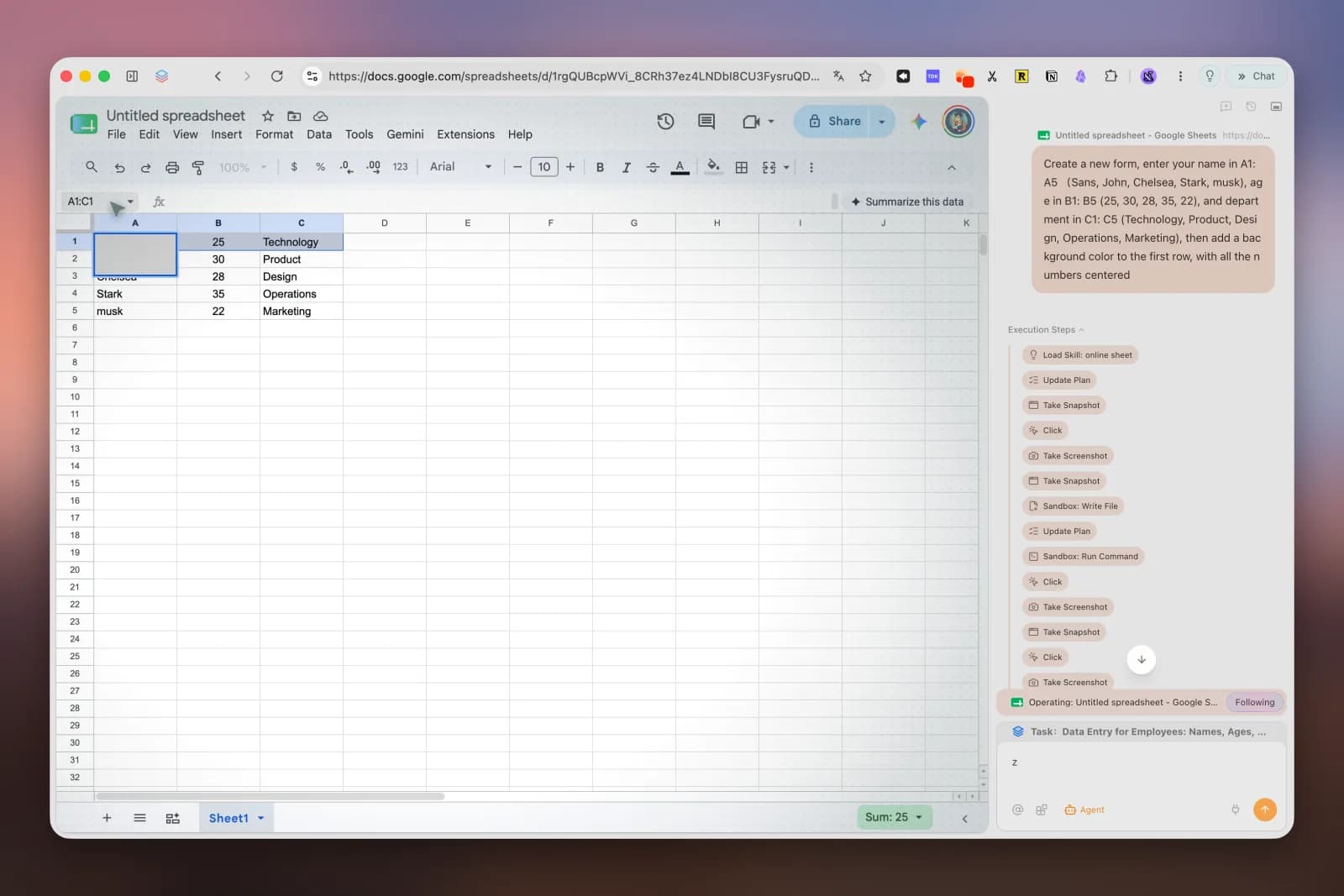
Tabbit Browser displays a Google Sheets task and its execution steps side by side.
Tabbit Browser with a spreadsheet task open.

Compare the parts that affect a run

Decision factorTurbo Browser MCPTabbit CLI
Agent connectionPlaywright-based MCP server. The package declares Node.js 20 or later.A compatible local agent calls the installed Tabbit launcher.
Browser stateLaunch Chromium, use a persistent profile, or attach to a configured Chromium session via CDP. Named isolated contexts are available.Use a running Tabbit instance and task-owned tabs. Tasks in the same profile can share site login state.
Form workBatch field updates with smart_fill_form. Read changes after the batch with a compact snapshot.Run a scoped browser task, then check the resulting page and the CLI receipt.
Review before submitSupported actions have a default guard on submit-like controls. Verify the specific controls in a test.Scope the task to prepare and show the result. Review the page before authorizing an external change.
Recover a resultCheck the current tab state and the server diagnostics after an interrupted run.Read the original request receipt before deciding whether to retry. Finish the task to release its tabs.

Try the workflow that matches your task

Batch a repeatable form

For QA, use a test account or a local fixture and keep the expected fields and result fixed across runs.

  1. Open a clean or isolated context in Turbo Browser MCP.
  2. Inspect the form, fill it in one batch, and request an updated snapshot.
  3. Check the field values and expected marker. Leave final submission for review.
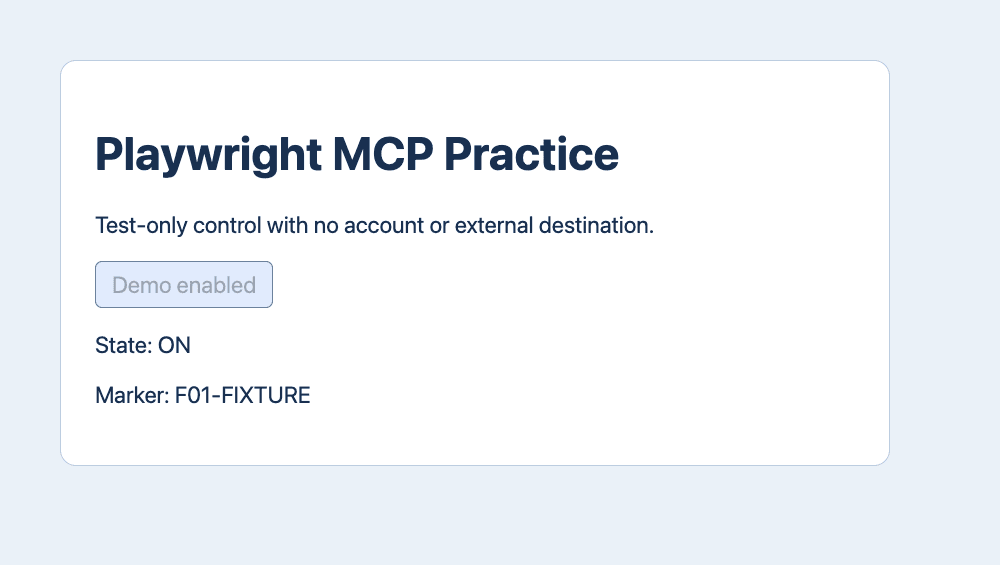
A local Playwright practice page displays State ON and a fixture marker.
Example of a test state you can verify after an action.

Check a page behind sign-in

Start with a known page in the Tabbit profile that already has access. Keep the first check read-only.

  1. Have your local agent verify the launcher with tabbit-cli diagnose.
  2. Use a named task and open or explicitly claim the intended tab.
  3. Confirm the page heading and expected record in the receipt, then finish the task.
A local training workspace displays an authorization marker for a fixture account.
A local fixture makes the expected sign-in state visible.

Common questions

Can Turbo Browser MCP use an existing login?

It can attach to a Chromium browser with a deliberately configured CDP endpoint. The active browser profile supplies the site session. An isolated context has its own cookies and storage.

Does Tabbit CLI give each task a separate login?

Tasks own their tabs. In the same Tabbit profile, those tabs can share site login state. Use a separate profile when separate accounts or storage are required.

Which tool uses fewer tokens?

Turbo publishes measurements for its own scenarios. This comparison uses documented capabilities. To compare costs, rerun the same task with the same model and measure total tokens, elapsed time and verified completion.

Does the submit guard verify the whole workflow?

The guard covers submit-like actions recognized by supported Turbo tools. Test the actual controls and confirm the final state before treating a run as complete.

Start with one page you can verify

Use the setup guide to connect a local agent, read a page you already have access to, and check the task receipt.

© 2026 Tabbit Browser. The AI-native browser that understands your context.