
MiniMax H3-Image supports both text-to-image generation and prompt-driven image editing. To try it without assembling weights, use a MiniMax-hosted app or the image API. For local control, ComfyUI has separate generation and editing templates. The download route is not a frictionless “free model” shortcut: the official ComfyUI path uses four files, while the Hugging Face weights have a Community License with territory and commercial-service conditions. Check which route and terms apply before uploading an image or downloading weights.
That distinction matters in practice. A Reddit user describing the model’s multi-reference workflow highlighted “the 16 reference slots paired with direct editing in a single run” (original discussion). That is a community description of the workflow, not a quality benchmark. Here is how to choose a route and run the two tasks separately.
Key takeaways
Use text-to-image when you are starting from a written brief. Use image edit when you have a source image and want a specific change.
Hosted access and downloadable weights have separate setup, availability and terms. MiniMax’s API docs use
/v1/images/generationsand/v1/images/editsfor the two tasks.ComfyUI’s official guide offers two templates. Its INT8 setup lists four model files totaling about 54.8 GB, before the ComfyUI installation and workflow assets.
The Hugging Face repository calls the weights “open weights” and provides a Community License. Read the license rather than assuming unrestricted commercial use.
I did not run a generation or API request for this article. There is no first-hand quality, price, or speed result here.
MiniMax H3-Image at a glance
| Route | Best starting point | What you need | Main limit to check |
|---|---|---|---|
| MiniMax hosted app | Quick visual trial | Current account and regional availability | App terms and access may vary; no live account check was made |
| MiniMax image API | App or product integration | API account, current model access, key, request handling | Generation and edit use different endpoints; check current docs and price page |
| ComfyUI templates | Local workflow and node-level control | Updated ComfyUI, template pack, four model files, suitable storage and hardware | The guide’s sample file sizes are not a minimum VRAM guarantee |
| Hugging Face weights | Direct weight inspection or custom serving | DiT plus separate text encoder and compatible code | Community License territory and commercial-service conditions |
MiniMax announced H3-Image on 2026-11-11. The Hugging Face model card describes one checkpoint for both tasks and up to 16 reference images. The official ComfyUI guide documents six sampling steps and a 4 MP starting canvas in its text-to-image template; the product announcement’s speed and quality statements are vendor claims, not measurements from this article.
Choose the access route first
If your goal is to see whether the model suits a one-off creative task, start with a current MiniMax-hosted app. The announcement lists Hailuo AI and MiniMax’s API Platform among availability routes. This route avoids local weight setup, but it still depends on current account, country and service terms. I did not sign in or check live access, so confirm these details on the official MiniMax announcement before relying on them.
For an integration, use the official API docs. Text-to-image is documented at POST /v1/images/generations. Editing is documented at POST /v1/images/edits. The API route is hosted inference; it does not mean you have downloaded or self-hosted the model. Check the current MiniMax API model catalog, account eligibility, regional restrictions and current price before building around it. This guide does not quote a price because it changes and was not confirmed in a live account.
The model card showed no Hugging Face Inference Provider deployment when checked on 2026-11-16. It links to MiniMax-hosted access instead. That observation is time-sensitive; re-check the model card if provider-hosted inference is important to you.
Check the weight license before you download
“Open weights” means you can access the checkpoint files; it does not mean every use is unrestricted. The MiniMax Community License is dated 2026-11-10. It defines an Applicable Territory that excludes the EU, UK, Republic of Korea and United States. It also requires prior written authorization from MiniMax for annualized revenue above US$1 million and for hosted services provided to third parties. The license includes additional use and attribution terms. Read the full text and get qualified advice for a commercial deployment. The ComfyUI guide points to Comfy-Org mirror repositories; review each repository’s attached license and the upstream terms rather than assuming a mirror changes them. Do not assume the weights license describes the terms of MiniMax’s hosted app or API; check each service’s own terms.
Workflow 1: generate an image from text
Hosted API
Use the generations endpoint when your input is a text prompt and there is no source image to preserve. The official API reference documents a model identifier, prompt and output settings. Start with the simplest documented request, check the returned image, then adjust prompt and size one variable at a time. Keep the prompt specific about subject, setting, composition and text that must appear. If you integrate this into an application, handle API errors, image response storage and user consent on your side.
ComfyUI
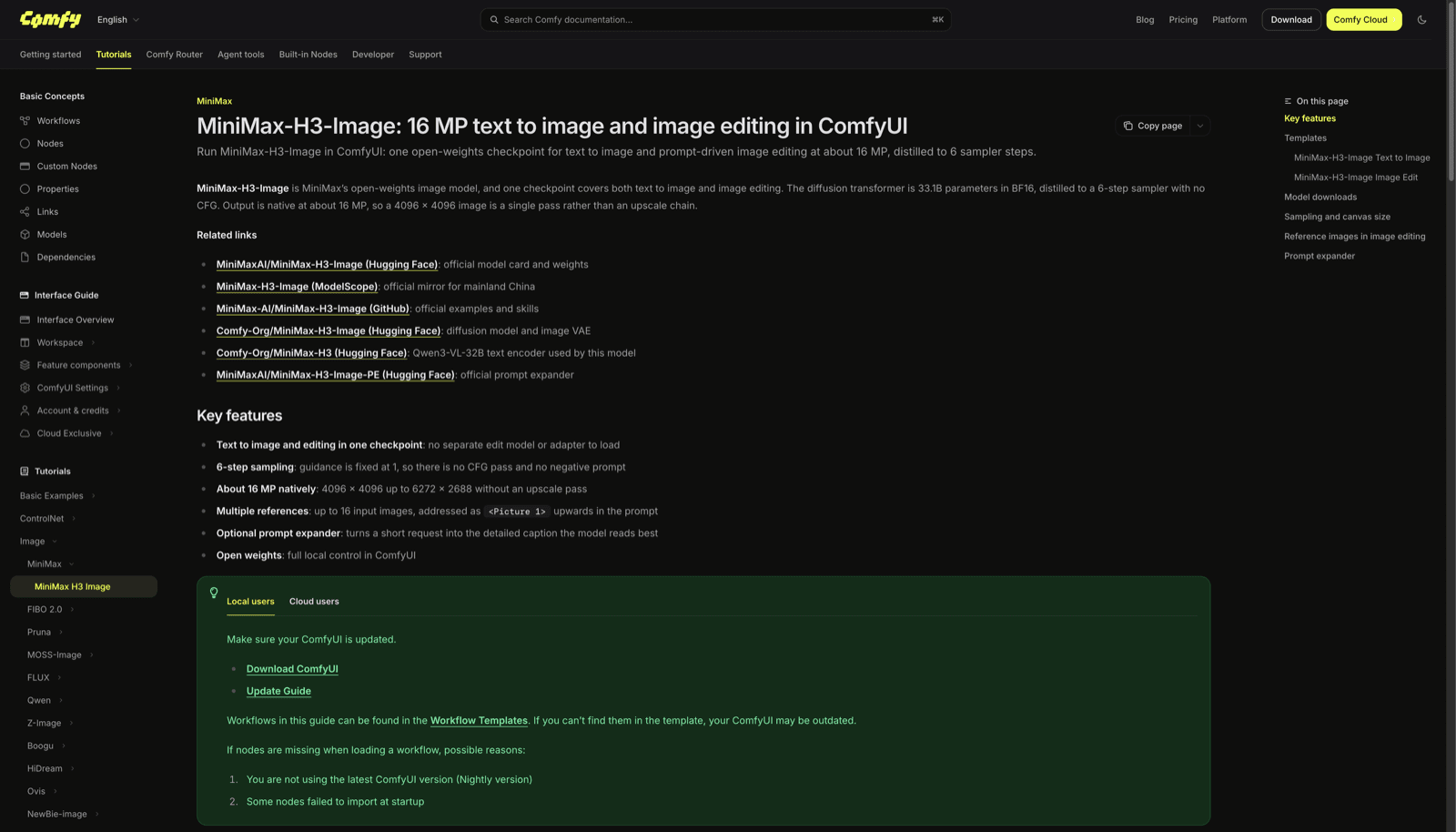
Update ComfyUI and its template pack. The guide says its templates need ComfyUI 0.45.0 or later and template pack 0.11.104 or later.
Search the Workflow Templates library for MiniMax-H3-Image: Text to Image. If it is missing, update before building a graph by hand.
Leave the default 4 MP canvas in place for a first composition check. The guide says this lower starting size is deliberate; raise the resolution selector only when your GPU has room.
The prompt expander is off by default for text-to-image. Keep it off when you want to test the prompt as written. Turn it on if you want a more detailed caption and an aspect ratio suggestion.
Review composition and legibility before scaling up. The template uses six steps, Euler/simple scheduling and guidance 1; because guidance is fixed there is no negative-prompt field in the workflow. Put exclusions into the positive instruction.
The official guide’s native-size examples range up to 4096 × 4096 and include several aspect ratios. Treat that as a documented model capability, not a promise about your machine’s memory or render time. The guide notes that smaller canvases work and reduce run time; use them to get the framing right before trying a larger output.
Workflow 2: edit a source image
Editing starts with an input image, so the request should name both the change and what must remain stable. For example: “Replace the background with a pale studio wall; keep the product shape, label, camera angle and shadows unchanged.” Do not assume an edit will preserve every pixel or text detail; inspect the output closely.
In the hosted API, use the image-edits endpoint and follow its current file or URL input format. In the official ComfyUI template:
Open MiniMax-H3-Image: Image Edit and load the source in the image node. It becomes
<Picture 1>.Describe one desired change, the elements to keep, and any reference image roles. The prompt expander is on by default in this template; inspect the resulting reference-aware caption when precision matters.
Add only the references needed. The first source is
<Picture 1>and later images are numbered in order, up to<Picture 16>. State those labels in the instruction so each reference has a clear role.Run the graph at a manageable canvas size, compare the before/after nodes, and refine the instruction if the wrong area changed.
If the edit runs out of memory, the guide suggests enabling the Resize Image/Mask node and lowering its megapixels before sampling.
The model’s multi-reference support is useful when each picture has a distinct job, such as one image for the subject and another for material or layout. It does not guarantee that identity, lettering or geometry will remain exact. A photographer in the Reddit discussion put the evaluation question another way: “Please don't confuse photographic realism with sharpness.” That is one person’s aesthetic judgment; decide against your own source image, not a single user’s verdict.
Which route should you use?
| Your task | Start here | First check | Why |
|---|---|---|---|
| Make a new image from a written brief | Hosted app or text-to-image template | Availability, prompt, and small canvas | No source image is needed |
| Change a supplied picture | Image-edits API or edit template | Upload format, Picture 1, and the elements to preserve | Editing needs an explicit source and change request |
| Try one result without local setup | MiniMax-hosted app | Current region and account terms | Hosted access avoids assembling model files |
| Build a local node graph | ComfyUI templates | ComfyUI/template versions, disk, GPU memory, and license | Gives local workflow control but adds setup and license checks |
| Serve weights to other users | Do not assume the default license allows it | Full license and written authorization conditions | Third-party hosted service is a stated authorization trigger |
The official ComfyUI guide lists four INT8 files: a 21 GB diffusion model, a 25.28 GB text encoder, a 7.34 GB prompt expander and a 1.17 GB VAE. Its prompt expander is a lighter build than the separately listed official PE model. Hugging Face also lists a much larger BF16 DiT and a separate text encoder repository. These are different packaging paths; do not mix instructions or treat the sum of file sizes as a minimum GPU memory number.
A practical first-run checklist
Decide whether the job is generation or editing before opening a template.
Confirm the exact model name is MiniMax H3-Image, not the separate MiniMax H3 video model or a third-party derivative.
For hosted access, verify the current app/API availability and terms. For weights, verify geography and commercial plans against the Community License.
For ComfyUI, check template versions, disk space and your own hardware before downloading. Start at the smaller default canvas.
Record the prompt, input image, resolution, workflow version and output if you are comparing results. One creator’s reported machine and timing are not a universal benchmark.
Where Tabbit fits
Tabbit can help you open the official model card, API reference, ComfyUI guide and license together, then organize the differences into a research note. It does not generate an image, call MiniMax’s API, run ComfyUI or grant access to the weights. For a separate task such as checking a model’s documentation or collecting public comparison data, see our guides to MiniMax M2.7 in a browser workflow, source-led browser research, agent-browser CLI, web tables to CSV, browser MCP versus CLI, Codex with Tabbit CLI, Gemma 4 31B IT browser research, and Mistral Small 4 with a signed-in browser. These pages cover browser work, not image-generation results.

FAQ
How do I use MiniMax H3-Image?
Use MiniMax's hosted app or API for a hosted route, or use the official ComfyUI templates with local model files. Choose the text-to-image template for a new image and the image-edit template when you have a source image to change.
Can MiniMax H3-Image edit an existing image?
Yes. MiniMax documents image editing through its API, and ComfyUI provides a separate image-edit template. The workflow labels the source as Picture 1 and can accept additional reference images, up to the documented limit.
Is MiniMax H3-Image open source or free to use?
The downloadable weights use MiniMax's Community License, so do not treat them as unrestricted open-source software. The license has territory and commercial-service conditions; hosted apps and APIs have their own terms and current availability.
What do I need to run MiniMax H3-Image locally in ComfyUI?
The official ComfyUI guide describes two templates and four INT8 model files, plus current ComfyUI and template versions. Its file sizes do not establish a universal minimum VRAM requirement, which depends on settings and hardware.
Is MiniMax H3 the same as MiniMax H3-Image?
No. MiniMax H3-Image is the still-image model for text-to-image and image editing. MiniMax H3 is also used for a separate video-generation model, so check the full model name before following a guide.