A Reddit user described 47 open tabs and said that “closing any of them feels genuinely dangerous.” Most of the pages were not active work. They were an unmade recipe, an old flight search, and articles waiting for a “later” that never arrived. That is the real tab problem: closing feels like forgetting.
The fix is to build a retrieval system before you close anything. Keep current work open, move one-time reading into a later queue, store durable references somewhere searchable, and test that you can recover them. For a large mixed session, Tabbit Browser can make the first sorting pass with Smart Tab Organization, but the final decisions still belong to you.
Key takeaways
A tab is safe to close only when its URL or its temporary state has a verified home.
Use three destinations: an active working set, a short later queue, and a long-term reference store.
Groups and vertical tabs make current work readable. They do not turn every open page into a useful archive.
Save unfinished form text, uploads, calls, and media positions before closing. Reopening the URL may not restore them.
Tabbit is most useful when the backlog is large enough that manual classification has become the bottleneck.
A tab system at a glance
| Page state | Put it here | Keep it open? | How you get it back | Review rhythm |
|---|---|---|---|---|
| Part of the task you are doing now | Named tab group or project workspace | Yes | It stays in the visible working set | Several times a day |
| You will read or act on it once | Read-later queue or short Next list | No | Search the queue by title or date | Daily or twice a week |
| You expect to reference it again | Bookmark folder, project note, or knowledge base | No | Search by project, topic, or a short note | When the project changes |
| Finished, duplicated, or no longer relevant | Nowhere | No | Reopen from recent history if you made a mistake | Close immediately |
| Contains unsaved form, upload, call, or other live state | Finish, export, or copy the state first | Usually yes | A URL may not restore it | Before any cleanup |
This is deliberately simpler than a perfect taxonomy. If your system needs ten tags and a manual review before you can save one page, you will return to leaving everything open.
Why people keep tabs they no longer use
Carnegie Mellon researchers studied how people use browser tabs and found that tabs serve several incompatible jobs. They are workspaces, reminders, reading lists, and external memory at the same time. The university's summary of the CHI 2021 research says people kept tabs open because they feared having to search again and worried that anything out of sight would fall into a “black hole.”
That fear is rational when the alternative is a bookmark folder called Other bookmarks with 900 unexplained links. A YouTube tutorial from Simpletivity frames the adjacent problem well: the bookmarks bar can overflow until websites are hard to find. Moving every tab into one unsorted destination changes the shape of the pile without improving retrieval.
The answer is to decide what role each page has. A design spec used this afternoon is active work. An article you plan to read on the train is later. API documentation used every month is reference. A checkout confirmation from last week is done.
If your problem is specifically creating and saving Chrome groups, use our Chrome tab-group walkthrough. The rest of this guide is browser-agnostic and focuses on what should remain a tab in the first place.
Step 1: protect anything a URL cannot restore
Do not start by closing the oldest window. Start with the pages that can lose real work.
Look for:
text typed into a form but not submitted;
a file upload or download still running;
a call, screen share, recording, or media session;
a dashboard with temporary filters or an unsaved query;
a signed-in flow that may expire when reopened;
a page whose exact scroll position or selection matters.
Finish the action, save a draft, export the data, or copy the important text into the project note. A bookmark preserves an address. It does not promise to preserve the page's runtime state.
For the remaining pages, create a recovery snapshot before a large cleanup. Most desktop browsers can bookmark all tabs or save groups. Give the snapshot a date and a purpose, such as 2026-08-12 vendor research backup. Open one saved item to make sure it worked. This backup lowers the emotional cost of closing, but do not keep making daily snapshots forever. An archive of unlabeled archives is another form of tab overload.
Step 2: define the active working set by outcome
Keep only pages that help produce the next result. “Work” is too broad. Prepare Tuesday demo or Compare three laptop quotes tells you why the pages are open and when the group can be closed.
Start with one outcome per group or workspace. If a page supports two projects, choose the one where you will act on it next. You can save the URL in the other project's note rather than keeping two live copies.
The size of the active set is not a moral target. It is a visibility test:
Can you name the outcome of every expanded group?
Can you find the page needed for the next action without opening several windows?
Would collapsing inactive groups leave a readable list?
If yes, the set is manageable even if it contains 25 tabs. If no, ten tabs can already be too many.
Native features are often enough. Current Chrome tab help includes pinning, groups, collapsing, Tab Search, bulk selection, vertical tabs, and reopening closed tabs. Our vertical tabs in Chrome guide explains the layout, while the broader vertical-tab browser comparison covers other browsers. Vertical tabs improve visibility; outcome-based groups provide meaning.
Step 3: give “later” a short queue
“Read later” should be a queue, not a museum. Put one-time articles, videos, and purchase comparisons there, then close the live tabs.
Use a single read-later feature or a small list in the tool you already check. Add a short reason when the title does not explain the value: pricing evidence for Q4 proposal is more useful than interesting. Sort by the date saved if your tool supports it.
Set an expiration rule that matches your work. A news article may be stale in a week; travel research may remain relevant until the trip. When an item expires, delete it without moving it into a second archive.
This is where rigid productivity advice often fails. A universal “15-tab limit” does not distinguish a researcher comparing sources from someone who forgot five shopping pages. A useful browser productivity setup reduces repeated search and decision time. It does not reward the smallest visible number.
Step 4: store references with enough context to retrieve them
Long-term references need a stable location and a clue about why you saved them. A plain bookmark is fine when the page title is precise. Use a folder, tag, or project note when the same page could fit several topics.
For each saved reference, keep only what you will search later:
a clear title;
the project or topic;
one sentence about why it matters;
the source URL.
Do not summarize every page before saving it. That creates friction and encourages hoarding. Add context only when the original title will not help future you.
Workspaces sit between active tabs and permanent reference. They are good for recurring contexts such as a client, a course, or a product launch. Our guide to browsers with Arc-style workspaces explains that model. A workspace can remain dormant for a while, but it still needs a closing rule when the project ends.
Step 5: close in a sequence that makes mistakes cheap
Now work left to right through the session:
Close duplicates, finished confirmations, blank tabs, and abandoned searches.
Move active pages into outcome-based groups.
Send one-time reading to the later queue.
Save durable references with the minimum useful context.
Close the moved pages, then reopen one from each destination.
Keep the browser's reopen shortcut handy: Ctrl+Shift+T on Windows and Command+Shift+T on macOS in common desktop browsers. The shortcut is a short undo window, not a backup system.
A comment under the CSV source captured the tension neatly. One person said the direct answer was to “close the resource heavy tabs.” A reply called that the most difficult solution. The sequence above makes closing easier because each useful page has already changed status.
Maintain the system with two small reviews
At the end of a work block, close completed pages and collapse any group you will resume later that day. This takes less time than reconstructing the task tomorrow.
Once or twice a week, review the later queue and dormant workspaces. Delete expired items, promote a few pages into active work, and close completed projects. Do not review the permanent reference library on a schedule unless it has become difficult to search.
Use a trigger instead of a strict tab count. Run the cleanup when titles stop being readable, a new window appears only because the old one is full, or you search for a page that is already open. Those signals describe lost control better than an arbitrary number.
A practical option for a large tab backlog: Tabbit Browser
Manual sorting works until sorting becomes its own project. An X user described “218 across 9 windows” and said they did not want to organize the tabs manually. They built an AI classifier and also noted that it could misclassify a few pages. That is a useful description of both the opportunity and the limit.
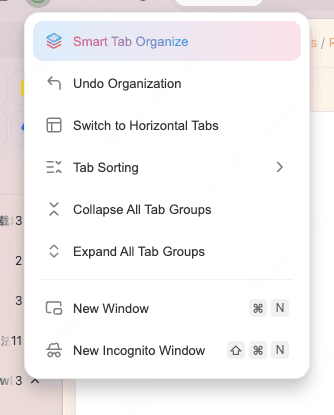
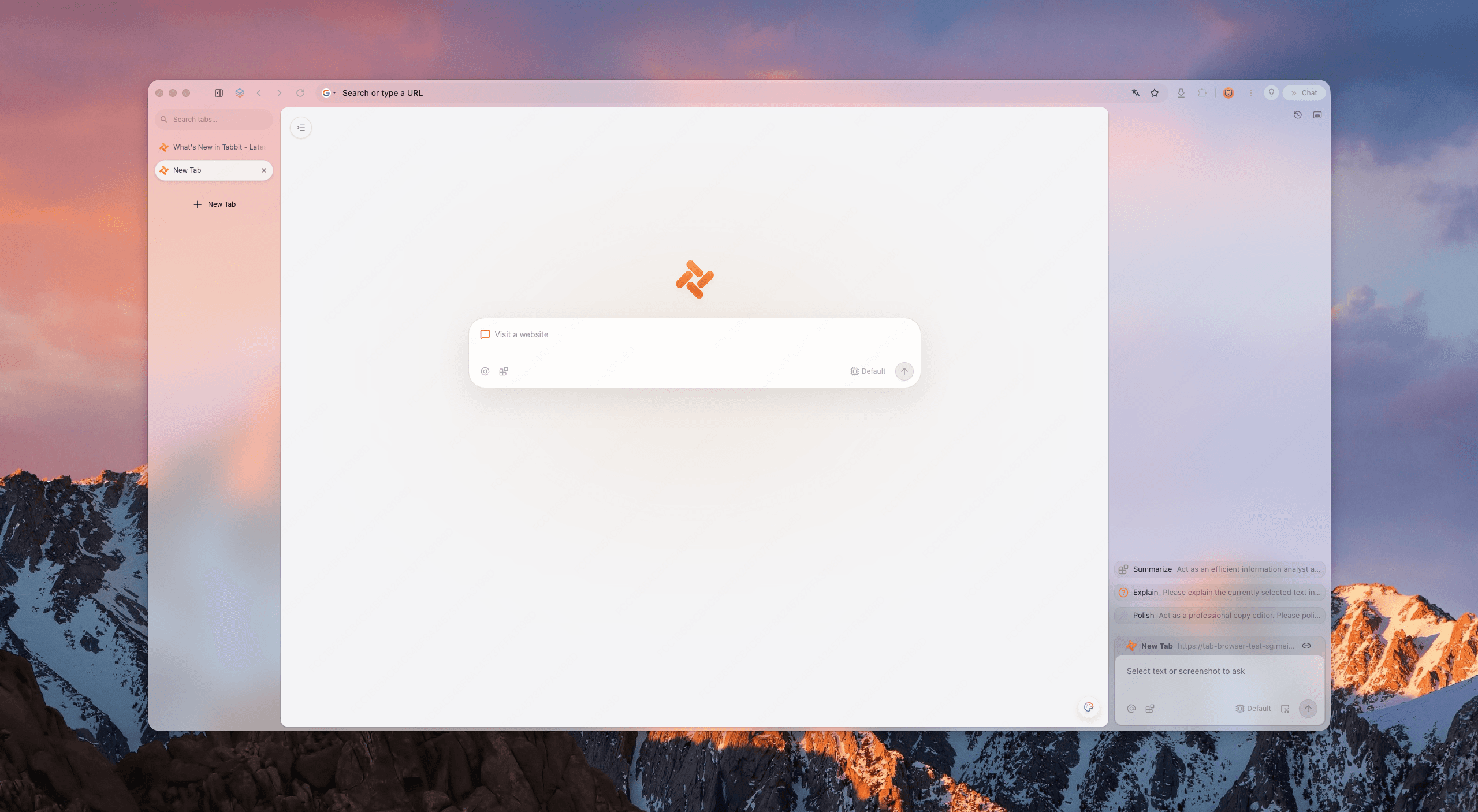
Tabbit Browser combines a vertical tab list, workspaces, and Smart Tab Organization. Open the tab-management menu and choose Smart Tab Organize. Tabbit proposes topic groups, giving you a first draft to review instead of asking you to inspect every tiny favicon.

Use the result with the same three destinations:
Rename groups around active outcomes and move durable projects into workspaces.
Remove obvious mistakes, duplicates, and completed pages.
Send later reading and references to their proper stores, then close those live tabs.
Keep forms, uploads, calls, and other live sessions outside the cleanup until their state is safe.
The vertical layout keeps full titles visible as you review. It is especially useful when a horizontal strip would show only favicons.

Tabbit adds one more step after organization. In the Omnibox, type @ and reference a whole tab group. You can ask for a comparison, source map, or list of disagreements without pasting every URL into another chat. The organized group then becomes working context for the task.
For example:
Compare the sources in @Vendor research.
List the claims they agree on, the claims that conflict, and the original page for each point.
Do not fill gaps with assumptions.The AI tab organizer guide covers automatic classification in more detail. If you want Tabbit to act on pages rather than only organize or read them, first understand browser automation and the permission boundaries of an agentic browser.
Tabbit is not the primary fix for every case. Ten clear tabs do not need AI classification. A heavy web app still uses resources after it is grouped, and a faulty extension can remain faulty in another Chromium browser. Smart organization reduces review effort; it does not guarantee lower RAM for the same workload. Compare the migration trade-offs in Tabbit vs Chrome or use the Chrome alternatives checklist before moving an important profile.
Which tool fits your tab problem?
| Situation | Best first tool | Why | Risk to check |
|---|---|---|---|
| A few related pages for today's task | Native tab group | Fast, visible, and easy to close together | Do not treat it as permanent storage |
| Titles are unreadable in a horizontal strip | Vertical tabs plus Tab Search | Restores visibility and retrieval | It does not reduce the number of saved intentions |
| Articles you plan to consume once | Read-later queue | Gives “later” a real destination | The queue needs an expiration rule |
| Documentation and sources used repeatedly | Bookmarks or project notes | Durable and searchable | Bare links can become a second pile |
| A recurring client, course, or launch | Workspace | Preserves a task context | Close the workspace when the project ends |
| Dozens or hundreds of mixed pages | Tabbit Smart Tab Organization | Produces a reviewable first draft of groups | Check misclassification and live page state |
| One tab or extension consumes unusual resources | Browser task manager and isolation testing | Finds the actual process causing the problem | Organization alone will not fix a leak |
Final verdict
Too many browser tabs are usually a retrieval problem disguised as a clutter problem. Do not begin with a target number. Give active work, later reading, and durable reference three different homes. Protect temporary page state, verify one saved item, and then close the pages that no longer belong in the working set.
Use native groups and vertical tabs when the session is small enough to understand manually. When tabs span several projects or windows and the first sorting pass is the obstacle, install Tabbit Browser and try Smart Tab Organization on one busy project. Review the proposed groups, move active work into a workspace, and use @ to work with the group as context. Keep your original browser profile until important pages, extensions, and recovery paths have been verified.
FAQ
How many browser tabs are too many?
There is no useful universal number. You have too many when titles become unreadable, you cannot find the active task quickly, or old pages stay open because you do not trust your saving system.
How do I close tabs without losing them?
Save reusable URLs to a named tab group, read-later queue, bookmark folder, or project note, then verify that you can reopen one item. Save form text, uploads, media positions, and other temporary page state separately before closing because a URL alone may not restore them.
Should I use tab groups or bookmarks?
Use tab groups for work you expect to resume soon and bookmarks for durable reference material. A read-later queue is better for articles you intend to consume once, while finished or duplicated pages should simply be closed.
Do too many tabs slow down a computer?
They can increase memory and CPU use, but the effect depends on the sites, extensions, media, and your browser's tab-sleeping behavior. Diagnose unusually heavy pages separately instead of assuming every open tab has the same cost.
What is the safest way to save a whole browser session?
Save or bookmark the whole window into a dated project folder, confirm that the saved links appear, and keep a short note describing the task. Treat this as a recovery snapshot, not as a permanent daily organization system.
Can Tabbit automatically organize tabs?
Yes. Tabbit Smart Tab Organization can classify open pages into topic groups, and workspaces can separate projects. Review the result because mixed pages or unusual tools can be misclassified, and save temporary page state before closing anything.