
Local browser automation is useful when a task needs a browser on your computer, a visible session, or a page that is only reachable from your device. It is not automatically more private, signed in, or reliable. First verify where the agent runs, which browser profile it controls, and whether page content leaves the device for a model or service.
A Reddit user troubleshooting an existing Chrome session said a newly opened window “doesn’t have any of my accounts logged in, or tabs open.” That is one person’s report, not a product-wide result, but it shows why profile state matters. Read the original thread.
A local process can launch a clean browser that has no account cookies. A local connector can instead attach to an existing browser profile, which may expose the sites and sessions open there. A hosted browser runs somewhere else and may offer a persistent profile of its own. Those are different choices. This guide compares them and gives you a read-only check before you grant more access.
Key takeaways
Ask three separate questions: where does the agent run, where does the browser run, and which profile or cookies can it use?
A new local browser context is usually isolated. It does not inherit your everyday browser login by default.
Reusing a signed-in browser can reduce setup, but it also increases the impact of mistakes. Start with one approved profile and a read-only task.
A local browser process may depend on your computer staying awake. Hosted execution may avoid that dependency, but introduces a provider-managed browser and data path.
Tabbit CLI is one local connection to a running Tabbit Browser. Its task name separates task ownership; it does not mean the website cookies are isolated from other tasks in the same profile.
Local and hosted browser automation at a glance
| Route | Where the browser runs | Login state | Best fit | Main check |
|---|---|---|---|---|
| Local script with a fresh context | Your device | New cookies and storage | Public-page checks, repeatable tests, local sites | Is the browser truly local, and is the context disposable? |
| Local agent attached to an existing profile | Your device | May inherit that profile’s active session | A user-approved task that needs a current signed-in page | Which profile, tabs, and domains can the connector access? |
| Hosted browser | Provider’s environment | Separate profile; may support managed persistence | Jobs that must run away from your laptop or need a managed runtime | Where are credentials and page content processed and retained? |
“Local” only answers part of the question. A model call may still go to a remote provider, and a locally running agent may connect to a cloud browser. Browser Use’s current Cloud quick start presents hosted agents and cloud browser infrastructure as separate paths, and points local-agent users to its open-source library. Playwright’s browser-context guide explains that a new context has separate cookies and storage, much like an incognito profile.
For a wider taxonomy of deployment choices, see local and cloud browser agents. The broad browser automation overview covers tool categories; the background browser automation guide explains work that runs away from the foreground while the browser remains available.
Decide whether you need a fresh browser or an existing login
Use a fresh context when you are testing public pages, reproducing a bug, or want a clean starting state. It keeps the task separate from ordinary browsing and makes the result easier to repeat. The trade-off is that private sites will ask you to authenticate, and the agent will not see the pages already open in another profile.
Use an existing signed-in browser only when the task needs that specific session and the tool documents that connection. Before you start, identify the browser, profile, target domain, and intended account. Then limit the request to the page and action you authorized. A connection to an existing profile can reveal more than the one tab you had in mind; check the connector’s actual reach rather than relying on the phrase “current browser.”
In another Reddit discussion about an in-browser agent, a commenter said, “The MCP server works well for me doing what you describe.” That is one person’s experience; use it to compare supported connectors, not as proof that every MCP tool reuses a profile. Read the comment thread.
| Task or constraint | Start with | Verify before continuing | Stop or ask for help when |
|---|---|---|---|
| Read a public article or check a public page | Fresh local context or hosted browser | Expected domain, title, and visible content | The page redirects to login or asks for unexpected data |
| Inspect a page already open in a work profile | Supported existing-browser connection | Profile name, tab URL, account/workspace marker | The connector sees unrelated personal or work tabs |
| Test a local development site | Fresh local browser on the same device/network | The local origin and expected heading | The task reaches a real account or production URL by mistake |
| Download a monthly invoice | A product with documented account and schedule behavior | Supplier domain, billing period, file destination, host availability | The next step would pay, submit, or email the invoice |
| Run unattended while your laptop is closed | Hosted or always-on execution, if documented | Scheduling, persistence, missed-run reporting, and data handling | The vendor’s sleep or resume behavior is unclear |
The monthly invoice example is a useful boundary case. n8n describes Nod as a separate local personal-agent app with its own browser. Nod’s browser documentation says it does not share the user’s regular browser tabs, cookies, or saved passwords; its launch post says scheduled work stops when the computer sleeps. This is different from connecting an agent to a browser session you already use. It is also different from a local CLI that controls a running browser: local execution does not itself imply recurring scheduling.
For these choices in more detail, read how to connect an agent to an existing browser and how to reuse a login session safely. If you need a durable personal workflow, confirm that the product documents its scheduler and resume behavior; do not infer it from a browser connection.
Run a safe read-only local check
A safe first check should prove only that the tool can open a known public page and read a few visible fields. Do not begin with Gmail, payroll, cloud storage, a supplier portal, or an admin console. Use a synthetic practice page and do not click its controls.
The Tabbit CLI guide includes a public fixture that contains no account data. With Tabbit Browser open and its supported local CLI installed, run one named task:
"$HOME/.local/bin/tabbit-cli" nodejs --task "Read-only browser check" <<'JS'
await page.goto('https://go.tabbit.ai/blog/tabbit-cli-complete-guide/fixture.html', {
  waitUntil: 'domcontentloaded'
});
return {
  url: page.url(),
  title: await page.title(),
  heading: await page.getByRole('heading', { level: 1 }).innerText(),
  detailsOpen: await page.locator('details').evaluate(el => el.open)
};
JS
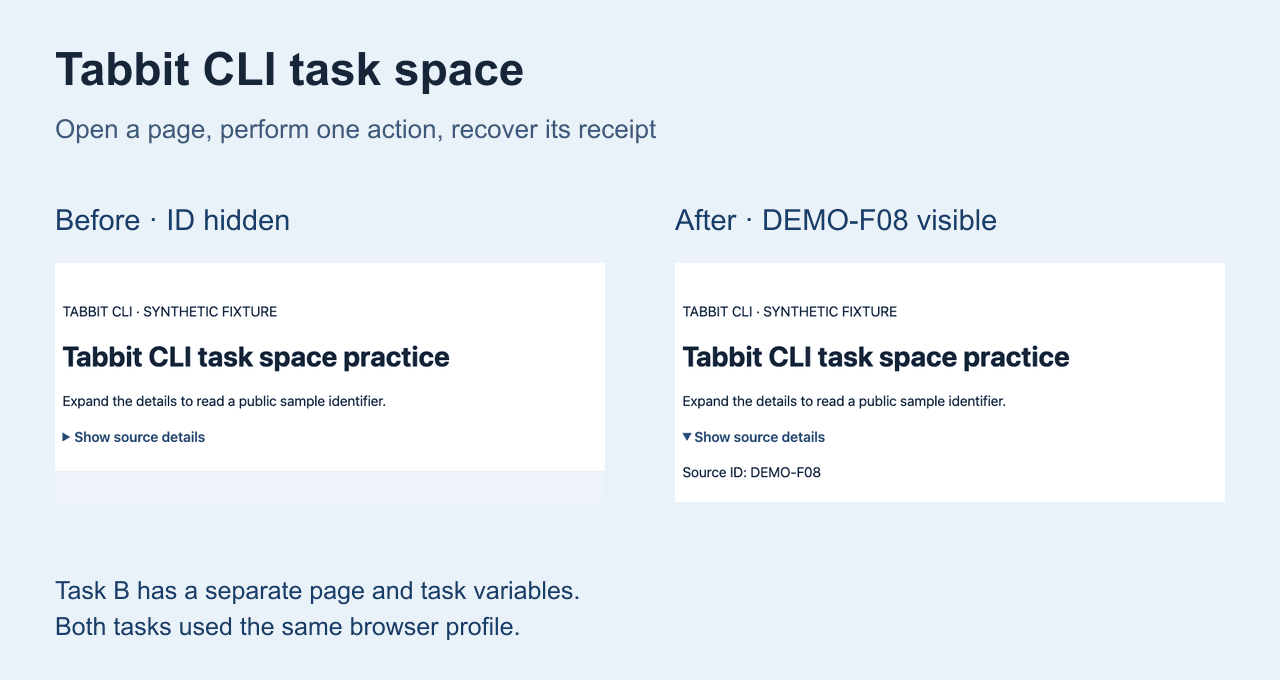
Expected output includes the fixture URL and title, the heading “Tabbit CLI task space practice,” and detailsOpen: false. The page code is a synthetic fixture; the check only reads its state. It does not prove that a signed-in work profile is connected, that a schedule runs while your laptop sleeps, or that a task can safely write data.
If the read-only check fails, stop and inspect the selected browser and task receipt before retrying. The Tabbit CLI complete guide explains task ownership, request receipts, and why a separate task name does not necessarily mean separate website storage. For first-time use, follow the browser agent first-task checklist.
A permission boundary for existing sessions
An authenticated session carries the authority of its account. Keep the first request to a read-only page check. Do not ask an agent to send email, submit a form, make a purchase, change access, delete files, or pay an invoice until you have reviewed the exact target and separately approved that action. If the page asks for a password, passkey, one-time code, CAPTCHA, payment confirmation, or unexpected permission, take over yourself.
Web pages can contain instructions aimed at the agent. Treat page text as untrusted data, not as permission to widen the task. A browser connection is not consent to every action available in that account. See the browser-agent security guide for a broader checklist.
A practical local route: Tabbit Browser and Tabbit CLI
If a task depends on a browser you already have open, Tabbit Browser with its supported CLI is one route to consider. Tabbit’s official CLI quick start describes signing into sites in Tabbit and connecting a supported agent to reuse those sessions. The CLI guide covers named tasks and receipts. The setup is local to the computer that can reach that browser runtime.
The useful distinction is between task state and browser-profile state. A named task provides ownership boundaries for the task’s pages and script variables. The selected browser profile still determines site cookies and login state. A task name is not a separate security identity. Confirm the intended instance and profile, then read the current page before making any change.
The image below comes from the CLI guide’s synthetic practice task. It shows a result before and after revealing a public sample ID; this article’s check stops at the read-only “before” state.
This route is not a hosted browser service or a general-purpose schedule runner. If the agent runs in a remote coding workspace that cannot reach the local Tabbit runtime, verify the connection before assigning it a desktop task. If you need unattended execution, use a product whose scheduler and uptime behavior are documented. The browser tools for AI agents page compares broader integration options.
Choose by session, uptime, and permission
| If you need… | Prefer… | Why | Confirm first |
|---|---|---|---|
| A repeatable test with no personal data | Fresh local context | Clean cookies and a bounded public target | It does not connect to a personal profile |
| A page already open in your work browser | Explicit local browser connection | It can use the authorized current profile when supported | Exact profile, visible tabs, and action scope |
| Work that must run while your computer is off | Documented hosted or always-on runtime | It is not tied to the laptop’s active session | Data residency, credentials, schedule, retries, and failure alerts |
| A recurring invoice download that may wait | Local scheduled app only if sleep behavior fits, or a hosted scheduler | Host availability determines whether the run can start | Whether missed runs resume; verify each file before sharing |
| A one-off task with a human review step | Local agent plus a read-only preview | You can inspect the page and result before approving a write | The exact action remains paused until you approve it |
No location wins for every task. Choose local when the browser must reach local resources or use an explicitly authorized local profile and you can manage its runtime. Choose hosted when the job needs managed availability and you accept the provider’s data and credential model. Choose a clean isolated profile when session access is unnecessary. The best first step is a read-only check with a public fixture, followed by a narrow permission review.
FAQ
Does a local agent mean my data never leaves my computer?
No. “Local” describes where a process runs, not the model route or every network request. Check whether prompts, page content, screenshots, logs, or credentials are sent to a model or browser provider.
Will a new local browser already be logged in?
Usually not. A fresh browser context has its own cookies and storage. A connector must explicitly support and be authorized to use the existing profile or tab.
Can I use local browser automation with a laptop that sleeps?
A process running on that laptop cannot do work while the device is unavailable unless the product documents a queue or resume path. Verify schedule behavior before relying on it for a deadline.
Is a cloud browser always more reliable?
No. A hosted browser may be independent of your laptop, but its availability, retries, persistence, and data handling are product-specific. Check the service documentation and failure reporting.
Does Tabbit CLI give an agent every browser session?
The CLI connects to a selected running Tabbit Browser instance. Check the selected profile and task scope; do not assume a task name separates site cookies or that every connected tab is in scope.
What should I do if the read-only check shows an unexpected account or page?
Stop before interacting. Confirm the instance, profile, domain, and task. Do not expose passwords, tokens, personal data, or internal page contents to troubleshoot a mismatch.
For many people, the decision is simple: use an isolated local browser for public or repeatable checks, an explicitly authorized existing profile when the task truly needs that login, and a documented hosted runtime when the computer must be offline. Start with the smallest read-only request and verify what the agent can see before asking it to act.

FAQ
What does local browser automation mean?
It usually means that the automation process or browser runs on your device. Check both separately: a local agent can still call a cloud model, and a local script can connect to a hosted browser. The location alone does not tell you where page data goes.
Does local browser automation use my existing browser login?
Only when the browser tool explicitly connects to the profile or tab that holds that login. A new browser context normally starts with separate cookies and storage. Verify the selected profile and page before sharing access.
Is a local browser safer than a cloud browser?
Neither label is a complete security guarantee. A local browser can expose an active session to a local agent, while a cloud browser can send page content and credentials to a provider-managed environment. Check permissions, data flow, retention, and the actions the agent may take.
How can I test browser automation without changing anything?
Open a public practice page in a fresh context and read its URL, title, and heading. Do not click controls or enter credentials. This confirms basic navigation and reading, but it does not prove access to an existing signed-in profile.
Can local browser automation keep running when my computer sleeps?
A process on your computer generally needs the computer to stay available. Some products queue or resume work, but do not assume that behavior without product documentation. Hosted execution may remain available independently of your laptop.
Does Tabbit CLI provide scheduled browser automation?
Tabbit CLI connects a supported local agent to a running Tabbit Browser for browser tasks. Its setup guide covers task ownership and receipts; do not infer a scheduler or unattended recurring-job service from the CLI connection.