Chrome Memory Saver can be on, set to Maximum, and still leave an idle-looking tab awake for hours. A user in r/chrome described exactly that: tabs left untouched for hours did not become inactive, even with the most aggressive setting. The user had no extensions and had not changed experimental flags, which made the behavior feel like a straightforward Chrome bug.
There is a second pain hiding behind the same setting. Some people do not want more tabs to sleep because they dislike the reload when they return. One X user put it plainly: "I don't like it refreshing the pages when I go to open them back up." A half-written form, paused video, upload, or precise reading position can matter more than a lower RAM number.
The fix is to separate an eligible idle tab from a protected live task. Check Chrome's protection rules and exceptions, select the right deactivation level, then test one known-safe page. If the real problem is a backlog of pages rather than Memory Saver itself, Tabbit Browser can organize that backlog so you can close expired work without guessing.
Key takeaways
Memory Saver does not deactivate every background tab. Chrome deliberately protects audio, video, calls, screen sharing, notifications, downloads, unfinished forms, pinned tabs, and connected devices.
Moderate, Balanced, and Maximum change how soon eligible tabs become inactive. They do not override protected activity or your site exception list.
A reload is the normal return path for an inactive tab. Save important state before using a more aggressive level.
Use one plain article as a test tab. If that page becomes inactive while a dashboard does not, the feature is working and the dashboard probably has a protected condition.
Tabbit helps with the separate problem of tab sprawl. Smart Tab Organization makes stale and duplicate pages easier to find and close, but it is not a RAM cleaner.
Memory Saver problems at a glance
| What you see | Likely reason | First check | Safe next action |
|---|---|---|---|
| No tabs show as inactive | Setting is off, level is too gentle for the test, or all candidates are protected | chrome://settings/performance and Inactive tabs appearance | Turn on Memory Saver, use one plain article as the test, then wait without touching it |
| A music, call, or video tab stays awake | Chrome protects active media and calls | Playback, microphone, screen share, picture-in-picture | Keep it active or stop the live activity before retesting |
| A form or upload never sleeps | Chrome protects unfinished forms and active downloads | Unsaved fields, upload progress, pending submit | Finish or save the work; do not force the page to sleep |
| Only some sites never sleep | Site exception, pinned state, notification, or connected device | Always keep these sites active and the tab's current activity | Remove only the unnecessary exception or unpin a safe test page |
| Tabs sleep, but returning loses your place | Reload is working as designed, but the site does not restore transient state | Scroll position, draft text, media position, local session state | Add a narrow exception or save the state elsewhere |
| RAM remains high after several tabs become inactive | Another tab, extension, GPU process, or browser service owns the memory | Chrome Task Manager sorted by Memory footprint | Use the deeper Chrome RAM diagnosis |
What Chrome Memory Saver actually does
Google's current Chrome performance help says Memory Saver deactivates tabs you are not using so active tabs and other applications have more resources. When you return to an inactive tab, Chrome reloads it.
That last sentence matters. Memory Saver is not a frozen screenshot of every possible page state. Chrome can restore the URL, and a well-built web application may restore its own session, but temporary state can disappear. A social feed may move, a paused video may restart, and a draft that lived only in page memory may be gone.
Chrome currently offers three levels:
Moderate waits longer before making eligible tabs inactive.
Balanced uses Google's recommended balance between memory savings and reload frequency.
Maximum makes eligible tabs inactive sooner.
"Sooner" does not mean "everything in the background must sleep." The same official help page says settings and ongoing activities can prevent deactivation. A protected page can remain active under Maximum because keeping a live call or unfinished form intact is the safer choice.
This is why two people can report opposite results without either one lying. In the Reddit discussion, another user said Balanced kept memory use acceptable with 75 tabs. That is a personal result, not a benchmark. It does show that page mix and activity matter as much as the selected label.
The five-step fix when idle tabs stay awake
1. Confirm the setting and make inactivity visible
Open chrome://settings/performance. Turn on Memory Saver and select a level. Also turn on Inactive tabs appearance if your version shows it. Chrome places the icon of an inactive tab inside a ring, giving you a visible signal that the page was deactivated.
Do not start with a Meet call, YouTube video, cloud editor, or admin dashboard as your test. Open a plain article with no media, form, download, or notification permission. Leave it untouched while you work in another tab.
If the plain article becomes inactive and the work app does not, Memory Saver is functioning. The next step is to find why the work app is protected.
2. Check Chrome's protected activity list
Google lists the following conditions as reasons a tab may stay active:
active audio or video, including playback and calls;
screen sharing;
page notifications;
active downloads;
partially completed forms;
pinned tabs;
connected USB or Bluetooth devices.
Several of these are easy to miss. A video can be paused while the page still owns an active media session. A dashboard can have notifications enabled even when it looks static. A form may contain one changed field far below the current viewport. A device management page may retain a live USB connection.
Check the tab itself before changing global settings. Finish the upload, submit or save the form, stop the call, or unpin a safe page. Then repeat the same test.
3. Audit the Always keep these sites active list
In the Performance settings, find Always keep these sites active. Remove entries you no longer need. Be careful with broad entries because Google supports patterns that can cover an entire domain and its subdomains.
Use the narrowest useful exception. If only a finance dashboard must stay awake, protect its specific path instead of every page on the company's domain. If only a single video route matters, do not exempt all HTTPS pages with a wildcard.
An exception list is a budget. Every broad entry gives Memory Saver fewer eligible pages. It should reflect live work, not become a permanent archive of every site that once reloaded badly.
4. Choose the level around the cost of a reload
Maximum is useful when memory pressure arrives quickly and background pages are cheap to reload. Moderate fits sessions where you revisit pages after longer gaps. Balanced is the sensible starting point for most people because it avoids turning the choice into an all-or-nothing switch.
The best level depends on the cost of losing transient state:
A static article is cheap to reload.
A paused music page may be annoying to restore.
A cloud document is usually recoverable, but only after its save indicator is clear.
An upload, checkout, remote console, or unfinished form can be expensive to interrupt.
Use exceptions for the expensive cases instead of weakening Memory Saver for every site. This gives ordinary research pages a chance to deactivate while live work stays intact.
5. Reproduce the result with one controlled test
Record four things: Chrome version, selected Memory Saver level, test URL, and whether the tab shows the inactive ring. Test once with a plain article and once with the problem page.
The comparison gives you a useful fork:
Neither page becomes inactive. Restart Chrome, confirm the setting remained enabled, and retry with extensions disabled in a fresh profile if practical. A managed device may also have an organizational policy.
The article sleeps but the problem page does not. Look for protected activity, pinning, or an exception. The behavior is page-specific.
Both pages sleep, but RAM remains high. Memory Saver is not the owner of the remaining memory. Open Chrome Task Manager and inspect tabs, extensions, GPU, and browser services.
The page sleeps and loses important state on return. The mechanism works, but the trade-off is wrong for that page. Add a narrow exception or change your workflow.
This method avoids the usual loop of toggling random flags, clearing every cookie, and installing another suspension extension before you know what failed.
Protect music, forms, calls, and long tasks
Treat a live browser task like an unsaved file. Before making Memory Saver more aggressive, sort open pages into two sets: pages that can reload, and pages whose current state matters.
For pages that can reload, bookmarks, a Chrome tab group, or a project list may be enough. A vertical tabs setup also makes page titles easier to scan, though visual organization alone does not release memory.
For pages whose state matters:
wait for the application's saved indicator;
copy critical draft text if the application has unreliable recovery;
finish downloads and uploads;
keep calls and media sessions active only as long as needed;
add a site exception with the narrowest host or path;
remove the exception when the task ends.
An AI tab manager can help label a large session, and a stable browser productivity setup can keep projects separate. Neither tool should decide that an unfinished form is safe to discard. The user still owns that decision.
When Memory Saver is not the problem
Memory Saver only handles eligible background tabs. It does not repair a page that grows while active, stop a leaking extension, reduce the resources needed by a video call, or create physical RAM.
Open Chrome Task Manager if inactive tabs are visible but the system still struggles. Sort by Memory footprint and identify whether the largest owner is a named page, an extension, GPU Process, Browser, or another service. The lightweight browser guide can help with product selection later, but first prove which workload is heavy.
Avoid assuming that an extension-based suspender will fix everything. An extension can offer different timing and controls, but it also adds code and permissions. Test it with the same small page set, verify data access, and keep a recovery plan for tabs with unsaved state.
If the same essential pages exceed available memory in a clean Chrome profile and other browsers, reduce concurrent work or add hardware capacity. Switching brands cannot make a live video editor, call, and large spreadsheet free.
A practical Tabbit workflow for crowded sessions
Suppose Memory Saver works on a plain article, but your browser still contains 60 research pages, duplicate searches, old dashboards, and projects you are afraid to close. That is not mainly a sleeping problem. It is a review problem.
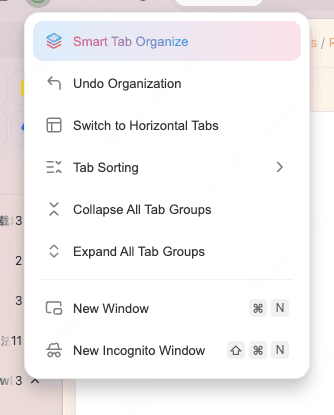
Tabbit Browser's Smart Tab Organization groups open pages so you can review a project at a time. The useful part is not an automatic RAM claim. It is being able to see which group is active work, which pages are duplicates, and which project ended last week.

Use this sequence:
Save live forms, uploads, calls, drafts, and media positions in Chrome.
Install Tabbit and import a test profile rather than replacing your main browser immediately.
Run Smart Tab Organization on one crowded project window.
Keep the live-work group open. Review reference groups and close duplicates or expired pages.
Compare system memory pressure with the same necessary workload.
This works well with an AI tab organizer and project-based browser workspaces. It also has a clear limit: Tabbit is Chromium-based. The same heavy web application or faulty extension can remain heavy after migration.
Read the Tabbit and Chrome comparison before moving a primary profile, and check the broader Chrome alternatives guide if your decision includes privacy, extension support, or compatibility. For this specific problem, Tabbit is a fit when organization lets you safely close work that no longer needs to stay open.
Which setup fits your work?
| Workload | Memory Saver level | Exception strategy | Where Tabbit helps |
|---|---|---|---|
| Mostly static reading and search results | Maximum or Balanced | Few or no exceptions | Groups sources by project so duplicates are easier to close |
| Writing in cloud documents | Balanced | Protect only active document routes until saved | Separates active drafts from background references |
| Music, video, or calls | Balanced | Keep the current media or call active | Keeps unrelated research tabs organized; it does not sleep the live media |
| Uploads, forms, checkouts, remote consoles | Moderate or Balanced | Use narrow, temporary exceptions | Makes the risky live group visible before bulk cleanup |
| Dozens of old research tabs with no single heavy task | Balanced | Remove stale broad exceptions | Smart Tab Organization directly reduces review effort |
| One active page or extension keeps growing | Any level | Exceptions are not the fix | Not the primary solution; isolate and report the faulty task |
Final verdict
If Chrome Memory Saver appears not to work, test eligibility before calling it broken. Check the level, make inactive tabs visible, use a plain article as a control, inspect protected activity, and clean up the Always keep these sites active list. Maximum changes timing; it does not overrule a live call, unfinished form, pinned page, or active download.
If tabs do become inactive but your computer still runs out of memory, diagnose the remaining process. If the real issue is that you cannot tell which of 60 pages are safe to close, organize the session and reduce it deliberately.
Install Tabbit Browser, import a test profile, and run Smart Tab Organization on one crowded project. Keep live work in its own group, close expired pages, and measure the same workload again. That is a safer test than trusting any promise that a browser will magically cut RAM use.
FAQ
Why is Chrome Memory Saver not making tabs inactive?
Chrome keeps tabs active when they play audio or video, handle a call or screen share, show notifications, download files, contain an unfinished form, are pinned, or use a connected device. The site may also be on your Always keep these sites active list. Check those conditions before treating the behavior as a bug.
How long does Chrome take to make a tab inactive?
Chrome does not publish one universal time for every tab. Moderate waits longer, Balanced uses Chrome's recommended timing, and Maximum deactivates tabs sooner, while protected activity and site exceptions can prevent deactivation entirely.
Why does an inactive Chrome tab reload when I return?
Memory Saver frees resources by deactivating the page, so Chrome reloads it when you return. Most sites restore correctly, but transient state such as a scroll position or unsaved input may not survive, which is why important work should be saved or excepted first.
Which sites should I keep active in Chrome?
Keep only sites whose live state matters, such as a call, active upload, unfinished form, music session, or dashboard that must continue updating. Broad domain exceptions reduce the memory that Memory Saver can reclaim, so use the narrowest host or path that fits the task.
Does pinning a Chrome tab prevent Memory Saver?
Yes. Google's current Chrome help lists pinned tabs among the activities and settings that may prevent tab deactivation. Unpin a tab if you want it to become eligible, but first confirm that it does not contain work you need to keep live.
Can Tabbit reduce Chrome tab clutter without losing my place?
Tabbit can import a test browsing profile and use Smart Tab Organization to group a crowded session for review. You still decide which pages to save, keep live, or close, and Tabbit does not promise lower RAM for the same heavy page or extension.