01
IN THE BROWSER
Web pages and browser requests
When enabled, sites you open in Opera GX can see the VPN server’s IP and apparent location instead of your usual address.
Covered by the browser feature
OPERA GX VPN · A CLEARER ANSWER
Opera GX includes a free VPN for the browser. It can route browser traffic through a VPN server, change the IP and apparent region that websites see, and encrypt the browser connection. It is useful—but it is not a promise of anonymity, a whole-device tunnel, or a gaming accelerator.
The short answer
Use Opera GX VPN for browser privacy on a shared or untrusted network. Use a full-device VPN when your game, other apps, or every system connection must be covered.
A browser VPN changes the path of browser traffic; it does not make every app on your computer appear in the same region.
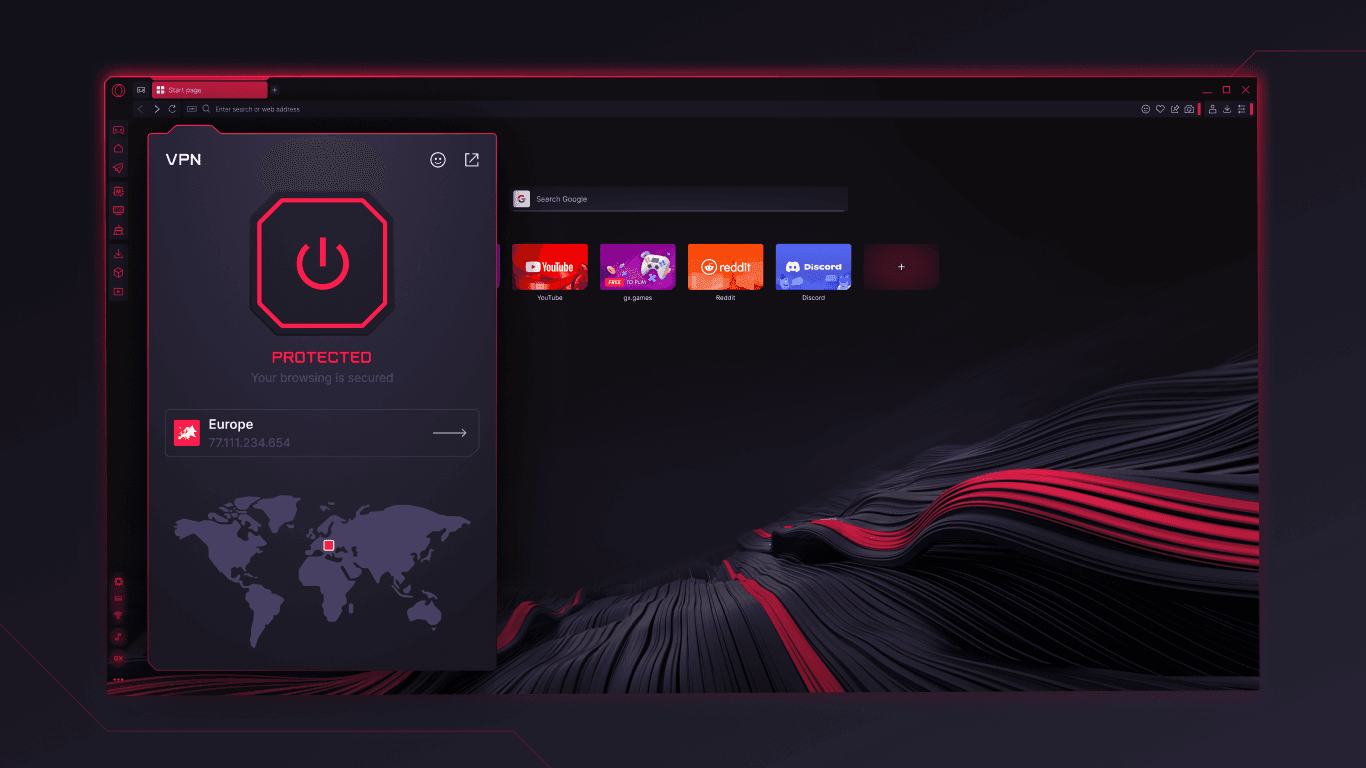
01 / KNOW THE BOUNDARY
The most important distinction is scope. Opera’s help pages describe a browser connection to a VPN server; that is different from installing a device-level VPN client.
IN THE BROWSER
When enabled, sites you open in Opera GX can see the VPN server’s IP and apparent location instead of your usual address.
Covered by the browser feature
OUTSIDE GX
A browser toggle does not automatically reroute a game client, another browser, system updates, or other apps on the device.
Needs a full-device VPN if required
STILL VISIBLE
Signing in identifies you to a service. Cookies, browser signals, and site-side tracking can still connect activity to a profile.
VPN is not anonymity
CHECK SEPARATELY
Test the setup you actually use. Extensions and browser features can make their own requests, and leak behavior can vary by version and site.
Verify instead of assuming
02 / TURN IT ON
Opera’s documented desktop path is short. The labels can move between releases, so use the current Settings search if your build looks different.
Open Opera GX Settings, then find Privacy protection or Privacy & security.
Under VPN, turn on Enable VPN. A VPN badge/button appears in the combined address and search bar.
Select the badge to see the switch, transferred data, virtual location and virtual IP address.
Choose a virtual location—or let Opera choose optimal.
Select a region from the location list when the task needs a different apparent region. If you do not choose one, Opera assigns an optimal location. Opera also documents an option to bypass VPN for default search engines, so local searches use your actual region while the VPN resumes for web pages.
02 / TURN IT ON
Open the VPN panel
Choose a virtual location—or let Opera choose optimal.
Open Settings
Enable VPN
The panel exposes the connection state and selected virtual location; it does not show that every device app is tunneled.
Read Opera’s VPN help ↗03 / REALITY CHECK
A VPN can reduce exposure on a local network and mask the IP presented to websites. It cannot fix every identity or routing problem by itself.
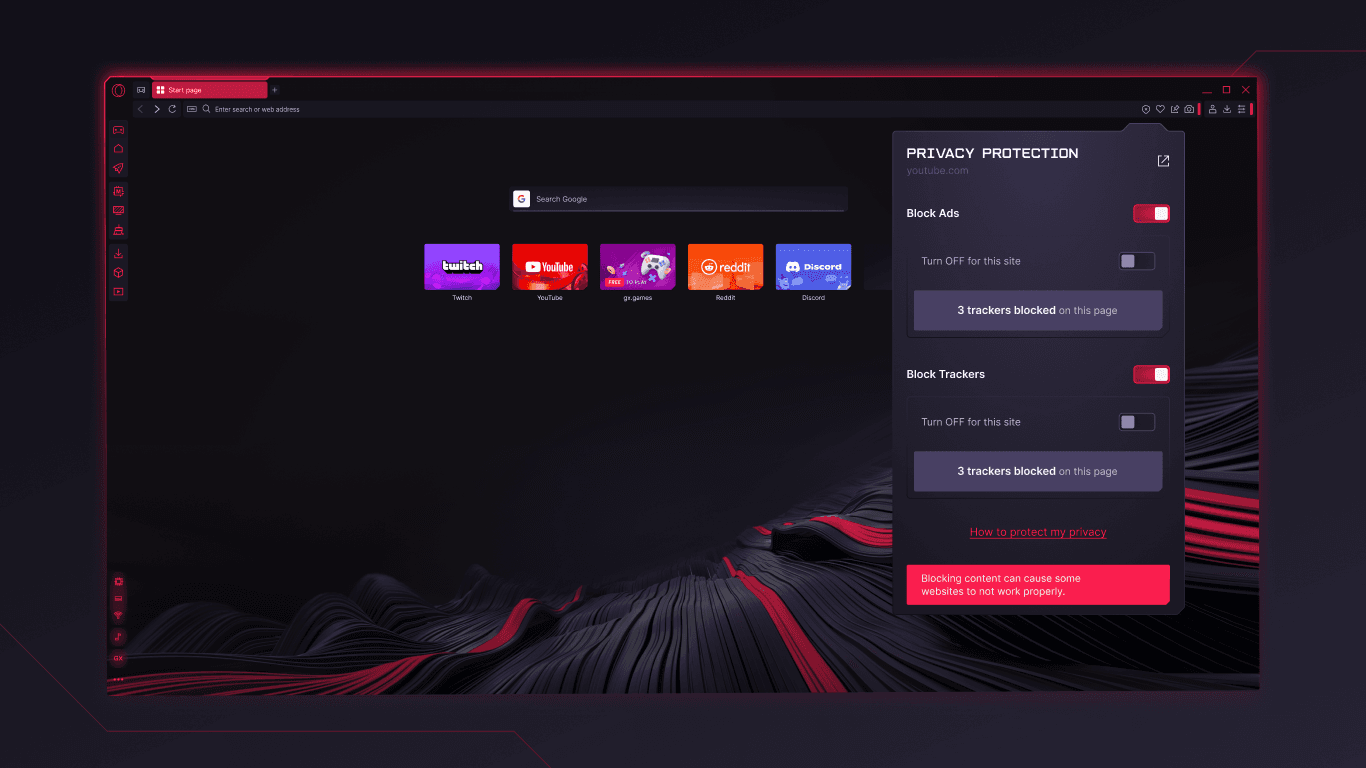
Encryption and an extra server hop can reduce throughput or add latency. Test the same site or game route at the same time of day; do not expect VPN to lower ping.
A logged-in account, persistent cookie, or synced profile can still identify you after the apparent IP changes. Sign out or use a separate profile only when that fits your goal.
Run a DNS and WebRTC leak test with the extensions and settings you actually use. A green VPN badge is not a substitute for checking the resulting network requests.
Review extension permissions and keep sensitive work on HTTPS. A VPN does not make a malicious extension trustworthy or a fake login page safe.
A different IP may change search results or service availability, but it does not grant permission to bypass terms, licensing, age checks, or account controls.
Install Opera GX from an official source and keep it updated. Treat “VPN enabled” as one signal in a wider security routine.
04 / PICK THE RIGHT TOOL
Neither option is automatically better. The right choice follows the traffic you need to protect and the performance cost you can measure.
| Question | Opera GX built-in VPN | Full-device VPN app |
|---|---|---|
| Coverage | Opera GX browser traffic and pages opened there. | Usually routes traffic from multiple apps and system services, subject to split-tunnel rules. |
| Setup | Enable a browser setting and use the address-bar VPN panel. | Install/sign in to a VPN client, then connect a device or selected apps. |
| Region | Choose a browser VPN location or use optimal location. | Choose a provider server; region availability depends on the plan and provider. |
| Gaming | Does not route the game client; no promise of lower ping. | Can route the game if configured, but the extra hop may increase ping. |
| Identity | Does not erase logins, cookies, fingerprints or site tracking. | Also does not erase account identity or make a user anonymous. |
| Best fit | Quick browser privacy on shared Wi‑Fi or for ordinary web pages. | Device-wide coverage, app-specific routing, or a managed network policy. |
“Covers more traffic” is not the same as “is faster.” Measure the routes and apps that matter to you.
05 / A DIFFERENT BROWSER JOB
Opera GX is a gaming-oriented browser with a browser VPN. Tabbit is an AI-native browser for reading, comparing and completing work across web pages. These screenshots show the difference in job, not a VPN feature comparison.
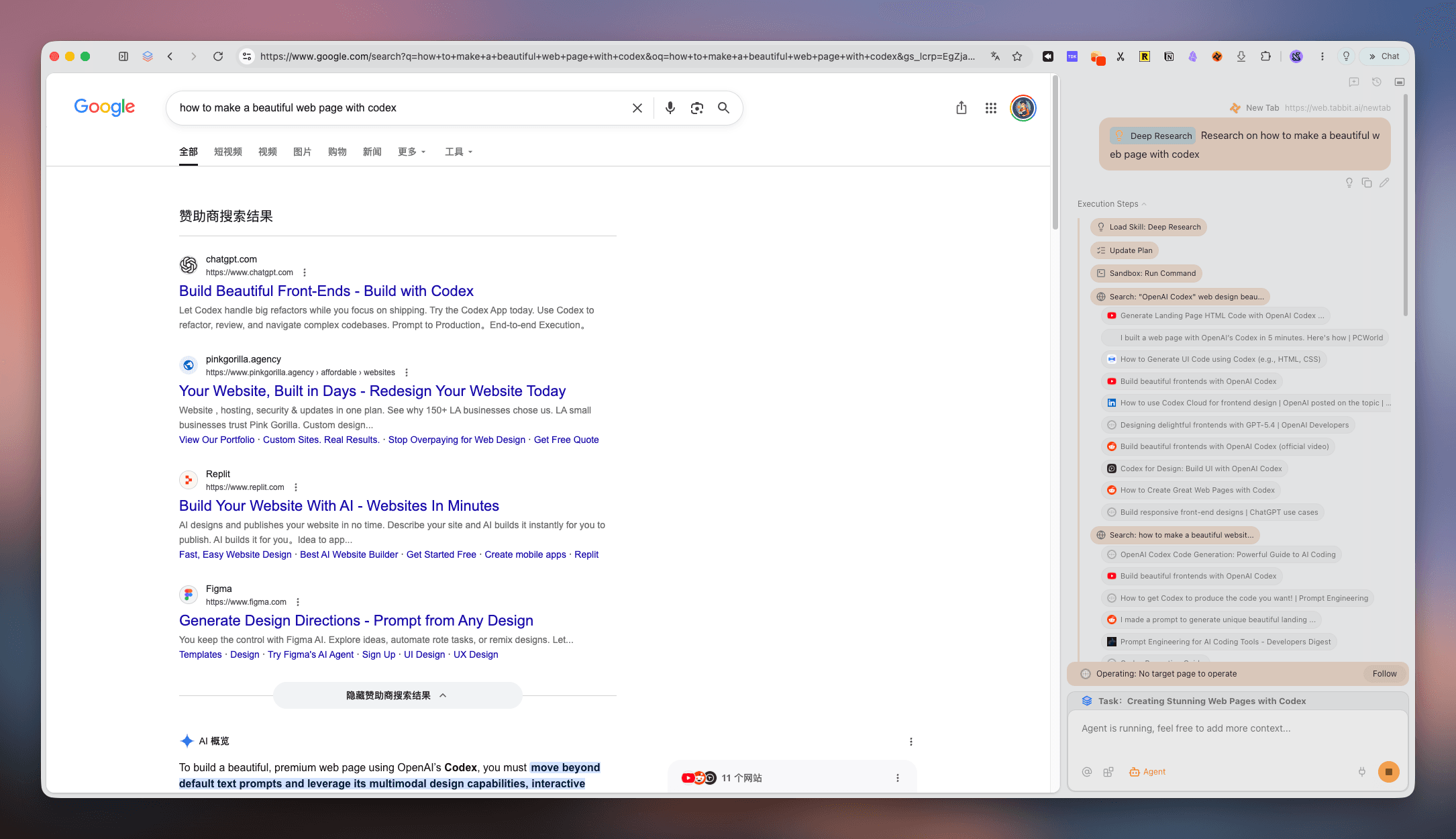
DEEP RESEARCH
Tabbit can work through a research question across pages while keeping sources and execution steps in view. Review the evidence before you share the result.
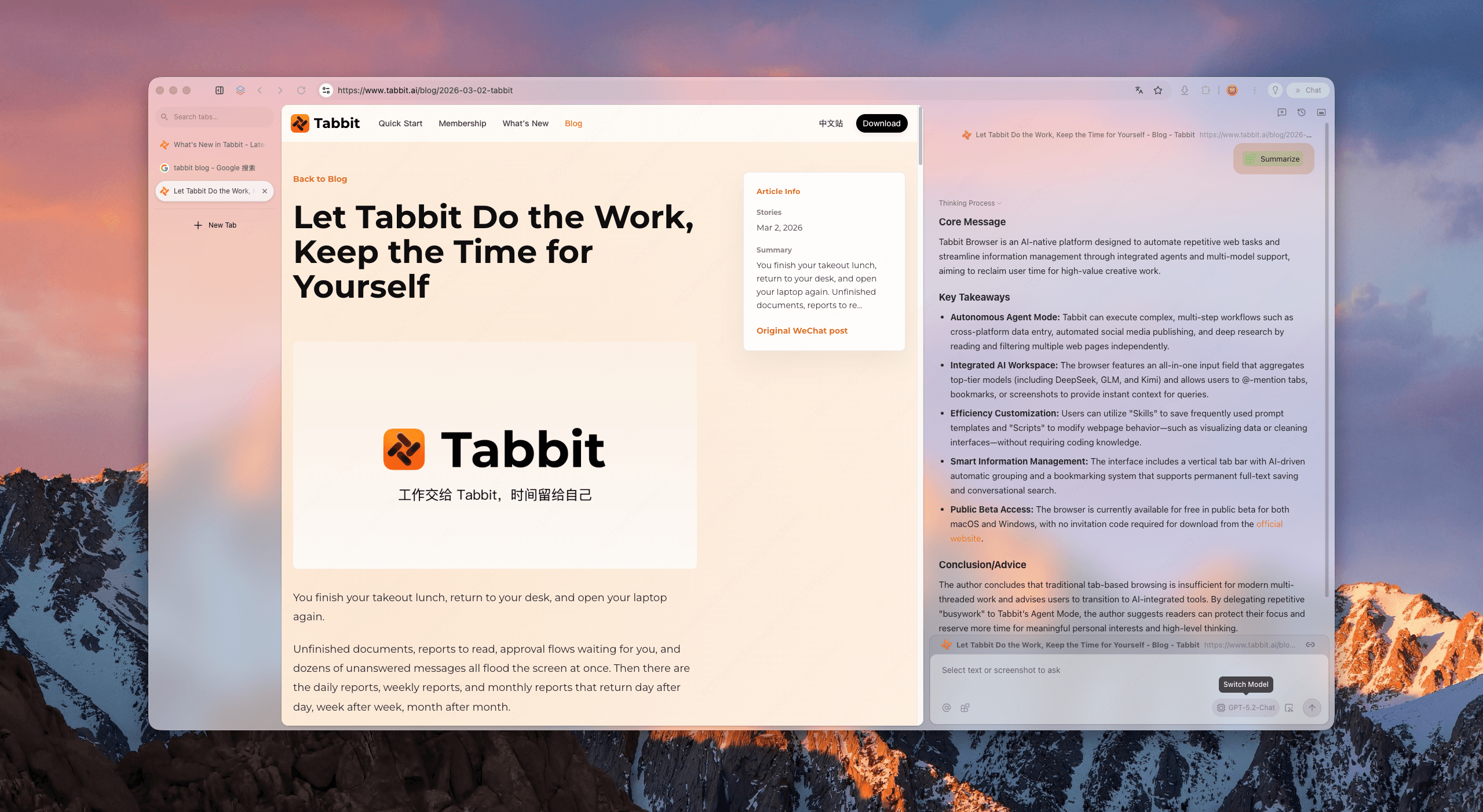
PAGE CONTEXT
Tabbit’s sidebar can summarize and explain the page you are reading. It helps with synthesis and understanding; it does not claim to replace a network privacy tool.
Tabbit is not a VPN and does not replace Opera GX’s gaming controls. Choose it when the next step is research, synthesis or supervised browser action.
QUESTIONS PEOPLE ASK
A browser VPN changes the path of browser traffic; it does not make every app on your computer appear in the same region.
Yes. Opera GX lists a built-in Free VPN. Opera Help describes it as a browser connection through a VPN server, with a free service and unlimited transfer. Availability and wording can change by version or region.
Open Opera GX Settings, find Privacy protection or Privacy & security, open the VPN section, and enable VPN. Then use the VPN badge in the combined address and search bar to inspect or change the connection.
Yes. The VPN panel can expose a list of virtual locations. If you do not select one, Opera Help says it assigns an optimal location. The available list can vary, so check the current build.
No. Treat it as a browser-level feature. It does not automatically route a game client, another browser, messaging app, or every system connection. Use a full-device VPN when that broader scope is required.
No. It can change the IP and apparent location presented to websites and encrypt the browser connection, but accounts, cookies, fingerprints, extensions and site tracking can still identify or profile activity.
There is no general promise of lower ping. A VPN adds a server hop and may increase latency. Opera GX’s browser VPN also does not route the game client; test a full-device setup only if you understand the trade-off.
Use normal security checks. A VPN does not remove account identity or cookie state, and extensions can make their own requests. Review permissions, use HTTPS, and test DNS/WebRTC behavior with your actual configuration.
If you want an AI browser that can summarize pages, compare sources and perform supervised browser steps, Tabbit is a different kind of alternative. It focuses on context and execution, not VPN coverage.
CHOOSE THE NEXT JOB
Opera GX VPN is a practical browser control when you understand its scope. Try Tabbit when your next session needs sources turned into a checked brief, not another network promise.
No anonymity promise. No lower-ping promise. Just a clearer browser choice for the task in front of you.