TabbitBlog

Browser Sync Problems: Stop Lost and Duplicate Tabs

Diagnose why sync deletes, duplicates, or revives tabs, then keep a local workspace as the source of truth instead of live open-tab sync.

In this article
  1. Key takeaways
  2. Sync failures at a glance
  3. Why "open tabs" is a bad record
  4. Diagnose the failure before you touch the account
  5. If tabs disappeared
  6. If closed tabs return
  7. If groups duplicate
  8. Native fixes that actually change the record
  9. 1. Split "passwords" from "open tabs"
  10. 2. Stop launching yesterday's argument
  11. 3. Put durable pages somewhere other than the tab strip
  12. A practical option: keep the project in Tabbit, not in live tab sync
  13. Which fix fits the mess you have
  14. Final verdict

An Arc user put both failures in one post. Opening the iPhone app could wipe pins from the last day or two. Tabs closed minutes earlier also often randomly reappear. A Chrome user had a quieter version of the same accident: they turned Sync on, every open tab closed, and a bookmarks bar from 2012 replaced the current one.

Cloud tab sync is sold as a safety net. In practice it is a merge of "what is open right now" across machines that disagree. One device closes a project. Another still has it. A third signs in with an old profile. The cloud has to pick a winner. You see that winner as lost tabs, duplicated groups, or pages that refuse to stay closed.

Keep passwords if you want them. Stop treating live open tabs as the backup. Tabbit Browser shows up later as a local workspace for desktop work, not as a better clone of Chrome Sync. It has no mobile app at the time of writing.

Key takeaways

  • Lost, duplicate, and reappearing tabs are three views of the same design: the live window is treated as the record.

  • Before you sign in again, copy the session that still exists. Reconnecting can overwrite the copy that remains.

  • Chrome's History and tabs switch is separate from bookmarks and passwords. You can keep logins and drop live tab sync.

  • Continue where you left off restores a session on that computer. Tabs from other devices is a lookup list. They are not the same control.

  • Tabbit is useful when a desktop project needs a named home after sync makes a mess. It will not put those tabs on your phone.

Sync failures at a glance

What you seeLikely causeCheck firstDo not do first
Tabs vanish after you sign inAn older cloud profile replaced the local window, bookmarks, or groupsRecently Closed, full History, Tabs from other devicesSign out and back in, hoping the cloud will merge
Closed tabs return on the next launchContinue where you left off, background Chrome, or another device that still has the pagesSettings → On startup; other signed-in devicesKeep closing the same tabs
Saved groups or pins multiplySaved tab groups plus "reopen closed tabs," sometimes plus a phoneBookmarks bar saved groups; History and tabsDelete hundreds of copies with no snapshot
Pins you removed come backSync still holds the old pin set and restores it on launchThe same account on a second device; antivirus or a stalled syncUnpin again without turning the sync item off
You can see the tabs on device B but not ADevice A's session file is gone; B still has a live or synced listCopy B firstReconnect A and let sync decide

If the real problem is an unreadably large window rather than a sync fight, use the too many tabs system first. If idle pages are being discarded while a form or playlist should stay live, that is tab sleeping versus active work, not this article.

Why "open tabs" is a bad record

Bookmarks have names and folders. A password vault has one row per login. An open tab is neither. It is a temporary process: a URL, maybe a scroll position, maybe unsaved text. Chrome and Firefox both let you sync that temporary list.

Google's current Chrome sync help lists bookmarks, reading list, passwords, payment info, and more as information you can find on every signed-in device. History and tabs is a separate switch. Mozilla's Sync settings page is explicit: Open tabs lets you view tabs from other devices.

That wording matters. A view is not a merge, and it is not a backup. VertiTab's 2025 guide, written to sell a snapshot extension, still describes the native Chrome list accurately enough to quote as a limitation: you look tabs up one by one, and the other device does not reconstruct your window structure. I have not independently timed that list. The official Chrome page only promises that you can find tabs open on other devices.

The conflict is simple. Device A closes 12 research tabs. Device B still has them. Device C signs in with a bookmarks bar from 2012. Sync has to write something. People then search "lost tabs" or "tabs keep coming back" and get keyboard shortcuts. Ctrl+Shift+T reopens what this computer just closed. It does not reconstruct a cloud state that already overwrote you.

Diagnose the failure before you touch the account

Do not start by turning Sync off and on. That is how the Firefox user with a wiped sessionstore file almost lost the only remaining copy. They could still see computer A's tabs from computer B and asked whether signing in again would restore A. The reply from u/jscher2000 was blunt: "PROBABLY IT WILL OVERRIDE." That is a volunteer judgment, not a Mozilla spec. It is still the right order of operations.

If tabs disappeared

  1. On the machine that still shows them, do not close the window. Bookmark the set, save the tab group, or use a session manager comparison to snapshot it.

  2. On the machine that lost them, open History. Use Recently Closed, then the full history search, then Tabs from other devices.

  3. Press Ctrl+Shift+T (Windows) or Cmd+Shift+T (Mac) a few times. This only helps if the loss was a local close, not a cloud replace.

  4. If a second device still lists the pages, copy from that device. Then decide whether this computer should sign in at all.

If closed tabs return

Google's startup page help gives three launch behaviors: a new tab, Continue where you left off, or a specific set of pages. Continue where you left off is a session restore on that computer. A Super User thread with tens of thousands of views describes the ugly version: you close five of ten tabs, quit Chrome, and all ten come back. Community answers there point at background apps and old flags. The practical first move is still the On startup setting.

Then look at other devices. If your phone still has the tab open, desktop sync has a live source to revive. Closing it on one screen is not a delete.

If groups duplicate

A Chrome user kept three groups open for months, then found they had been duplicated hundreds of times on the bookmarks bar. A commenter reported 8,000 tabs in 500 copied groups. The original poster suspected mobile Chrome because a work PC on the same build, signed out of Chrome, did not do it.

Google's tab help covers creating, saving, and restoring groups. Saved groups can follow the account when History and tabs is on. That is convenient until "reopen closed tabs" creates a second saved copy instead of focusing the first. For the mechanics of making one group, use the Chrome tab-group walkthrough. Here the job is to stop the copy machine: snapshot the good group, delete the duplicates, and decide whether saved groups should sync at all.

Native fixes that actually change the record

These are Chrome and Firefox settings. They are enough for many people. Use them before you install anything.

1. Split "passwords" from "open tabs"

In Chrome: Settings → You and Google → your account → turn off History and tabs if the live list is the problem. Leave bookmarks and passwords on if you still want those.

In Firefox: Settings → Sync → uncheck Open tabs. Keep Logins and bookmarks if those are the only reason you signed in.

You lose the other-device tab list. You gain a computer whose closed window stays closed unless you restore it locally.

2. Stop launching yesterday's argument

Set On startup to Open the New Tab page while you are cleaning the mess. After the good project lives in a named group or workspace, you can turn Continue where you left off back on if you like restoring this machine's last window. Do not use that setting as a cross-device archive.

If Chrome keeps running after you click the red button, Settings → System → Continue running background apps when Google Chrome is closed can keep a session alive that you thought you quit. Super User users hit that combination years ago. It is still worth checking.

3. Put durable pages somewhere other than the tab strip

A URL you will need next month belongs in a bookmark folder or a project note. A tab group is fine for work you will resume this week. Vertical tabs make the titles readable enough to notice duplicates; they do not stop sync from writing a second copy. The vertical tabs guide is the visibility fix. This article is the record-keeping fix.

Pages with unsaved form text, an upload, or a live call are not sync problems. Close those only after you copy the state. A URL coming back from another device will not restore the draft.

A practical option: keep the project in Tabbit, not in live tab sync

Suppose the window looks like this. Laptop A has a client research group. The phone still has half of those tabs open. Laptop B just signed into an old Google profile. Chrome now has two copies of the group, a bookmarks bar you do not recognize, and a set of "closed" tabs that return every morning.

You can keep fighting the merge. Or you can take the project out of the live list.

Tabbit Browser is a desktop AI browser for macOS and Windows. The public site does not advertise a Chrome-style open-tab sync, and the privacy copy says highlights, chats, and saved pages stay on the machine. That is the point here. The working set should be a named workspace you open on purpose, not a list the phone can rewrite at 7 a.m.

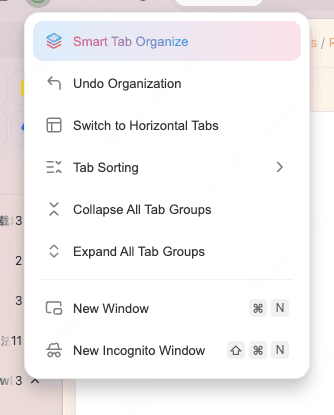
Tabbit Smart Tab Organize menu with undo, layout switching, sorting, and group collapse controls
Smart Tab Organization is for the duplicate pile after a sync fight, not a replacement for Chrome History and tabs.

A usable sequence:

  1. In Chrome or Firefox, snapshot whatever still exists. Save the good group, bookmark the window, or export from a session tool. Verify you can reopen one URL.

  2. Download Tabbit and import a copy of the profile. Leave the original browser installed. The second-browser setup exists for this exact caution.

  3. Run Smart Tab Organization on the imported mess. Review the groups. Undo is in the same menu if a mixed page lands in the wrong cluster. Details sit in the AI tab organizer guide.

  4. Move the live client work into one workspace. Close or ignore the leftover copies. Browser workspaces are useful when the unit of work is a project, not a strip of favicons.

  5. Save pages you will need after the project ends into Tabbit's saved pages or a normal bookmark folder. Do not keep them open "so they sync."

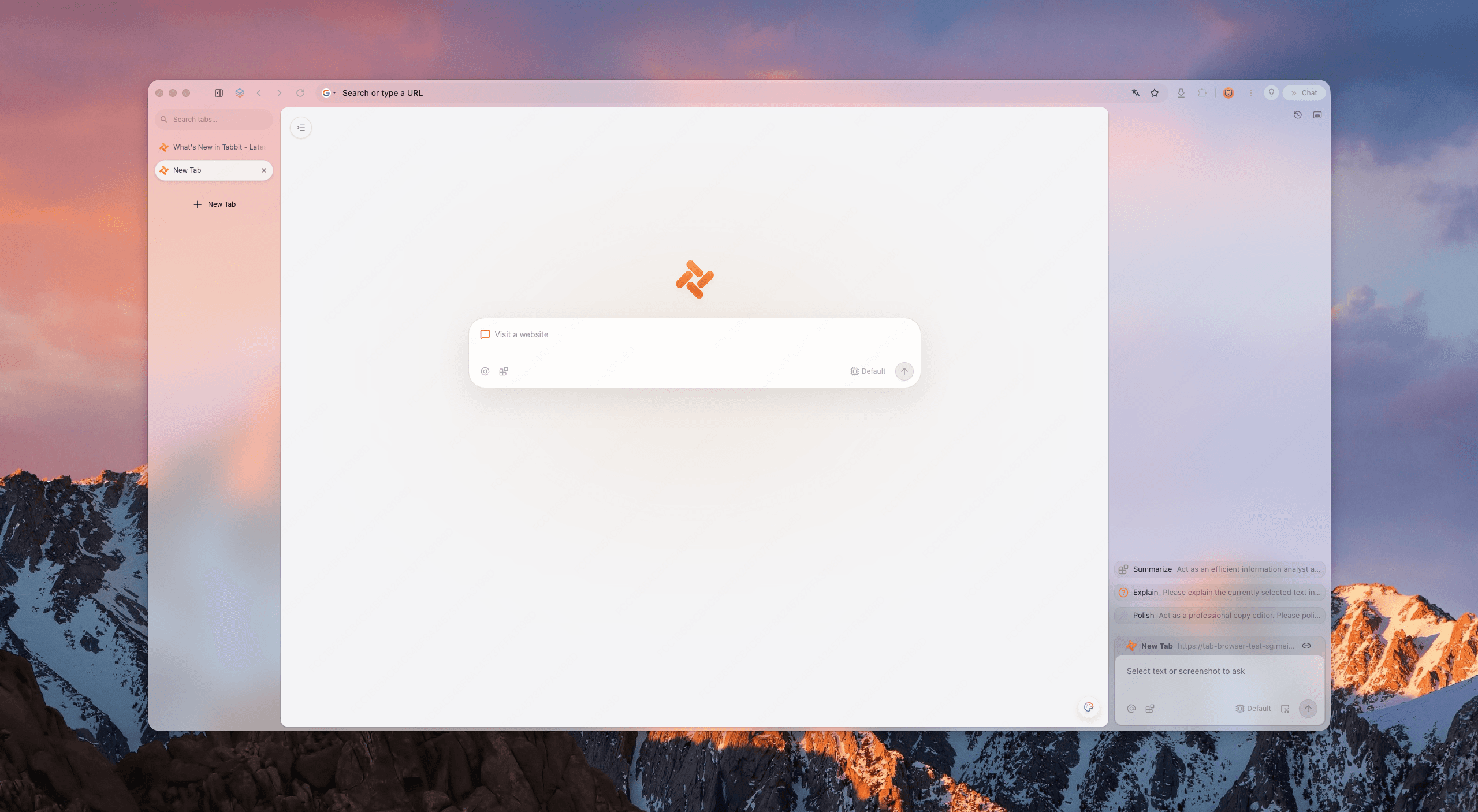
Tabbit Browser window with a vertical tab sidebar and a desktop-style workspace
A vertical workspace is a place you open. It is not a live tab list waiting for another device to edit.

If you came from Arc and liked spaces more than Chrome's horizontal strip, Tabbit's layout is closer to that family. Compare the options in browsers with workspaces like Arc before you treat any of them as a sync product.

Trade-offs to say out loud:

  • Tabbit will not show those workspaces on iPhone or Android. Keep Chrome or Safari for the phone list.

  • Grouping does not make a heavy page use less RAM. Organization is not a Memory Saver.

  • Smart Tab Organization mis-sorts vague titles and mixed documents. You still edit.

  • Importing cookies and passwords is a convenience. It is not a reason to delete the old profile on day one. Read the Tabbit versus Chrome trade-offs if the account, extensions, or enterprise policy are the actual constraint.

If you only needed a calmer Chrome, the 2026 Chrome alternative checklist is the broader decision page. This article's job is narrower: stop using live tab sync as the project file.

Which fix fits the mess you have

SituationBetter first moveWhyEdge
You closed tabs and want them back nowCtrl/Cmd+Shift+T, then Recently ClosedLocal close, local restoreUseless after a cloud replace
Tabs vanished when you signed inCopy the device that still has themReconnecting can overrideNo preview of the merge
The same group appears 50 timesSnapshot one good copy, delete the rest, turn off History and tabsSaved groups were being rewrittenExtensions can copy groups too
Closed tabs return every launchNew Tab on startup; quit background Chrome; close the tab on the phoneSession restore and a live second deviceDo not keep clicking Close
You need the same live list on a phoneStay on Chrome, Safari, or EdgeTabbit has no mobile appDesktop workspaces will not follow you
A desktop project keeps getting merged with last week's junkTabbit workspace plus Smart Tab OrganizationThe project becomes a place you openReview AI groups; keep the old browser until you verify
You have ten clear tabs and no second deviceNative groups and bookmarksSync is not the villainDo not install a new browser for this

Final verdict

The cloud is merging a live list that two devices refuse to agree on. Recover what you can from History and from the machine that still has the window. Then stop writing that list back into the account.

Turn off History and tabs or Firefox Open tabs if the live strip is the fight. Keep passwords if they still earn their keep. Give the current project a named home: a verified saved group, a bookmark folder, or a Tabbit workspace.

If the next week of work lives on a desktop and the phone does not need those 40 tabs, install Tabbit Browser, import a copy of one messy profile, run Smart Tab Organization once, and move the live project into a workspace. Leave Chrome installed until you have opened the important URLs from the new place. The download at the bottom of this page is that trial, not a demand to delete Sync.

FAQ

Why do my tabs keep coming back after I close them?

The usual causes are Chrome's Continue where you left off setting, another signed-in device that still has those pages open, or a saved tab group that restores itself. Check On startup first, then History and tabs. Closing the same tab again without changing those settings will not hold.

Why did all my Chrome tabs disappear after I turned on sync?

Signing in can replace the local session with an older cloud copy of bookmarks, groups, or open tabs. Check Recently Closed, full History, and Tabs from other devices before you sign out again. If you still have a second device that shows the missing pages, copy that session first. Reconnecting the broken machine can overwrite the copy that remains.

Will signing back into sync restore lost tabs or overwrite what remains?

It can do either, and you will not get a preview. A Firefox volunteer answering a lost-session post wrote that reconnecting would probably override. Treat that as a warning, not a Mozilla guarantee. Export, bookmark, or copy the surviving window before you sign in again.

Do Chrome tab groups sync across devices?

Google says tab-group changes can be saved and synced when History and tabs are synced with your Google Account. Behavior still varies by version and platform. A saved group is not a project archive. Verify it on the second device before you close the only live copy.

Should I turn off History and tabs?

Turn it off if live open tabs, saved groups, or pins keep fighting across machines. You can leave bookmarks and passwords in the account. You lose the Tabs from other devices list. That is often a fair trade if that list has been resurrecting closed work.

Can Tabbit sync open tabs to my phone?

No. Tabbit Browser is currently a desktop app for macOS and Windows. Keep Chrome, Safari, or Edge if you need the same live tab list on a phone. Use Tabbit for a named desktop workspace that does not depend on that live list.

Take the next step

Let Tabbit work alongside you.

Research across tabs, automate repetitive browser work, and keep every piece of context within reach.