TabbitBlog

Zen Browser With AI: Meet Tabbit

Love Zen's calm, transparent look but want page-aware AI and browser agents? See how Tabbit handles research, summaries, and routine web work.

In this article
  1. Key takeaways
  2. Zen Browser and Tabbit at a glance
  3. Why Zen feels better than an ordinary browser
  4. Where Zen and Tabbit part ways
  5. Where Tabbit will feel familiar to a Zen user
  6. What Tabbit adds
  7. The input box can point at real browser context
  8. Agent Mode can use the browser
  9. Skills make a good workflow reusable
  10. Four examples that show the difference
  11. 1. Compare a research tab group without rebuilding the prompt
  12. 2. Read a long page without turning it into another tab
  13. 3. Turn web research into a structured sheet
  14. 4. Save the routine instead of saving another prompt document
  15. What Zen still does better
  16. What Tabbit does better
  17. Choose by scenario
  18. How to try Tabbit without moving everything
  19. Which browser should you choose?

Zen Browser makes a busy web feel quieter. Tabbit starts from a similar place, with vertical tabs, soft colors, transparent surfaces, and very little competing with the page. The two browsers part ways once the work moves beyond keeping tabs tidy.

If you searched for a Zen Browser with AI, the useful comparison is Zen Browser versus Tabbit Browser. Zen is an open-source, Firefox-based browser with unusually deep interface controls. Tabbit is a macOS and Windows browser that can use pages, tab groups, screenshots, bookmarks, and local files as context. Its Agent Mode can also move through websites and carry out a task.

That makes the choice fairly concrete. Pick Zen when you want to shape the browser around the way you browse. Look at Tabbit when the harder problem is carrying context between pages and doing something with what you find.

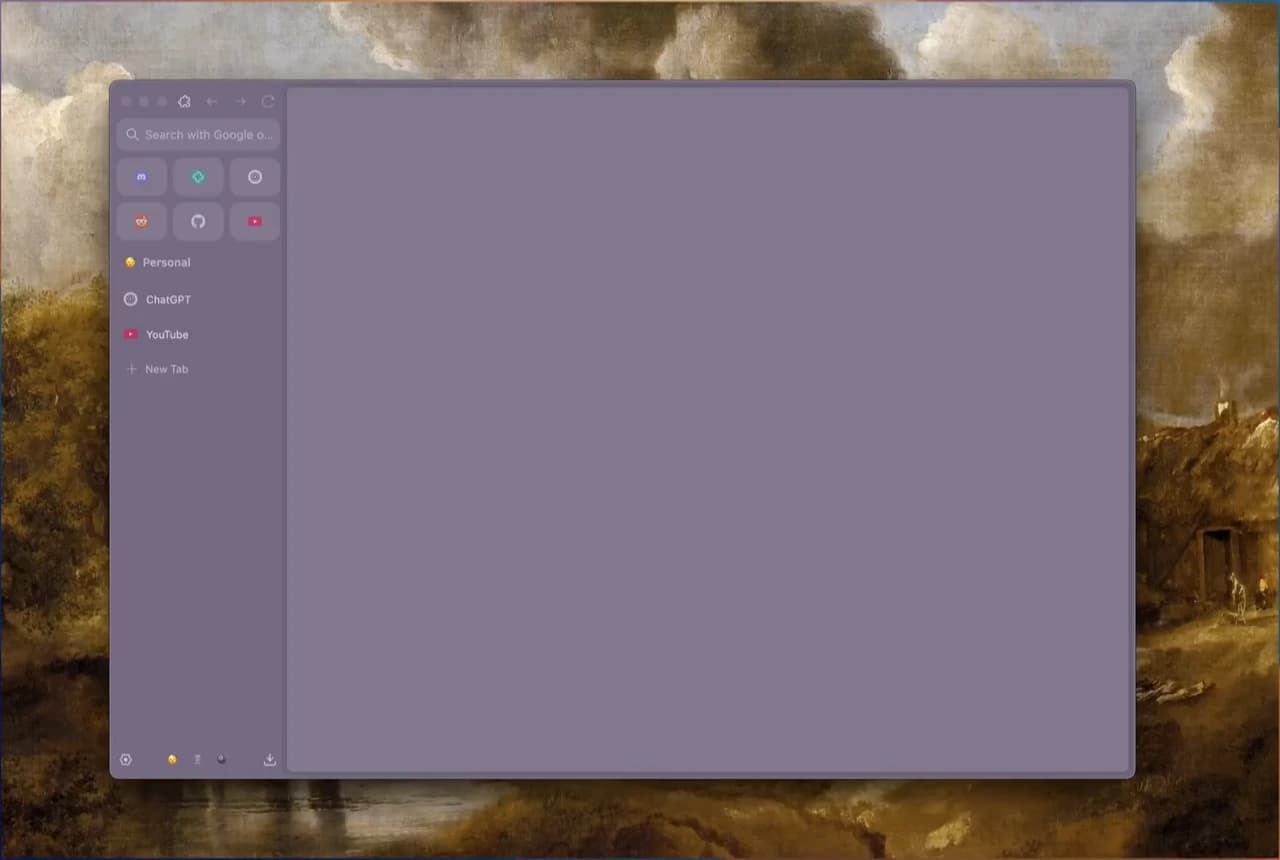
Zen Browser symbol plus AI equals the Tabbit Browser logo
Tabbit pairs a Zen-like browsing experience with page-aware AI and browser agents.

Key takeaways

  • Zen is the stronger fit for Linux, Gecko, open source, and detailed interface customization.

  • Tabbit connects AI to tabs, groups, screenshots, bookmarks, and local files.

  • Agent Mode gives Tabbit a way to handle browser work with several steps. Those steps still need review.

  • Both use vertical organization and a low-noise interface, but they solve different problems.

Zen Browser and Tabbit at a glance

CapabilityZen BrowserTabbit Browser
Main ideaCalm, customizable browserCalm browser workspace built around context and actions
EngineGecko through FirefoxChromium
Desktop platformsmacOS, Windows, LinuxmacOS, Windows
Tab organizationWorkspaces and a vertical sidebarVertical tabs, groups, and separate groups for agent tasks
Visual controlsZen Mods, Compact Mode, and extensive customizationTransparency, colors, themes, and a minimal new tab page
AI contextNot part of Zen's core workflowPages, tab groups, screenshots, bookmarks, and local files
Browser actionsNo native agent layerAgent Mode can navigate, read, click, and fill fields
Reusable routinesMods, shortcuts, and extensionsSkills can save prompts, scripts, and agent workflows
Best fitPeople who care most about the browsing interfacePeople who want AI to work with browser context

Platform and feature details were checked on July 30, 2026. Both projects are moving quickly, so confirm the current download and release pages before changing your main browser.

Why Zen feels better than an ordinary browser

Open a traditional browser with twenty tabs and the top bar starts to look like a receipt printer. Zen moves that mess into a sidebar and gives the page more room.

The official Zen site calls it "a calmer internet," and the features support that idea. Workspaces separate tabs by project. Compact Mode hides the toolbar and sidebar until you need them. Glance previews a link over the current page, while Split View places multiple pages side by side.

The result is less browser chrome around the content. Keeping a project open all afternoon no longer makes the window feel quite so crowded.

Zen also has a clear technical identity. Its official GitHub repository describes it as Firefox-based and open source. The download page offers macOS, Windows, and Linux builds. For someone who wants Gecko instead of another Chromium browser, that may settle the choice.

Tabbit does not replace that side of Zen. It uses Chromium and currently runs on macOS and Windows. The resemblance is in the layout: a vertical, uncluttered workspace with transparency and color. Our guide to browsers with vertical tabs covers the broader category, while the Zen Browser overview goes deeper on Zen itself.

Where Zen and Tabbit part ways

The word "AI" covers too many products to be useful by itself. In this comparison, the practical question is whether the browser can use the material already open and then take action.

What you want to doZen BrowserTabbit Browser
Read with fewer distractionsStrong fitStrong fit
Organize projects into vertical workspacesWorkspacesTab groups
Summarize the current page inside the browser workflowNot a core featureAvailable in the sidebar
Compare several open sourcesContext must be moved manuallyA tab group can be used as context
Find details and enter them in a sheetYou do the browser stepsAgent Mode can navigate and fill the sheet, with review
Repeat the same browser routineUse shortcuts, extensions, or a manual processSave the routine as a Skill
Keep an automated task away from your active tabsNo native agent task spaceThe task can run in a separate tab group

An agent is not automatically smarter. It simply has more actions available, so its mistakes can matter more. A bad summary is annoying. A wrong value in a live form is worse. This is why the execution steps, the context you selected, and the final review all matter.

Tabbit's Agent Mode shows its steps and keeps the task in its own tab group. You can continue reading or writing while it researches, then inspect the pages it opened. The setup gives the model room to work without hiding what happened.

For a deeper definition, read what an agentic browser is. If you mainly want a broad market comparison, our browser AI feature guide covers more products.

Where Tabbit will feel familiar to a Zen user

The resemblance is obvious before you type a prompt. Tabbit has a vertical tab rail, soft surfaces, rounded panels, and a frame that can blend into the desktop. You can adjust the transparency and colors. A new tab is mostly empty, with one input box instead of a wall of news and shopping shortcuts.

AI browsers can turn into dashboards very quickly. Once chat, model choices, history, and agent status all compete for space, the page feels secondary. Tabbit keeps most of that out of the way until you need it.

The more useful similarity is how both browsers treat tabs. In Zen, tabs belong to a workspace instead of piling up across the top of the window. Tabbit also groups tabs, but those groups can become context for a question. Agent tasks get their own groups, which keeps their pages away from the work you are doing yourself.

The resemblance goes past transparent panels. Tabbit uses the tab structure as part of the AI workflow.

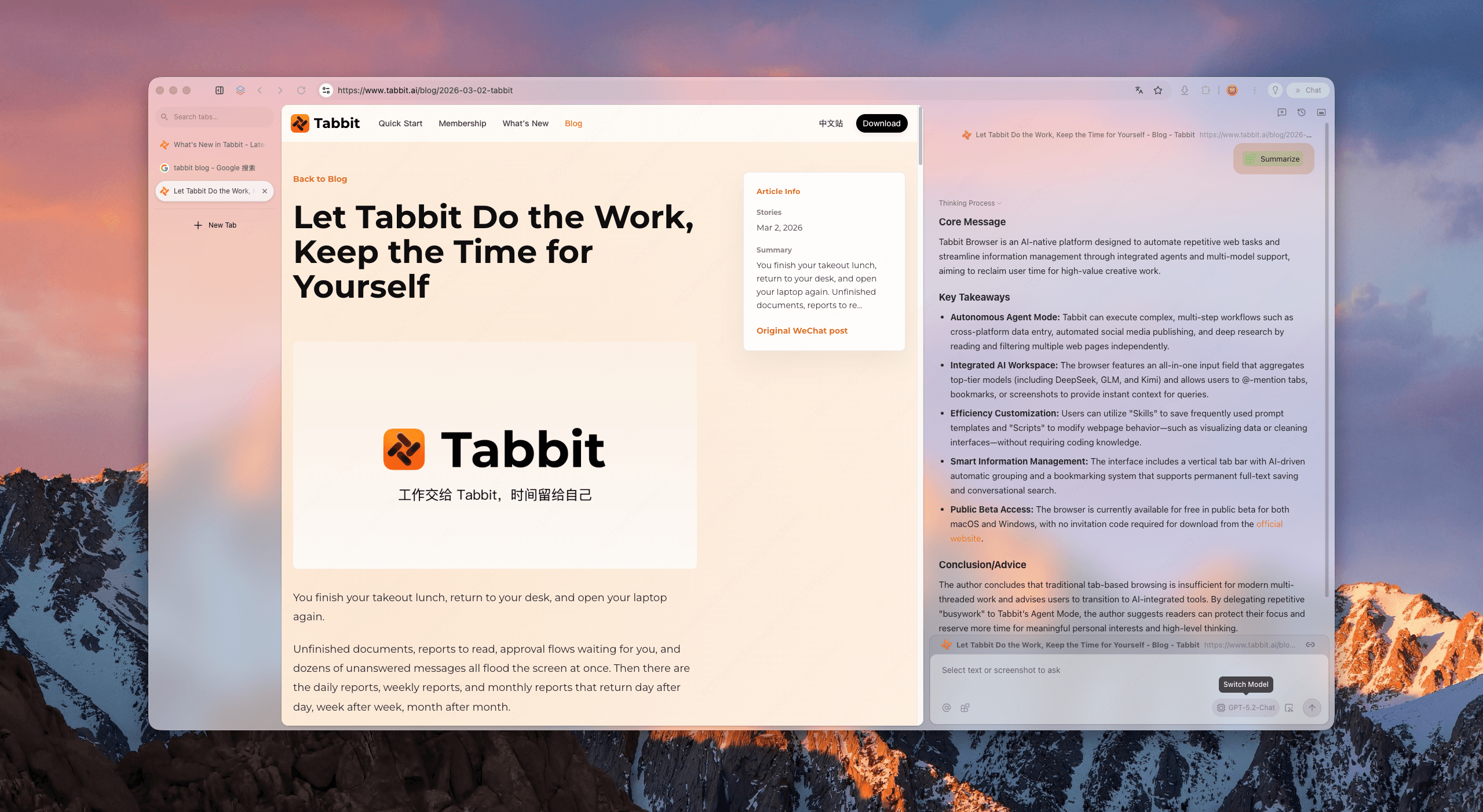
Tabbit Browser showing a transparent vertical-tab workspace and an AI summary in the right sidebar
The source stays visible while Tabbit summarizes it in the sidebar.

What Tabbit adds

Tabbit's main addition is a shared place for browser context and actions.

The input box can point at real browser context

Type @ in Tabbit's Omnibox to reference an open page, a tab group, a screenshot, bookmarks, or a local file. There is no need to paste six links into another chat and explain what each one contains. You can point to the material already arranged in the browser.

That becomes handy during follow-up questions because you do not have to rebuild the context each time.

Agent Mode can use the browser

Agent Mode can read pages, navigate, click, and fill fields. A typical task might gather details from several sources and move the result into a document or form.

The browser keeps those steps available for inspection. Review outputs before submitting a form, sending a message, making a purchase, or changing important data. Tabbit's own workflow guide says Agent Mode still has speed and stability limits. Not every website will cooperate.

Skills make a good workflow reusable

A good one-off prompt is easy to lose. Skills let you save a prompt, script, or agent process and call it again.

A product manager, for example, could save the format used to turn release notes into a summary of changes, affected users, and open questions. The useful Skills are usually the boring routines that keep coming back.

Four examples that show the difference

The differences are easier to see in actual browser work.

1. Compare a research tab group without rebuilding the prompt

Suppose you are comparing four project management tools. You have each pricing page open, two review articles, and a notes document. Zen is good at keeping those sources organized in a workspace. To have an AI compare them, however, you still need to move the links or excerpts into another tool and explain the criteria.

In Tabbit, put the sources in one tab group and reference the group from the Omnibox. A useful prompt is:

Compare the pages in this tab group by price, guest access,
automation, data export, and the main limitation for a 20-person team.
For every claim, name the source page. Mark anything you cannot verify.

The source boundary matters here. The prompt tells Tabbit which pages belong to the job and asks it to call out missing evidence.

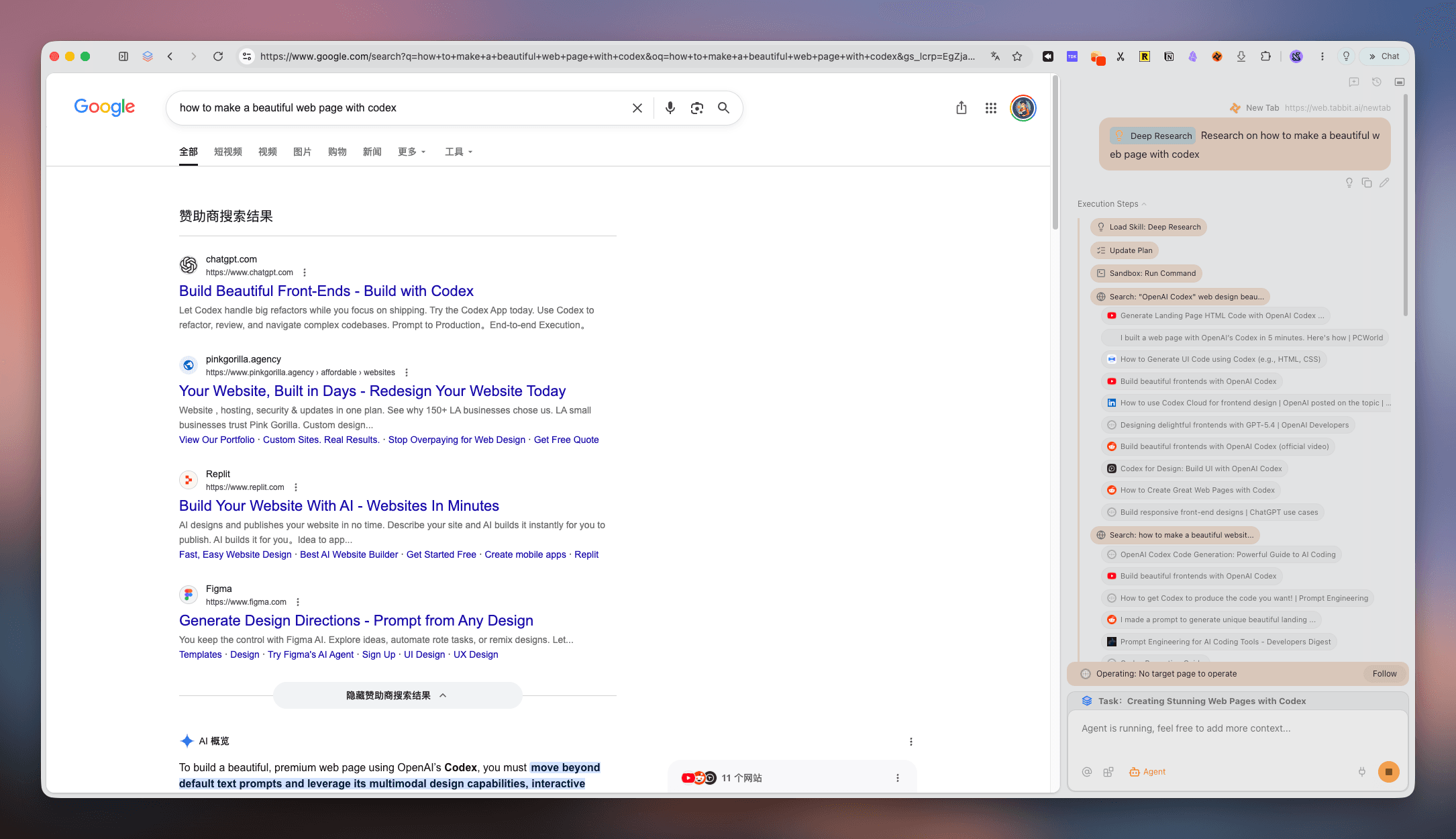
If the initial pages are not enough, Agent Mode can search for official documentation and collect it in a separate task group. Review the source set and final comparison before using it.

Tabbit Agent Mode conducting deep web research in the sidebar while search results remain visible
A deep research task runs beside the source pages and exposes the sequence of steps.

2. Read a long page without turning it into another tab

Zen gives the page plenty of room and keeps the surrounding interface quiet. Tabbit adds a summary beside that page. You can then question the argument, compare another open page, or bring in a local PDF without moving the conversation elsewhere. The source stays visible, so the summary is easier to check.

Try a prompt with a shape that forces a useful answer:

Summarize this page in five bullets.
Then list the claims that depend on data, the source cited for each claim,
and one question the page does not answer.

Generic summaries often hide uncertainty. Asking what the page does not answer gives you something concrete to check.

3. Turn web research into a structured sheet

Imagine collecting public details about a list of vendors in a spreadsheet. In Zen, you would open the sources and enter the details yourself. Tabbit can take on those browser steps.

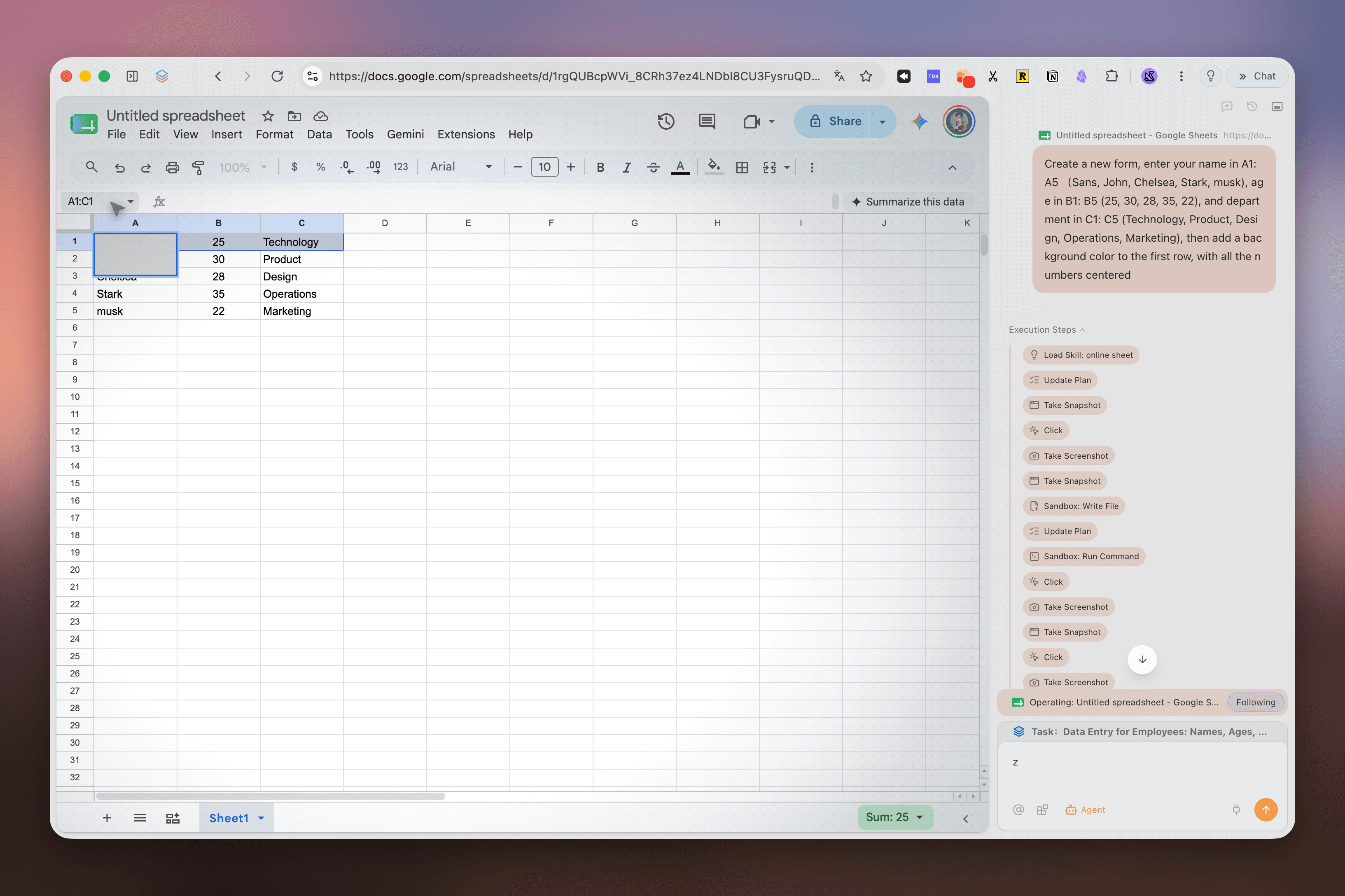
Agent Mode can handle the browser part: open the sources, find the required fields, and enter them into the sheet. The screenshot below shows a simple version of that pattern, with the task request and execution steps visible beside Google Sheets.

Tabbit Agent Mode entering structured information into Google Sheets with execution steps visible in the sidebar
Agent Mode can move from an instruction to browser actions, while the sheet and execution history remain visible.

The prompt should define both the fields and the stopping rule:

For each company in column A, use its official website to find
the pricing page, supported desktop platforms, and contact URL.
Fill columns B to D. If a value is not stated on the official site,
write "Not verified." Do not submit any contact form.
Stop after row 20 and show me the sources used.

The instruction limits Tabbit to official sources, tells it what to do when a value is missing, and stops it from submitting a form. You still need to spot-check the rows.

4. Save the routine instead of saving another prompt document

Once the vendor workflow works, turn it into a Skill. Replace fixed details with variables such as the sheet, row range, fields, and approved sources. Next time, fill in those variables instead of rebuilding the prompt.

The same pattern works for weekly competitor checks, video references, reading lists, or release notes. Save a Skill when the steps are stable and you run them often. If the job changes every time, a normal conversation is simpler.

The routine gets a name and stays out of sight until you call it again. That suits a browser trying to keep its interface minimal.

What Zen still does better

Choose Zen if you need Linux support or deliberately want Gecko and an open-source browser. Its interface controls also go much further. Compact Mode, Glance, Split View, and Zen Mods give you many ways to change how browsing feels.

Zen is also easier to recommend to someone who does not want AI woven into everyday browsing. It keeps its attention on the browser itself.

What Tabbit does better

Choose Tabbit when the browser has become a work environment. It is most useful when an answer depends on several open pages, when the result must go into a sheet or form, or when the same browser routine returns every week.

The transparent interface and vertical tabs make the move from Zen less jarring. The practical gain is having fewer handoffs between browsing, explaining, copying, and acting.

Choose by scenario

Your priorityBetter fitWhy
Linux desktopZenZen officially supports Linux; Tabbit currently does not
Open source and GeckoZenFirefox foundation and public source are central to the product
Maximum UI customizationZenCompact Mode, Mods, Glance, Split View, and detailed workspace controls
Calm browsing without an AI-first workflowZenThe browser focuses on navigation, organization, and interface control
A calm browser with cross-tab AI contextTabbitTab groups, pages, screenshots, bookmarks, and files can enter one prompt
Research that continues across new sourcesTabbitAgent Mode can search and work in a separate task group
Repetitive browser data entryTabbitThe agent can navigate and fill fields with visible steps and user review
Reusing a successful workflowTabbitSkills save prompts, scripts, and agent routines
Sensitive or irreversible actionManual browsing, with either browserKeep a person at the final checkpoint
Unsure which philosophy fitsKeep both for one weekUse the same real project in each and compare the friction

How to try Tabbit without moving everything

Keep Zen installed at first. Pick one task that usually involves too much copying between tabs and run it in Tabbit. Research is a sensible test because you can inspect the output without submitting a form.

Create a small tab group, ask Tabbit to compare the pages, and check every cited claim. Then let Agent Mode find one missing source. If the result is useful, save the process as a Skill. Only then test a workflow that writes into a document or sheet.

While you test it, check three things:

  • Did the browser understand the context you intended, or did you include too much?

  • Could you see where each important claim came from?

  • Did the agent stop where you asked it to stop?

Those answers matter more than a model leaderboard. You need to know what context the browser used, where the claims came from, and whether the agent respected the stopping point.

You can read the broader Zen Browser alternative guide before deciding, or open Tabbit and try one project on macOS or Windows.

Which browser should you choose?

Zen Browser is the better choice if you want Linux support, Gecko, open source, or unusually deep control over the interface. Its Workspaces, Compact Mode, Glance, Split View, and Mods are the point.

Tabbit Browser is the better fit if your search for a Zen Browser with AI is really about work that crosses several pages. It keeps the vertical tabs and quiet layout, then adds shared context, Agent Mode, and reusable Skills.

Keep Zen when you want to shape the browser yourself. Try Tabbit when you want the browser to help with the task inside it.

Take the next step

Let Tabbit work alongside you.

Research across tabs, automate repetitive browser work, and keep every piece of context within reach.