A practical field guide · 2026

How to use Tor Browser, without guessing what it protects

Install it from the Tor Project, connect, choose the right settings, and browse with a clear threat model. This guide separates Tor’s anonymity-focused network from Tabbit’s AI workspace for ordinary, authorized web research.

Jump to the setup steps

Tor Browser and Tabbit solve different problems. Tabbit does not connect to Tor or provide anonymous networking.

Start with the job

Choose the network path before you choose the workflow

“Private,” “anonymous,” and “productive” are not interchangeable promises. Use this quick map to decide which browser belongs in which part of your day.

Tor Browser01

When the network path is the requirement

Tor Browser sends its own browsing traffic through the Tor network and pairs that path with privacy-oriented browser settings.

Use it for lawful, anonymity-focused browsing where the network design matters.
Tabbit Browser02

When the work is reading, comparing, or doing

Tabbit keeps pages, files, and questions in one AI-native workspace. Use @ to reference context and Agent Mode for authorized multi-step tasks.

Use it for research briefs, summaries, writing, and repeatable web work.

Keep the boundary03

Do not transfer one browser’s promise to the other

A page opened in Tor does not make a different browser anonymous. A Tabbit tab, model, or agent does not become a Tor connection.

Pick the browser per task, and follow local law plus each site’s rules.

01 · Install and launch

The clean path from download to your first Tor connection

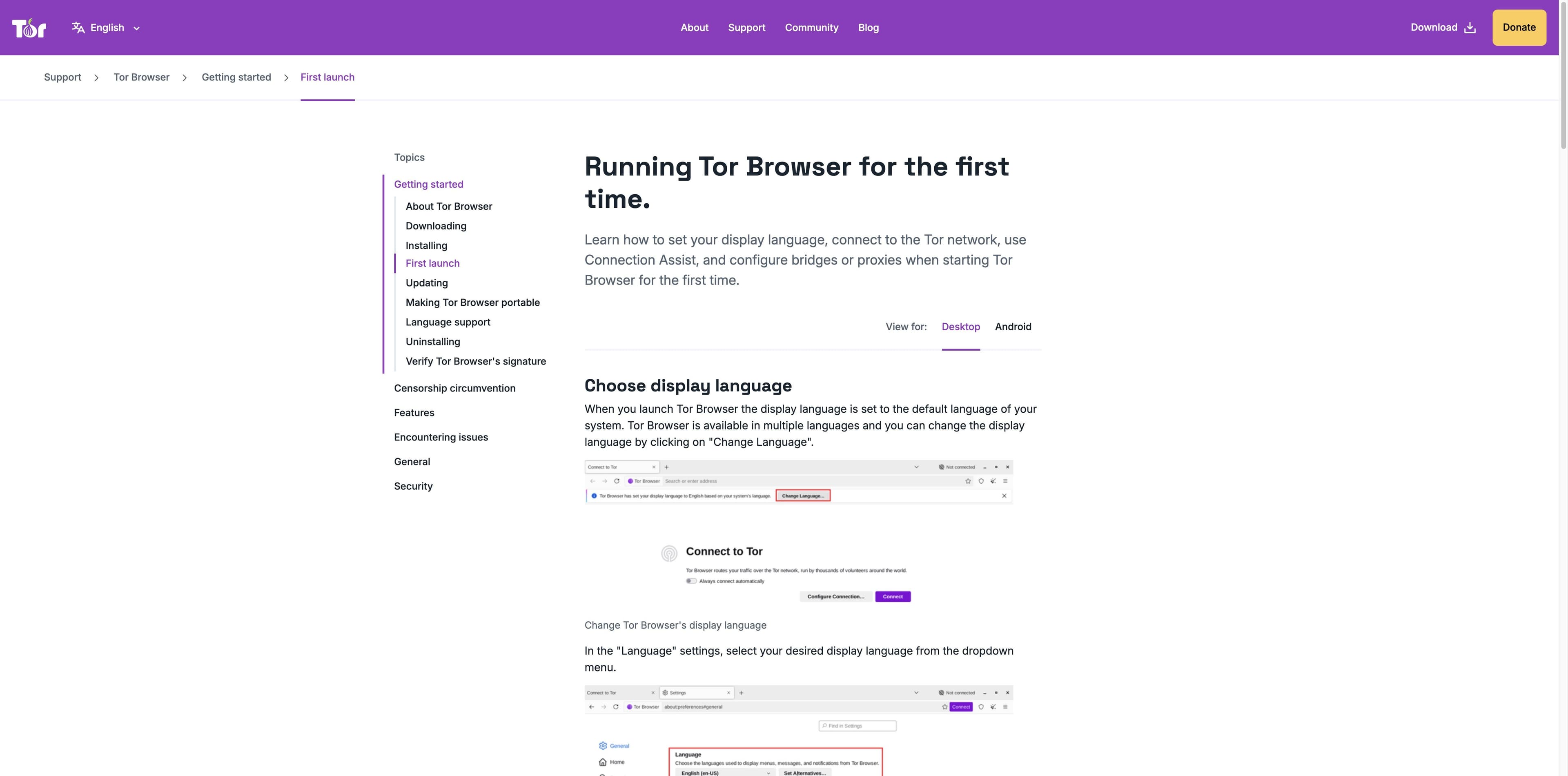
Use the official Tor Project download page. The exact installer differs by platform, but the first-launch decisions are consistent: language, direct connection, then a supported fallback if needed.

Open the official source

Official Tor Project support: first-launch language, Connect, Connection Assist, bridges, and proxy settings.

01

Download from the official source

Open torproject.org/download in a regular browser. Select the current package for Windows, macOS, Linux, or Android; avoid mirrors and repackaged installers.

02

Verify when your risk model calls for it

For a higher-assurance install, use Tor Project’s published signature-verification instructions. Keep the package and source separate from downloads you cannot authenticate.

03

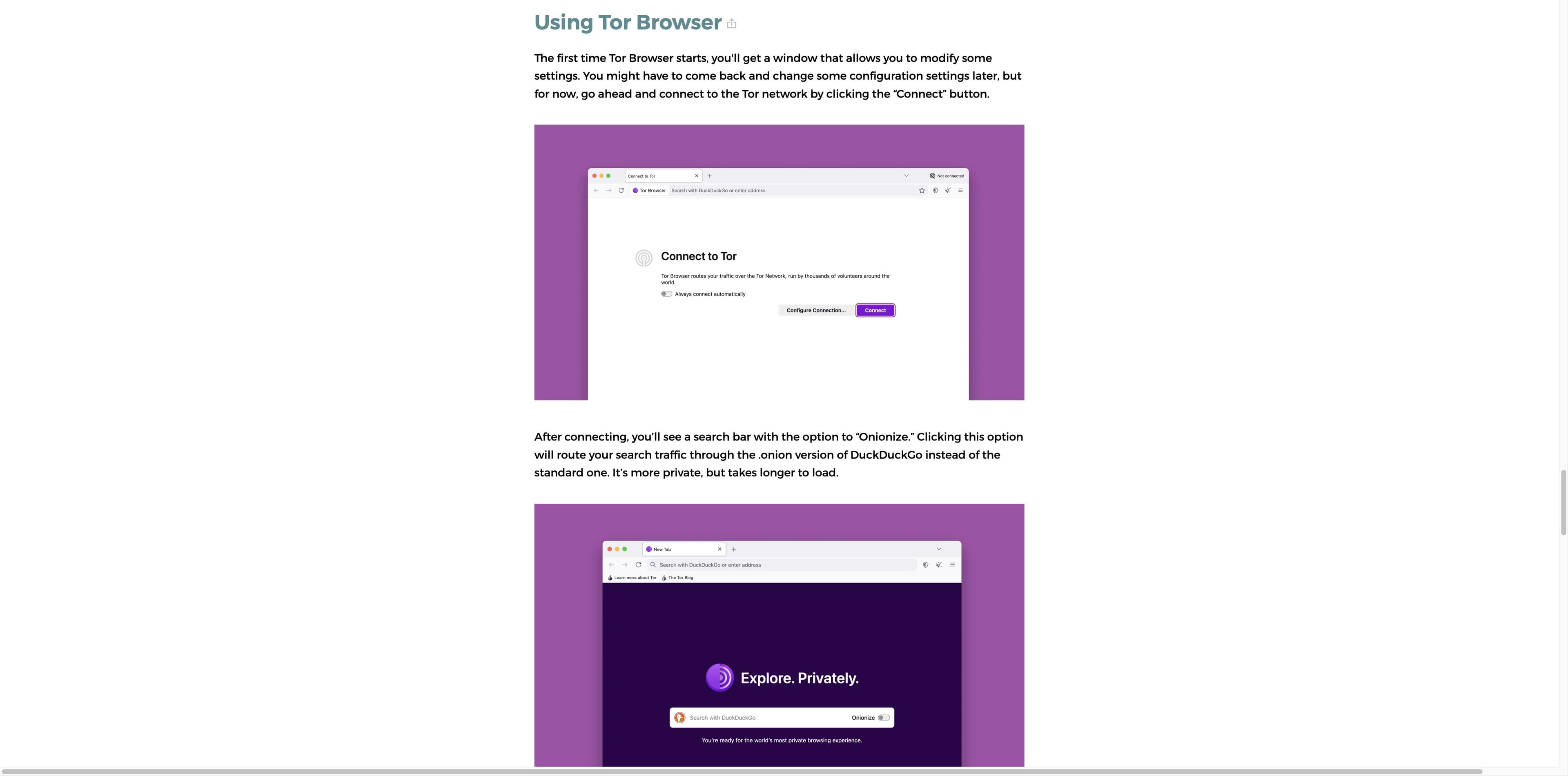
Open Tor Browser and choose Connect

On first launch, select a display language if needed. In most cases, Connect uses the saved direct connection; enable automatic connection only on a device you control.

04

Use the supported fallback

If the connection fails or your network blocks Tor, open Connection Assist or Configure Connection. A bridge or proxy may help, but use only lawful, authorized network access.

Tor Project support page showing first-launch language selection and the Connect to Tor window.
EFF Surveillance Self-Defense guide showing Tor Browser’s Connect screen and an Onionize option after connecting.
EFF’s beginner guide illustrates Connect first, then the optional Onionize path for supported searches.

02 · Connect and orient yourself

What you should see after Connect

Connection is only the beginning. A clear routine helps you notice the difference between a normal website, an onion service, a slow route, and a site that simply does not work well over Tor.

01

Wait for the connection status

Tor Browser shows connection progress. If it stalls, use the official troubleshooting path rather than repeatedly changing unrelated browser settings.

02

Use the address bar as a checkpoint

Inspect the site address and lock/circuit controls before entering information. An onion address and a regular HTTPS address are different destinations with different operating assumptions.

03

Remember the scope

Only activity inside Tor Browser is routed through Tor. Other browsers, apps, documents, and background services on the device do not inherit that path.

03 · Tune the browser

Settings are a trade-off, not a magic anonymity switch

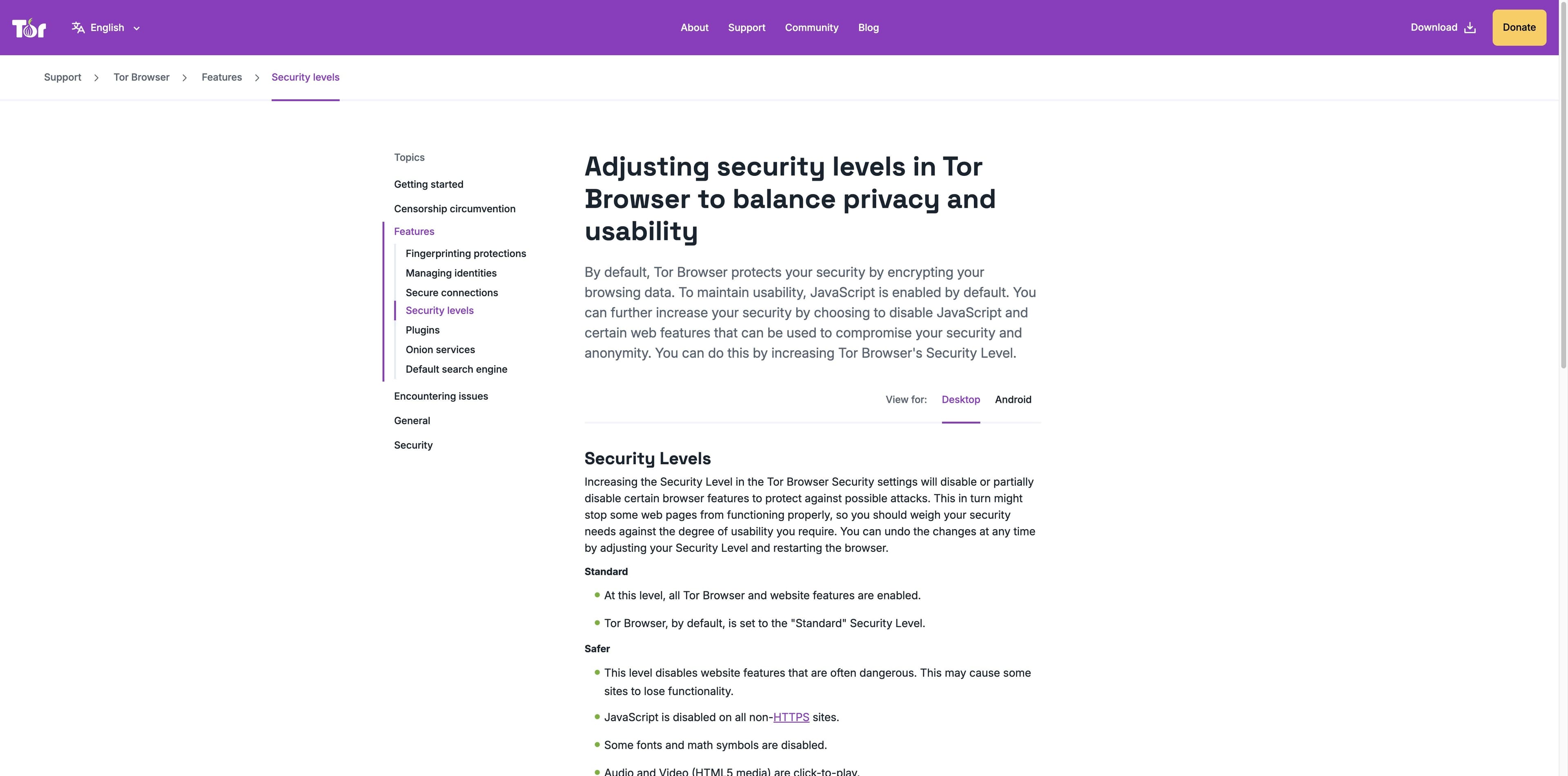
Tor Project documents three security levels. Higher levels disable more web features and can break sites; choose according to the task and restart when the manual tells you to.

01

Standard · everyday compatibility

This is the default. All Tor Browser and website features are enabled, so more sites are likely to work as expected.

02

Safer · fewer risky features

Some commonly risky features are disabled or limited. JavaScript is disabled on non-HTTPS sites, and media becomes click-to-play; expect reduced compatibility.

03

Safest · smallest feature set

Only features needed for static sites and basic services remain. JavaScript is disabled by default and some images, fonts, icons, and media are limited.

Tor Project security-levels support page explaining Standard, Safer, and Safest settings.
Official Tor Project guidance makes the usability cost visible beside each security level.

A different lane · Tabbit Browser

When the page is open, make the research easier to finish

Tor helps with a network-privacy requirement. Tabbit helps with the work that follows: keeping sources in view, asking questions about context, and turning scattered pages into a usable result. It is not a Tor replacement.

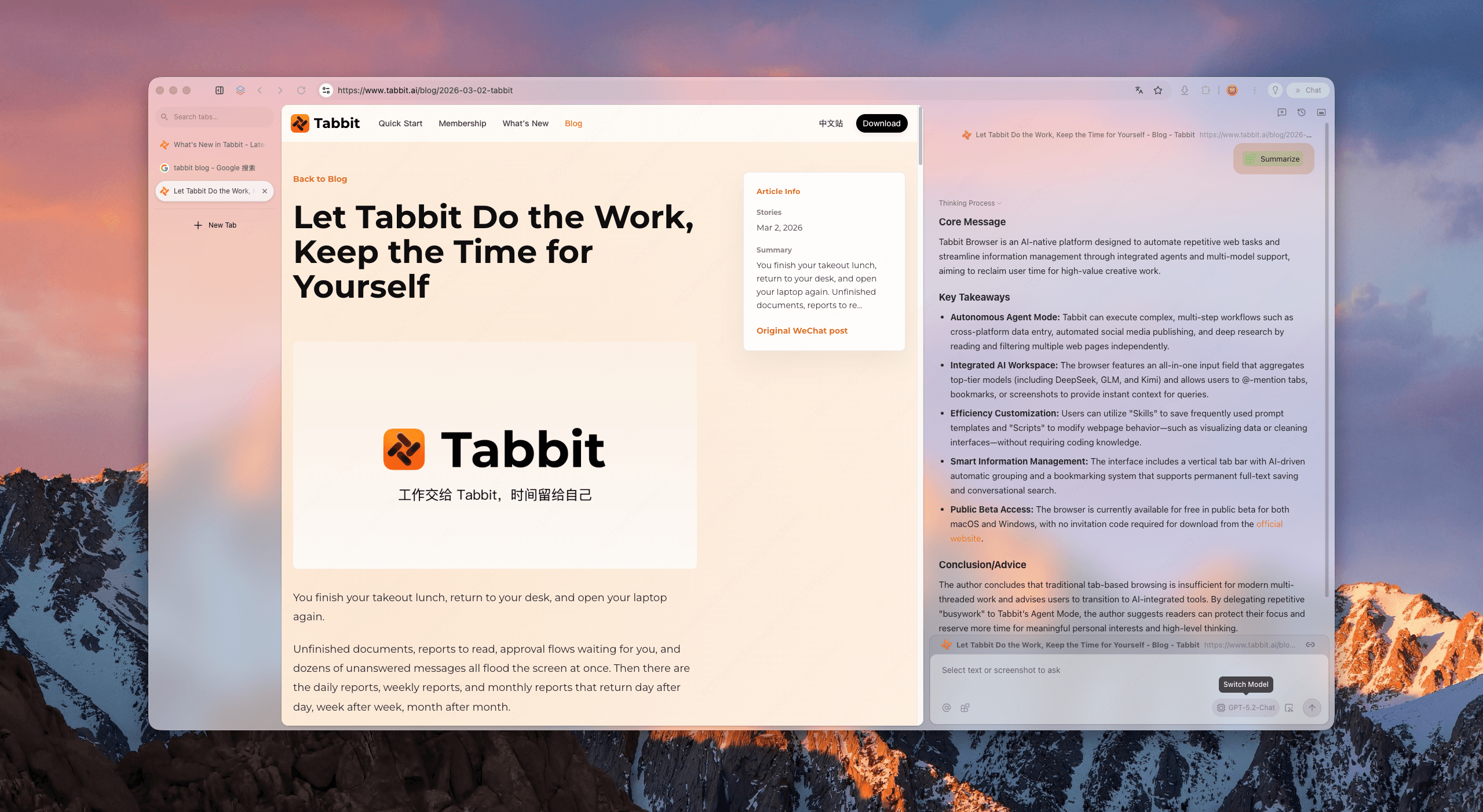
Tabbit Browser showing an article beside a contextual AI sidebar with a summary and key takeaways.
01

Summarize without leaving the page

Open a source in Tabbit and use the contextual AI sidebar to pull out the core message and key takeaways.

02

Keep context attached

Use @ to reference open tabs, groups, screenshots, bookmarks, or local files instead of rebuilding the prompt from scratch.

03

Delegate authorized web steps

Agent Mode can read, navigate, and carry out multi-step browser tasks in its own workspace. Review the plan and results before acting on them.

04

Organize the result

Vertical tabs and smart grouping keep a research trail visible while you compare sources and write the next step.

Available for macOS and Windows. Tabbit does not provide Tor routing, anonymity, or a private network path.

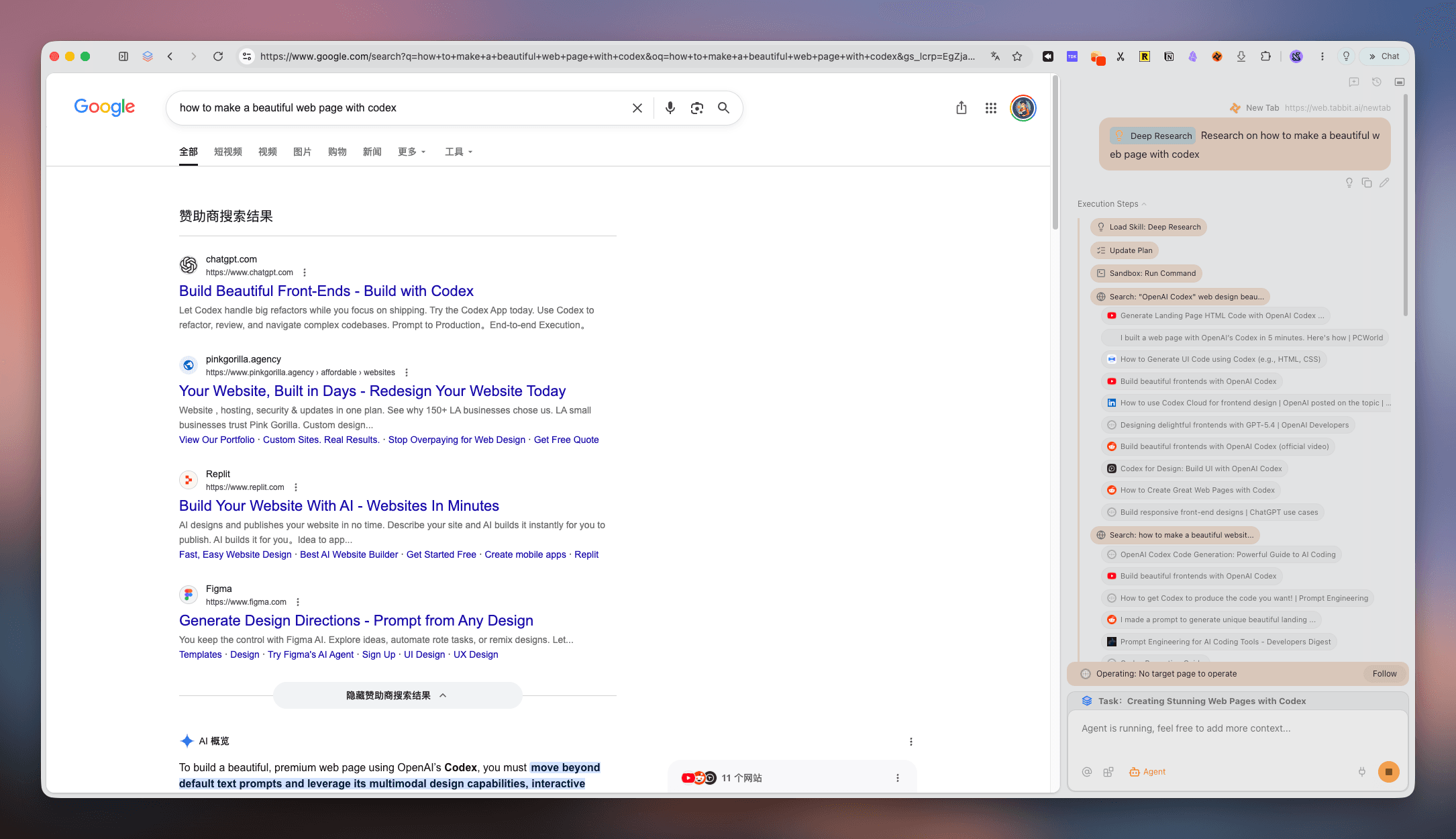
Tabbit Deep Research interface showing search results and execution steps in a right-hand sidebar.
Tabbit keeps search and execution steps visible for an ordinary research workflow.

04 · Safety checklist

Small habits that prevent big misunderstandings

Use Tor deliberately, protect the boundary between browser sessions, and treat every download, login, and document as a separate decision.

01

Use the official package

Check the domain, HTTPS connection, platform, and published verification guidance before installing. A search result is not proof that a download is authentic.

02

Do not add extra plugins casually

The EFF guide warns that additional browser plugins can change the privacy profile. Tor Browser already ships with its intended protections.

03

Be careful with logins and files

Signing in or submitting identifying details lets a site identify you. Downloaded documents can make their own network requests when opened outside Tor.

04

Respect law and site rules

Tor is legitimate privacy software, not permission to break the law, attack systems, or evade accountability. This guide is general information, not legal advice.

FAQ · No overpromises

Common Tor Browser questions, answered plainly

Is using Tor Browser legal?

Tor is legitimate privacy software, but laws and network rules differ by location and activity. Follow local law and the terms of the sites you use; this page is not legal advice.

Do I need a VPN with Tor Browser?

Not automatically. VPNs and Tor make different routing and trust choices. Decide from your threat model instead of stacking tools by default, and use official guidance for your situation.

Can I use Tor Browser like a normal browser?

Yes, it can open ordinary websites, but browsing is often slower and some sites or features may not work. Onion services are an additional Tor-specific destination type.

Why is Tor Browser not connecting?

Check the official troubleshooting guidance, your system clock, and whether your network blocks Tor. Connection Assist, bridges, or a proxy may be relevant; do not treat one setting as a universal fix.

Which Tor security level should I use?

Standard is the default and keeps the most compatibility. Safer and Safest disable more features and can break sites. Choose the lowest level that fits your risk and task, then test the sites you need.

Can I install extensions in Tor Browser?

The EFF guide recommends not adding extra plugins casually because they can change the browser’s privacy profile or make fingerprinting easier. Follow the Tor manual for a specific need.

Does Tor Browser protect other apps on my computer?

No. Tor Browser routes its own browsing activity; other browsers, apps, and documents do not automatically use Tor.

Can I use Tabbit instead of Tor Browser?

Use Tabbit for AI-assisted research, context references, organized tabs, and authorized web tasks. Use Tor Browser when the Tor network’s anonymity-focused path is the requirement. Tabbit is not a Tor replacement.

For the work after the search

Keep the privacy choice honest. Make the work lighter.

Download Tabbit for an AI-native desktop workspace that can summarize pages, connect research context, organize tabs, and help with authorized browser tasks.

Free for macOS and Windows · No Tor connection · No anonymous network claim

© 2026 Tabbit Browser. The AI-native browser that understands your context.