VIVALDI / FEATURE MAPREAD THE SURFACE → CHOOSE THE WORKFLOW

FEATURE MAP · VIVALDI BROWSER · 2026

Vivaldi features, arranged around the work you actually do.

Vivaldi is a browser you can configure into a personal control panel: stack and tile tabs, open tools beside the page, and tune the interface until it matches your habits. This guide maps the features to jobs—and marks where desktop, mobile and AI workflows diverge.

Explore the feature map
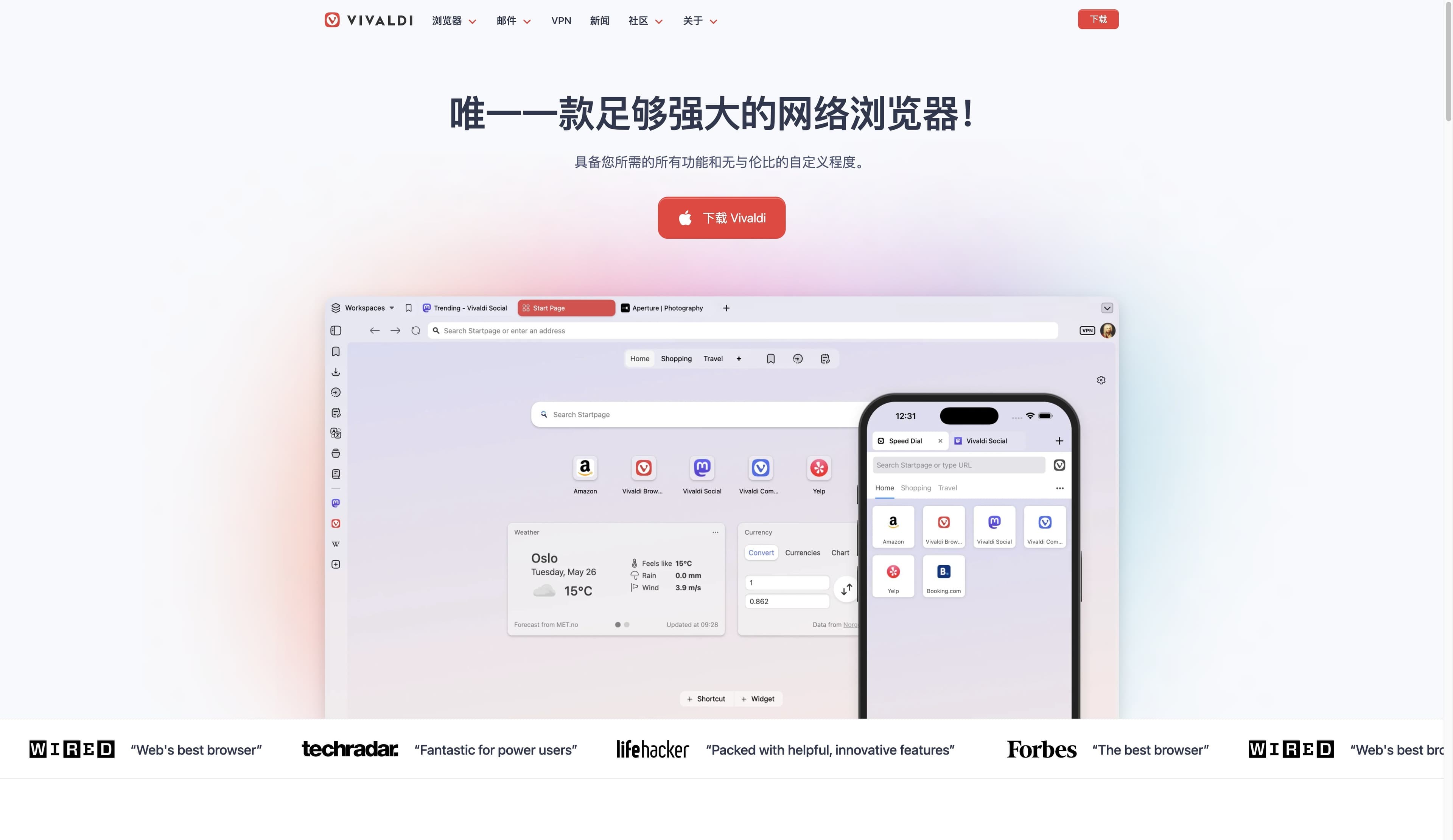
Vivaldi official homepage showing a desktop start page with workspaces and a mobile browser preview
Official Vivaldi surface · desktop + mobile preview01 / 05

CONTROL PANEL / QUICK READ

The short version

Vivaldi gives you more levers. Tabbit gives you more help interpreting the page and moving a task forward. Choose by the work, not by the longest checklist.

Tabs / layout
Built-in suite
Privacy controls
AI workflow

01 / TASK MAP

Start with the job, then pick the Vivaldi feature.

The useful question is not “does Vivaldi have everything?” It is “which part of my browsing day does this feature change?” The cards below use Vivaldi’s current product story, with independent review context where it matters.

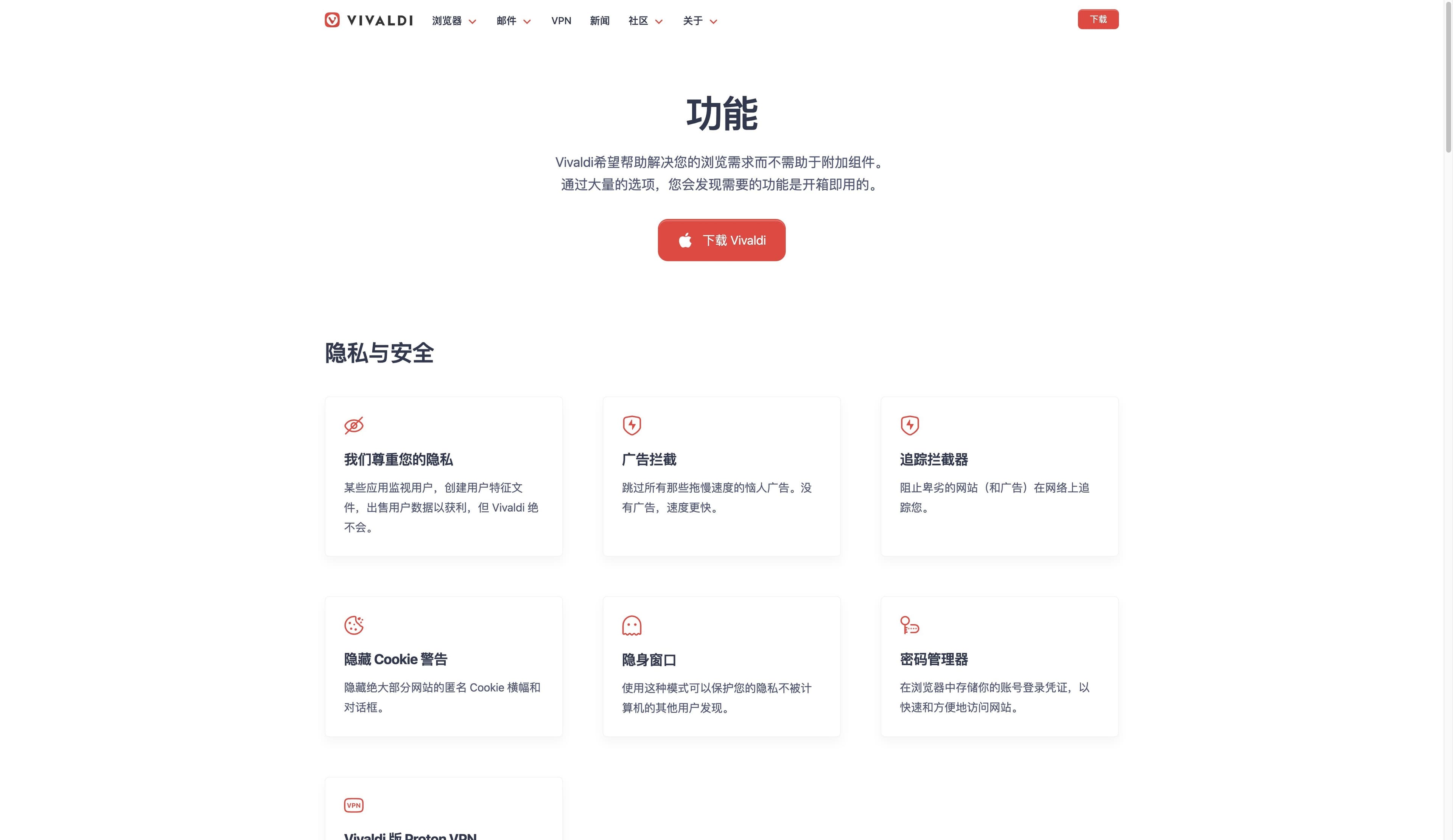
Vivaldi official feature page showing privacy and security cards with the browser feature navigation
OFFICIAL / FEATURES02 / 05

RESEARCH DESK

Keep a crowded tab day legible

Tab Stacks group related pages, Tiling puts two or more pages in view, and Workspaces separate contexts such as client work, study and personal browsing. Together they turn a long tab strip into a visible arrangement you can return to.

Best when you enjoy arranging the desk yourself.

Check first: Workspaces organize tabs; they are not automatic cookie or identity containers.

Vivaldi desktop features
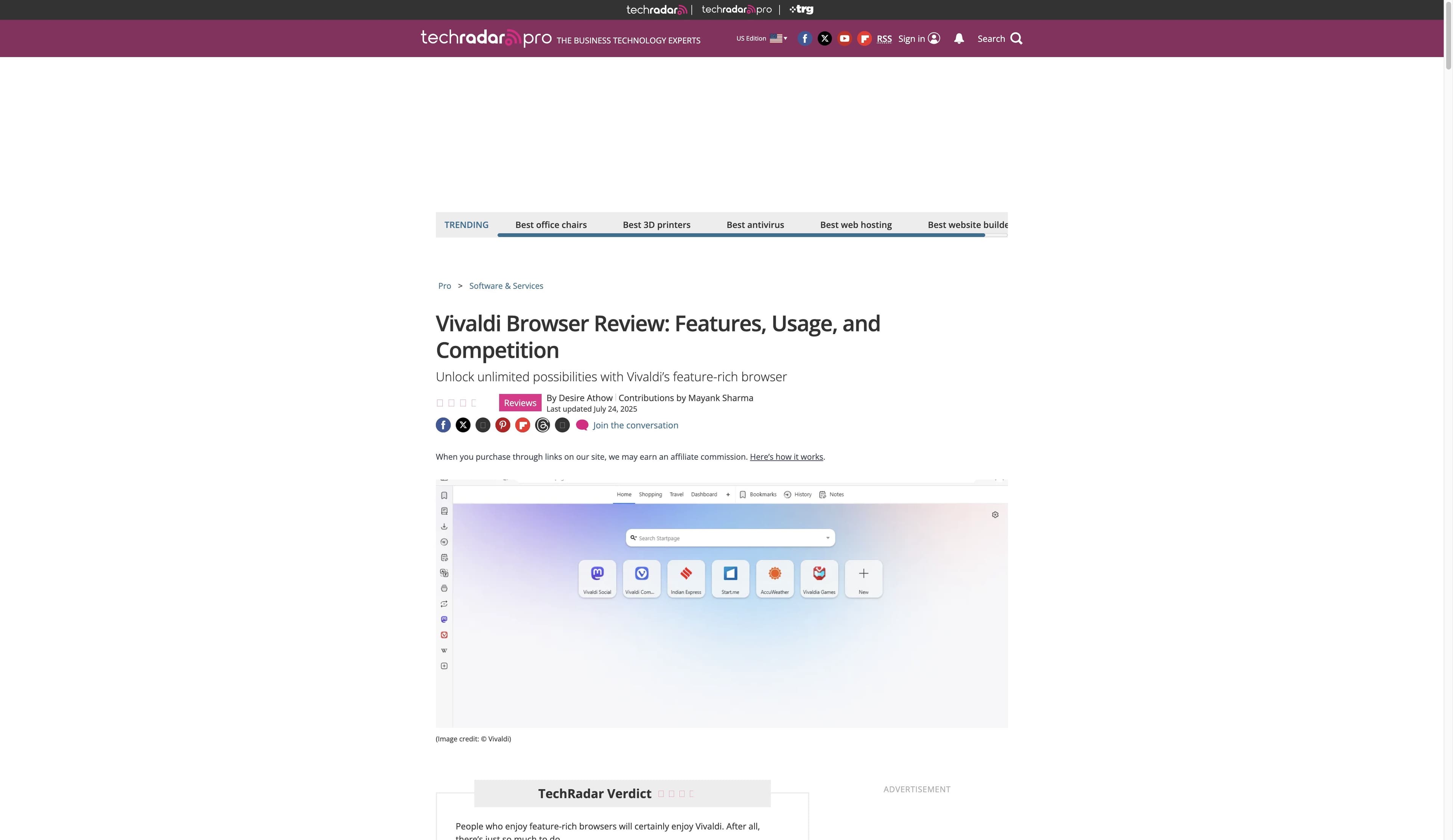
TechRadar Vivaldi Browser review page showing the review headline and a Vivaldi start-page screenshot
INDEPENDENT / REVIEW03 / 05

SIDE-BY-SIDE

Keep a second tool beside the page

Web Panels pin a site to the side of the browser so a chat, calendar, reference page or compact app stays nearby. It is a deliberate “two surfaces at once” pattern, not an AI agent that reads every open source for you.

Best when a known companion site belongs in every session.

Check first: a panel is still a website or app you operate; it does not replace a full research workflow.

Vivaldi Browser Features
SOURCE → DECISION

INDEPENDENT READ

Trade a shorter app list for a denser browser

Mail, Calendar and Feed Reader bring familiar work surfaces into the browser. Notes, Translate and Capture cover small moments of reading and collecting. TechRadar’s review treats this breadth as a strength for power users, while noting that the amount of choice can raise the learning cost.

Best when consolidating tools feels better than switching apps.

Check first: built-in does not mean every module will replace your preferred dedicated client.

TechRadar Vivaldi review

02 / TOOLBOX

A feature-rich browser is a set of choices, not a magic button.

Use this as a compact control-console readout. The left side names the capability; the right side says what to verify before you rely on it every day.

A

SHAPE

Themes, layout and commands

Themes, tab placement, shortcuts, mouse gestures, Quick Commands and command chains let you tune the browser’s surface and repeat familiar navigation without reaching for an extension.

The payoff is ownership; the cost is a setup path with more knobs to remember.

B

COLLECT

Notes, Translate and Capture

Save a thought in Notes, translate a page or selection, and capture a visible area or full page while you browse. These are useful hand-off moments between reading and keeping.

A saved note is not automatically a cross-source synthesis or a durable knowledge graph.

C

DEFEND

Ad and tracker blocking

Vivaldi exposes built-in ad and tracker blocking, Cookie warnings, private windows and a password manager as part of its privacy-oriented product story.

Blocking reduces some unwanted requests; it is not anonymity, a VPN guarantee or a complete privacy audit.

D

CARRY

Sync the pieces you need

Sync can carry selected browser data such as tabs, settings, bookmarks, passwords or notes between supported devices, with product materials describing encrypted sync.

Verify the exact item and platform you depend on; mobile parity is not identical to desktop parity.

Source boundary: official pages describe available features; the wording above does not promise identical behavior on every release or device.

03 / PLATFORM CHECK

The same name does not mean the same surface everywhere.

Vivaldi has desktop and mobile products, but a practical feature comparison must show where the experience changes. Treat this as a checklist for your own hand-offs, not a universal compatibility score.

Desktop focus / Mobile realityDesktop focusMobile reality
Tabs & workspacesStacks, tiling and Workspaces are the organizing center.Tab stacks and mobile layouts exist, but the desktop arrangement is not reproduced one-for-one.
Mail / Calendar / FeedBuilt-in suite is part of the desktop workbench.Do not assume the desktop suite or every panel is available in the mobile app.
ExtensionsChromium compatibility can make Chrome Web Store extensions useful.Independent reviews note that mobile does not support extensions in the same way.
SyncCarry selected tabs, settings, bookmarks, passwords and notes when supported.Test the exact data hand-off; sync and settings can have platform-specific limits.
Privacy controlsBlocking, Cookie notices, private windows and password tools are easy to keep nearby.Mobile offers privacy controls, but the available controls and UI can differ.

A good first test: open one real work tab, one saved note and one recurring companion site on each device before committing to a migration.

04 / COMPARE THE JOBS

Vivaldi is a configurable desk. Tabbit is an AI work partner inside the desk.

This is a product-fit comparison, not a claim that one browser wins every category. Vivaldi focuses on shaping the browsing environment; Tabbit focuses on understanding context and helping complete web work.

Work dimensionVivaldi BrowserTabbit AI-native browser
Organize many pagesTab Stacks, Tiling and WorkspacesReference tabs, groups, screenshots and files as AI context
Keep a companion nearbyWeb Panels and side toolsContextual chat and summaries beside the source page
Understand a long pageRead, Notes, Translate and CaptureAsk questions, summarize and extract the points that matter
Research across sourcesArrange the sources yourselfDeep Research can search, read and synthesize across web pages
Repeat a web taskCommands, gestures and extensions can shorten navigationAgent mode can carry out visible multi-step browser actions
Tune the interfaceDeep themes, layout, shortcuts and density controlsAI controls stay close to the browsing workspace

The honest choice may be both: use Vivaldi for a deeply configured daily surface and Tabbit when the bottleneck is reading, synthesis or repetitive web execution.

05 / SEE THE AI DIFFERENCE

When the browser should do more than hold the page.

Tabbit does not try to reproduce Vivaldi’s entire settings universe. It adds a different layer: connect the page, the question and the next action in one AI-native workspace.

01

01 · CONTEXT

Bring the right sources into the prompt

Reference the current tab, a tab group, a screenshot or a local file so the question starts with the material you are already looking at.

02

02 · RESEARCH

Turn many pages into a useful brief

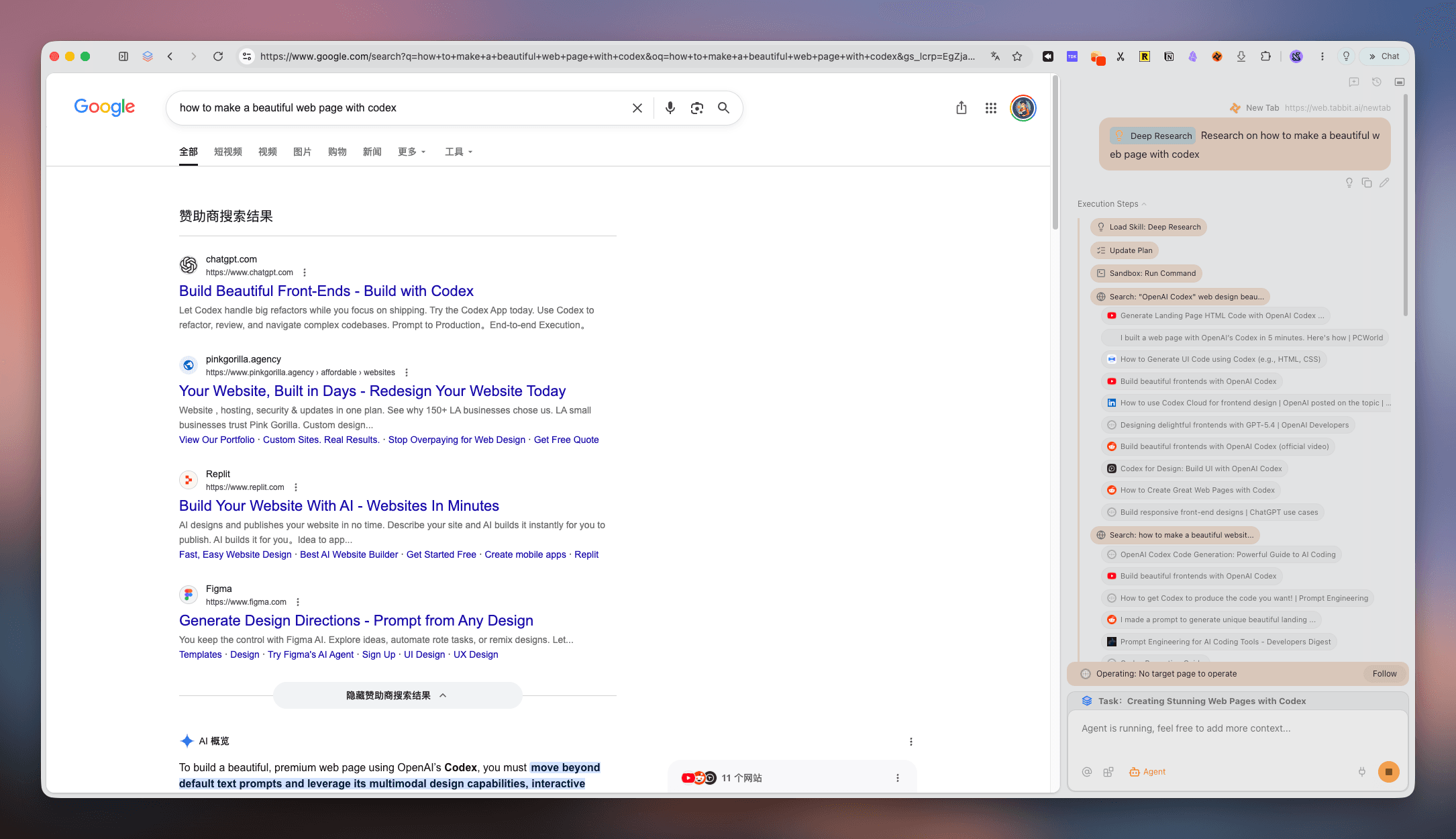
Use Deep Research to search and compare sources, then keep the reasoning and execution steps visible beside the web page.

03

03 · ACTION

Move from answer to next step

Ask for a summary, extract a decision list or let Agent mode perform a multi-step browser task when the workflow calls for execution.

Tabbit Browser Deep Research view with Google results in the main pane and execution steps in the side panel
Deep Research · sources → structureTabbit product interface image
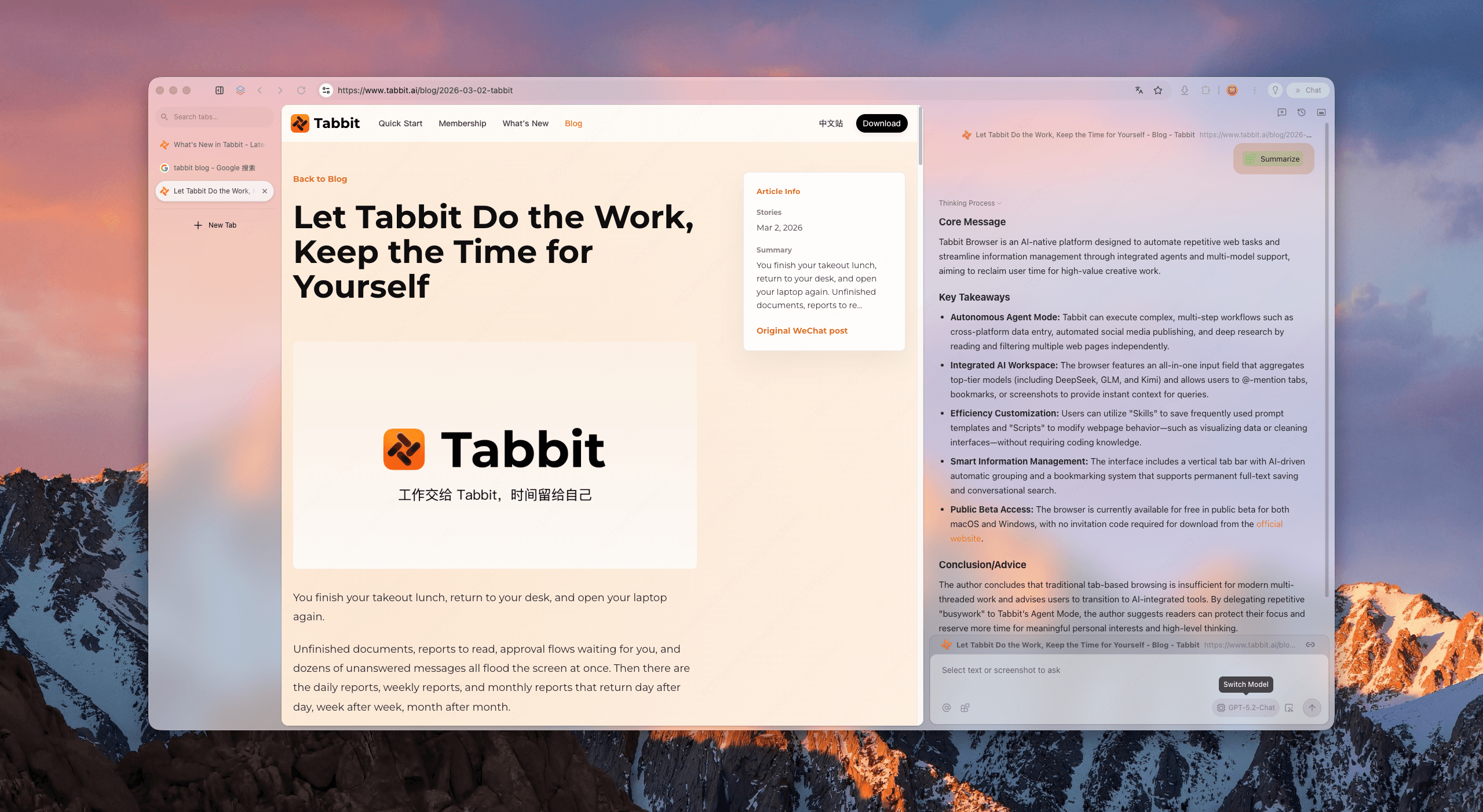
Tabbit Browser showing a source article beside an AI summary sidebar with key takeaways and a follow-up prompt
Summary · page → next actionTabbit product interface image

Tabbit’s screenshots show product UI, not a benchmark. Try your own research and repetitive tasks before choosing a default browser.

FAQ / BEFORE YOU SWITCH

The short answers behind the feature list.

What are Vivaldi’s best features for managing tabs?

Tab Stacks group related pages, Tiling shows pages side by side, and Workspaces separate tab contexts. They are especially useful when you like to arrange your browser deliberately.

Does Vivaldi include mail, calendar and feeds?

Vivaldi’s desktop product includes Mail, Calendar and Feed Reader as built-in surfaces. Availability and usefulness can vary by platform, account setup and your existing workflow.

Is Vivaldi’s ad blocker the same as being anonymous?

No. Ad and tracker blocking can reduce some unwanted requests, while private windows change local browsing behavior. Neither makes you anonymous or replaces a threat-model-based privacy review.

Does Vivaldi have an AI assistant?

Check the current release and official documentation for the latest position. In the independent review evidence used here, Vivaldi’s differentiator is customization and built-in tools; Tabbit is the option to test when page-aware AI research, summaries or Agent actions are the goal.

NEXT MOVE

Choose the browser that matches the work in front of you.

If you want to shape every corner of a Chromium browser, Vivaldi gives you a rich control surface. If your time disappears into reading, comparing and repeating web steps, download Tabbit and let an AI-native workspace take a turn.

Available for macOS and Windows · no invitation required

© 2026 Tabbit Browser. The AI-native browser that understands your context.