A Brave user asked for a workaround because account sync felt unreliable. One reply did not try to repair Sync. It said to back up bookmarks and use something like Bitwarden for passwords, "as even Google Chrome has lost people's data before."
Cloud sync keeps a live copy in an account. A backup is a file you can still open after the profile is gone. Make that file first. Tabbit Browser can then import a verified copy of bookmarks, passwords, history, and extensions. It will not resurrect a live window of open tabs, and it has no mobile app.
Key takeaways
Save open tabs into a named bookmark folder before you import anything. Mozilla's Chrome-to-Firefox guide still starts with that step.
Export bookmarks as HTML from the bookmark manager. That file survives a bad import and a deleted profile.
Google's Chrome data export does not include passwords. Export them from Password Manager, or move them into a password manager, then delete any CSV.
Tabbit can import bookmarks, passwords, history, cookies, and extensions from Chrome, Edge, or Safari. Bookmark the live window first. Do not uninstall the old browser on day one.
Keep Chrome, Safari, or Edge if your phone still needs the same logins or the same open-tab list.
What to back up before you switch
| Data | What sync actually does | Independent backup | Can Tabbit import it? | If you skip it |
|---|---|---|---|---|
| Open tabs | A live list you can view on another signed-in device | Bookmark all tabs into a dated folder | No. Import bookmarks, not the live window | The window dies with the profile |
| Bookmarks | Folders in the account, until a merge goes wrong | HTML export from Bookmark Manager | Yes, from Chrome, Edge, or Safari | You rebuild the library by memory |
| Passwords | Account vault or on-device list | Password manager, or a CSV you delete after import | Yes, as part of setup import | You reset logins one site at a time |
| History / settings / extensions | Mixed; Takeout can pack some of these | Takeout archive, plus a note of must-have extensions | History, settings, cookies, extensions | You lose weak signals, not the project |
If the real problem is sync deleting or duplicating the live window, that is browser sync problems, not this checklist. If you only need a calmer pile of tabs in the browser you already use, start with the too many tabs system.
Open tabs are not a backup
A bookmark has a name and a folder. A password vault has one row per login. An open tab is a process: a URL, maybe a scroll position, maybe text you have not submitted. Chrome and Edge will show tabs from other devices when History and tabs (or the Edge equivalent) is on. That list is a lookup. It is not a file you can copy onto a USB drive.
Mozilla is blunt about the order of operations. Before Firefox imports Chrome data, save any open tabs in Chrome by bookmarking them into a new folder on the bookmarks bar. The new browser can then import bookmarks. It cannot reconstruct a window that only existed in RAM.
A Chrome help thread about several windows comes back to the same native command: Bookmark all tabs. If you have two windows, do it twice. Name the folders so you can tell Client research from Random Saturday.
This is also why a browser session manager page talks about recoverable work rather than "whatever happened to be open." If a form, upload, or call is still live, finish or export that state first. Reopening the URL will not always bring it back. Chrome tab groups can help you see the working set; they are still not an archive. The Chrome tab-group walkthrough covers saving a group. Verify the saved copy before you close the only live one.
Save the window as a bookmark folder
Do this while the old browser is still the one you trust.
Bring the window you care about to the front. Close junk you know you will not reopen, or leave it and sort later.
Bookmark all tabs. In Chrome on Windows this is often
Ctrl+Shift+D. On macOS it is oftenCmd+Shift+D. Edge has the same idea under Favorites. If your build moved the command, look under Bookmarks or Favorites for Bookmark all tabs.Name the folder with a date and a purpose, such as
Open Tabs 2026-08-13 vendor research.Open one saved item from the bookmarks bar. If it fails, you do not have a backup yet.
Repeat for every other window you still need.
You now have URLs. You do not have typed form text, a paused video, or an unsaved draft in a web app. Copy those out by hand.
Export bookmarks as HTML
Google's current import and export help puts the export at the end, because the page is written for people moving into Chrome. The path still matters when you are leaving:
Open Bookmark Manager (
Ctrl+Shift+OorCmd+Shift+Oin common desktop Chrome builds).Open the menu in that manager.
Choose Export bookmarks.
Save an HTML file somewhere boring and obvious, not only in Downloads under a random name.
Microsoft's Edge backup page (March 26, 2024) splits the same idea in two: sync if you want the account, and export Favorites if you want a copy you hold. Use the export even if you plan to let Tabbit read the profile directly. The HTML file is the copy you still have when an importer skips a folder or dumps everything into Other bookmarks.
If you keep more than one Chrome or Edge profile (work vs personal, or a spare you never look at), export each one you still care about. The importer will ask which profile to read. A clean personal HTML file mixed with a forgotten work profile is how people "lose" bookmarks that were never in the profile they imported.
Open the HTML file in any browser after you save it. You should see your folder names, not an empty page. If the file is 2 KB and you expected a decade of folders, you exported the wrong profile.
WIRED's 2023 switch-browsers piece walks Chrome, Safari, Firefox, and Edge through import and export. Treat the 2023 menu labels as a map, not as a 2026 screenshot. If a click path has moved, the official help page for that browser wins.
Export passwords, then delete the file
Do not start with Google Takeout and assume the vault is in the zip. Export your data from Chrome lists Autofill, bookmarks, history, dictionary, extensions, search engines, and settings. Passwords are not in that list. Google tells you to handle them in Password Manager, including the line about showing, editing, deleting, or exporting saved passwords. You can also manage account passwords at passwords.google.com.
Edge's official backup page has a separate Export passwords control under Settings, Profiles, Passwords. Same warning as bookmarks: sync is one path, a file is another.
An r/sysadmin thread about moving bookmarks and stored passwords to a new workstation got a short answer: "You don't. Get a password management tool and export the bookmarks." Another Brave comment called the stack "Bookmarks, OneTab and Bitwarden", with Proton Drive as extra copies. That is personal workflow, not a vendor ranking. The useful part is the split: bookmarks in a file you understand, passwords in a vault that is not the browser you are about to abandon.
If you do export a CSV:
Unlock the export with your computer password when the browser asks.
Import it into the new browser or the password manager the same day.
Delete the CSV from Downloads and from Trash or Recycle Bin.
Do not attach it to email or drop it in a shared folder.
YouTube still has multi-year tutorials on backing up Chrome bookmarks and passwords. The demand is real. The menu in a three-year-old video may not match your build. Prefer the official help page when they disagree.
Before you install anything new, you should be able to point to three artifacts: a dated open-tabs folder in the old bookmarks bar, an HTML file that opens and shows folders, and either a password manager that already has the logins or a CSV you have not emailed to anyone. If one of those is missing, stop. Importing a half-copied profile just moves the hole.
A practical option: import the verified copy into Tabbit
You can import the same profile into Firefox, Edge, or another Chromium browser. The backup steps do not require Tabbit. Tabbit is useful when the next week of work is on a desktop, you want the library and logins in one pass, and you would rather put the project in a named workspace than in another live tab strip.

Leave the old browser installed. Quit it if the importer asks you to, the way Firefox asks you to quit Chrome first.
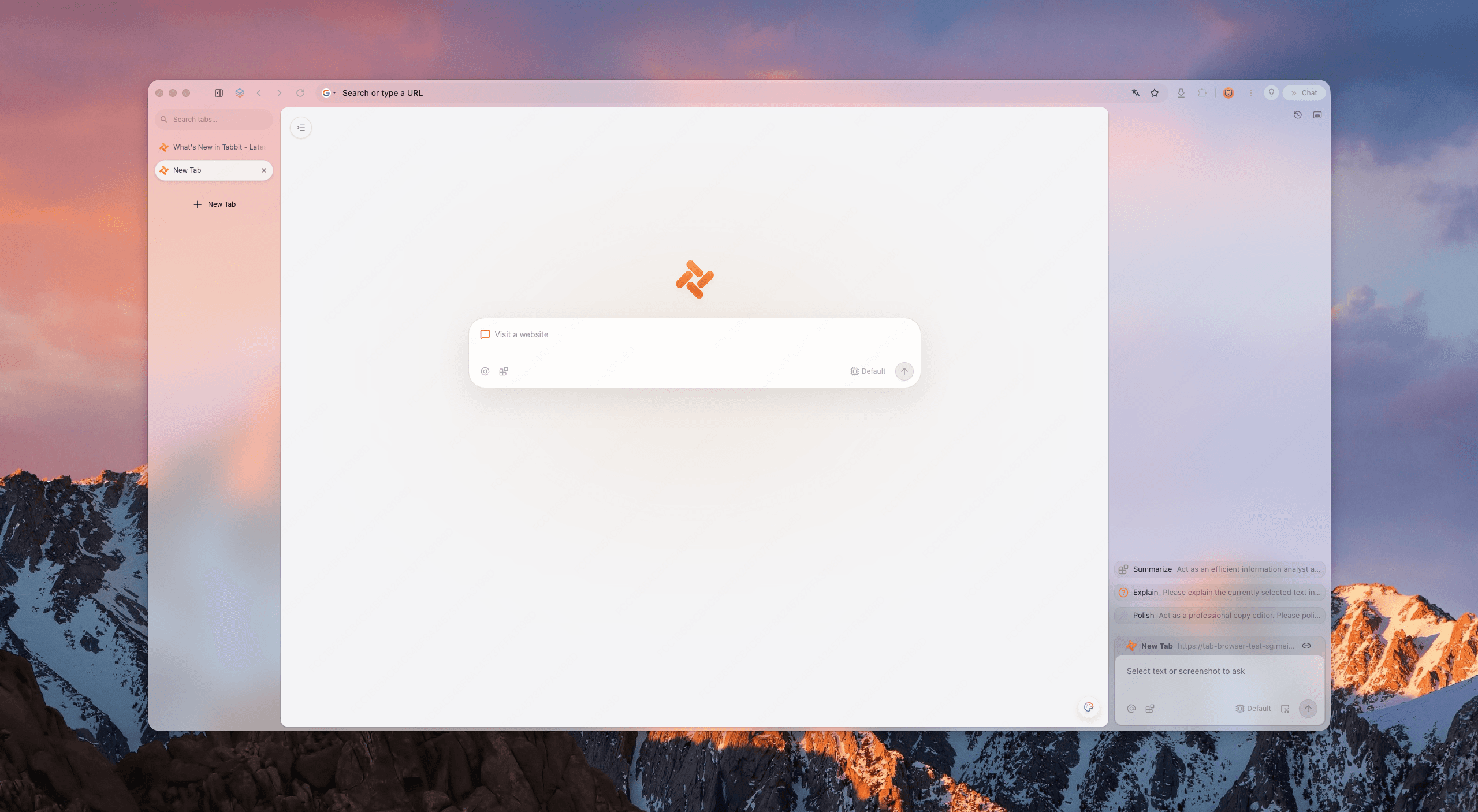
Install Tabbit Browser for macOS or Windows from the AI browser download page. The international site lists Apple Silicon, Intel, and Windows. Tabbit currently has no mobile app.
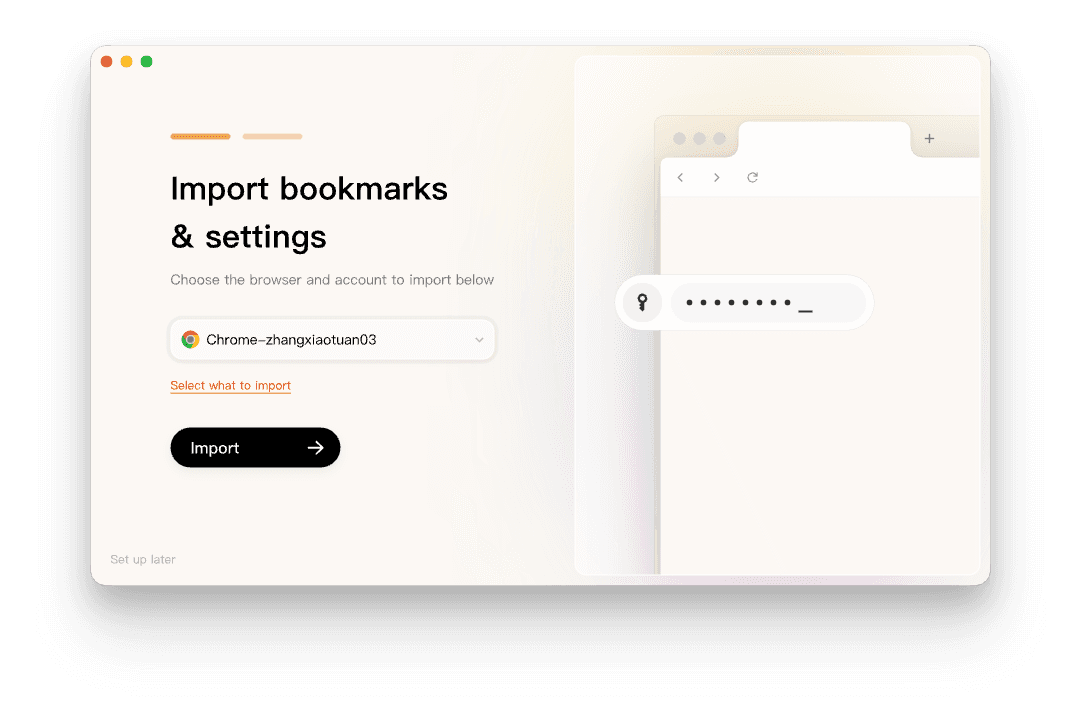
On the Import bookmarks & settings screen, pick the Chrome, Edge, or Safari profile you actually use. Use Select what to import if you want to drop history or extensions.
Import, then open three bookmarks from different folders. Sign into two sites you care about. If those fail, stop. The old browser is still there.
Bookmark-all-tabs folders will arrive as bookmarks, not as a reconstructed window. Open the dated folder and restore what you still need.
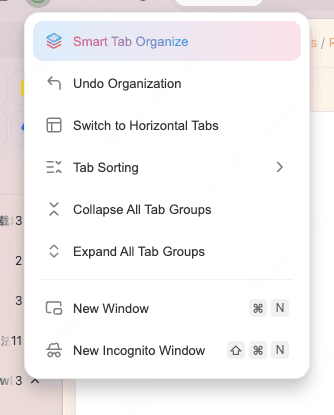
Run Smart Tab Organization once on the restored pile. Rename the groups that are wrong. Move the live project into a workspace.

Tabbit's onboarding copy and our published product pages say the importer can take history, bookmarks, cookies, passwords, and extensions. The screen you see is Import bookmarks & settings, with a password field in the illustration. That is a convenience. It is not a reason to delete the old profile before you have clicked through the sites that pay the bills.

Trade-offs you should accept before you call this a full switch:
Tabbit does not put those tabs on your phone. Keep Chrome, Safari, or Edge for that job, or treat Tabbit as a second browser beside the one that already syncs to a handset.
Smart Tab Organization mis-sorts vague titles. You still edit. The AI tab organizer page is the longer version of that limit.
A workspace is useful when the project has a name. Are browser workspaces useful is the decision page if you are not sure you need one.
Importing cookies and passwords does not prove every extension still works. Read Tabbit vs Chrome if enterprise policy, a required extension, or Google account gravity is the actual constraint.
Tabbit is Chromium-based. If the point of switching is to leave Chromium, this is the wrong destination. Use the Chrome alternatives checklist or the replace Chrome page for that fork.
People who want a full product comparison rather than a backup checklist should start with alternatives to Google Chrome. The library and the vault are what you should not throw away on the way out.
Which backup fits your switch
| Situation | Better first move | Why | Edge |
|---|---|---|---|
| You have 40 open tabs and a flight tomorrow | Bookmark all tabs, then export HTML | The window is the fragile part | URLs only; copy form text by hand |
| You trust Bitwarden or 1Password already | Export bookmarks; leave passwords in the vault | The sysadmin answer still holds | Browser CSV becomes optional |
| You only use Chrome's password list | Export from Password Manager, import, delete the CSV | Takeout will not carry the vault | Never email the file |
| You need the same live tabs on a phone | Stay on Chrome, Safari, or Edge for that list | Tabbit has no mobile app | Desktop import will not follow you |
| You want a desktop workspace after the copy is safe | Import into Tabbit, then organize one project | One pass for bookmarks and logins | Keep the old browser until you verify |
| A managed work laptop forbids other browsers | Follow IT; export what policy allows | Importers will not override a block | Personal machine is a different case |
| You are leaving Chromium on purpose | Backup first, then pick Firefox or another engine | Tabbit will not satisfy that constraint | The HTML and the vault still travel |
Final verdict
Sync is a poor archive. Before you switch, pin the live window into a bookmark folder, export HTML, and put passwords in a vault or in a CSV you delete the same day.
Then import that copy into the next browser. If the next week of work lives on a Mac or a Windows PC, install Tabbit, import the profile you just checked, restore the dated folder, and keep the old browser until two logins and two bookmark folders behave. The download at the bottom of this page is that trial, not an order to wipe Chrome.
FAQ
How do I back up Chrome bookmarks and passwords before switching browsers?
Export bookmarks as an HTML file from Chrome Bookmark Manager. Export saved passwords from Google Password Manager or Chrome Settings, or move them into a password manager first. Google Takeout does not include passwords. Keep the old browser installed until you can open a few important sites in the new one.
How do I save open tabs before I switch browsers?
Bookmark all open tabs into a named folder, for example Open Tabs 2026-08-13. Mozilla's Chrome-to-Firefox guide says to do this before import because live tabs are not a portable file. A URL folder will not restore typed form text or a playing video. Repeat the save if you have several windows.
Does Google Takeout include Chrome passwords?
No. Google's Export your data from Chrome page lists Autofill, bookmarks, history, dictionary, extensions, search engines, and settings. Passwords are managed separately in Google Password Manager. Export them there, or copy them into a password manager, before you rely on a Takeout archive.
Is it safe to export passwords to a CSV file?
Treat the CSV as a readable list of logins, not as encrypted storage. Save it only long enough to import, then delete it from Downloads and the trash. A password manager is the better long-term home. Do not email the file or leave it on a shared disk.
Can Tabbit import bookmarks and passwords from Chrome?
Yes. During setup Tabbit can import bookmarks, passwords, history, cookies, and extensions from Chrome, Edge, or Safari. It does not restore a live window of open tabs. Bookmark those tabs in the old browser first, then import and check a few logins before you uninstall anything.
Should I uninstall Chrome after I import into Tabbit?
Not on day one. Leave Chrome installed until you have opened the important bookmark folders, signed into a few sites, and confirmed the extensions you still need. Tabbit has no mobile app, so keep Chrome, Safari, or Edge if your phone still needs the same logins or tab list.